
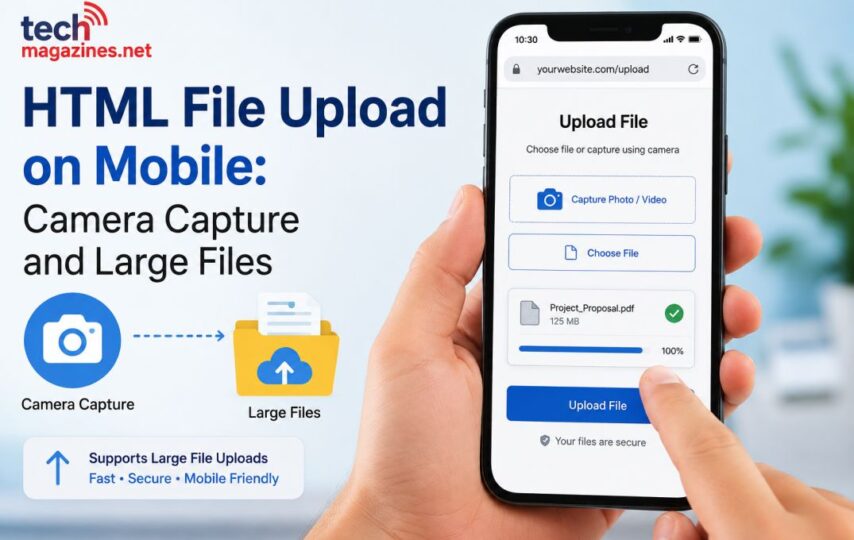

A file input that works well on a laptop can fall apart the moment someone opens the same page on a phone. The network is weaker, the files are bigger, and the person on the other end is often standing outdoors trying to photograph something before it disappears. An HTML file upload built only with desktop habits in mind tends to show that gap quickly.
This is less about a single tag and more about a handful of decisions: how you request the camera, how you break a large photo or video into pieces the network can actually carry, how you recover when the connection drops mid-transfer, and how you communicate all of this to someone looking at a small screen. Get those right and mobile upload starts to feel dependable instead of fragile.
Key Takeaways
- The capture attribute on a file input lets you request the camera directly, but it should always sit alongside a normal gallery option.
- Mobile networks are inconsistent by default, so chunked and resumable uploads matter more on a phone than on a wired connection.
- Large photos and videos should be uploaded in pieces, not buffered whole in memory, to avoid crashes on mid-range devices.
- Retry logic with backoff, resumable sessions, and offline queueing are what make an upload survive a dropped signal.
- A managed uploader can absorb most of this complexity, letting you focus on the parts of the interface that are specific to your product.
Why Mobile Uploads Are Different
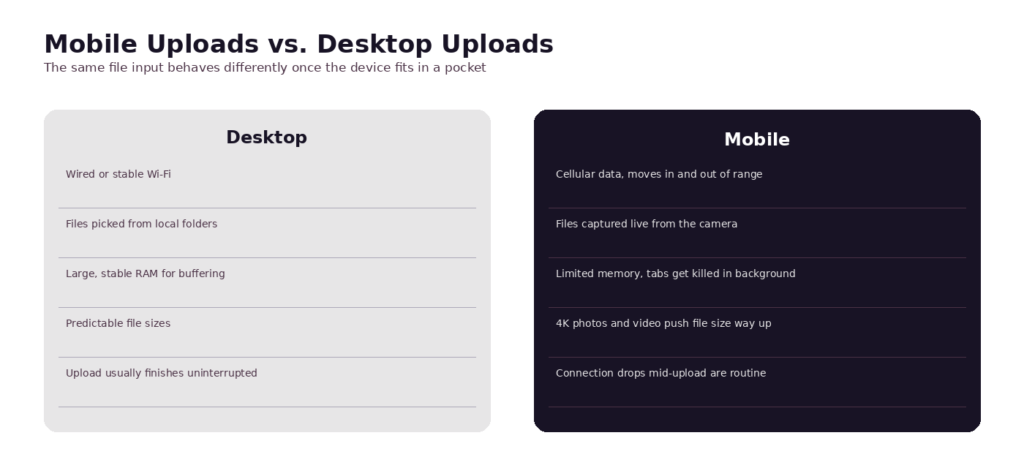
The HTML file input itself does not change between a desktop browser and a mobile one. What changes is everything around it: the network, the camera, the memory ceiling, and the person’s patience for waiting around.
Mobile Constraints
A few conditions show up on mobile that rarely come up on desktop, and they shape almost every decision that follows:
- Unstable and metered networks: Cellular connections move between 4G, 5G, and spotty Wi-Fi within the same session, sometimes mid-upload.
- Large photos and videos: A single 4K video clip from a modern phone can run into the hundreds of megabytes before a user even thinks about editing it.
- Varied device and OS behaviour: iOS Safari, Chrome on Android, and in-app browsers inside social apps do not all treat file inputs the same way, so testing on one device tells you less than it feels like it should.
What Users Expect
None of that context is visible to the person uploading a file. They just expect the basics to work.
- Capture directly from the camera: If they are documenting something in the moment, reopening a separate camera app first feels like a broken flow.
- Reliable uploads on the move: They expect the upload to keep going, or at least recover cleanly, even if they walk from a Wi-Fi zone into a hallway with one signal bar.
- Clear progress and recovery: A stalled progress bar with no explanation reads as a bug, even when the underlying cause is just a weak connection.
Once those constraints and expectations are on the table, the rest of the article is really about closing the gap between them, starting with how the camera gets involved in the first place.
Enabling Camera Capture
Camera access for an HTML file upload does not require a native app or a custom plugin. It runs through the same <input type=”file”> element, with a couple of extra attributes doing the work.
Using the File Input
Three attributes control most of the camera behaviour you will need.
- The capture attribute for camera access: Adding capture=”environment” (or capture=”user” for the front camera) on a file input nudges supporting mobile browsers to open the camera directly instead of a file browser.
- Accepting images and video: Pairing capture with accept=”image/*” or accept=”video/*” narrows the picker to the right media type, which keeps the request focused instead of showing every file type on the device.
- Falling back to gallery selection. Not every browser honors capture the same way, and some users will want to pick an existing photo instead of taking a new one. The input should always still open the gallery as a fallback, never trap the user into camera-only mode.
A minimal version looks like this:
<input
type=”file”
accept=”image/*”
capture=”environment”
/>
That single input is enough to trigger the camera on most modern mobile browsers, while degrading gracefully into a normal file picker on desktop or on a browser that ignores the capture hint. It is a small piece of markup, but it is doing a lot of the work that separates a mobile-aware HTML file upload from one that was only ever tested on a laptop.
Getting a file selected is only step one, though. What happens right after the user taps “capture” is where mobile uploads start to differ sharply from desktop ones, especially once the file size climbs.
Handling Large Media Files
A photo captured on a recent phone can easily be 10 to 20 megabytes, and a short video clip can push into the hundreds. Sending that as a single request, the way a small form upload might, is where a lot of mobile upload flows start to break down.
Coping With Size
A few patterns consistently hold up better than a single, monolithic upload request:
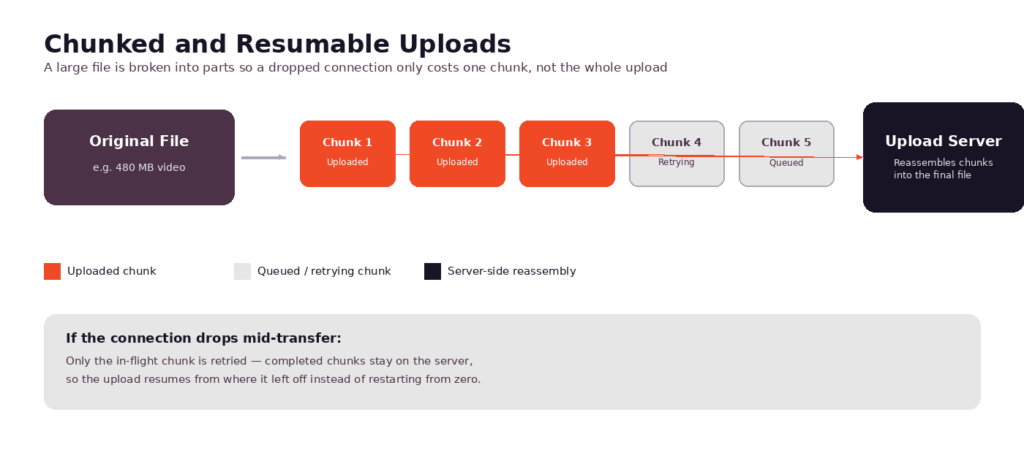
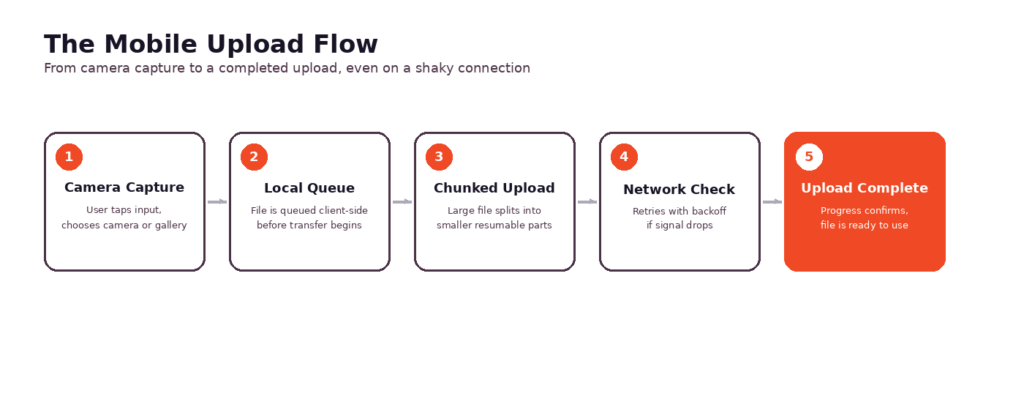
- Chunked and resumable uploads: Splitting the file into smaller pieces, uploading each one separately, and reassembling them server-side means a network drop only costs the current chunk, not the entire file.
- Client-side compression where useful: For photos in particular, resizing or compressing before upload can meaningfully cut transfer time without a visible drop in quality, though this should be applied carefully so it does not degrade content the user actually needs at full resolution.
- Avoiding memory-heavy buffering: Reading an entire large file into memory before sending it is a common way to crash a browser tab on a mid-range Android device. Streaming or chunking the read keeps memory use closer to flat.
Chunking solves the size problem, but size was never the only problem on mobile. The network underneath those chunks is just as likely to be the reason an upload fails, which is really a separate issue worth handling on its own terms.
Surviving Unreliable Networks
Even a perfectly chunked upload will fail sometimes, because mobile networks fail sometimes. The difference between an upload that recovers and one that just dies is almost entirely in how the client responds to that failure.
Resilience Patterns
These three patterns cover most of what a mobile-aware upload flow needs to survive a shaky connection:
- Retry with backoff: Rather than retrying instantly (and hammering a connection that is already struggling), waiting a little longer between each attempt gives the network a chance to stabilise.
- Resume after connection loss: Because the file is already broken into chunks, a resumable upload can pick up from the last successfully received chunk instead of starting over from byte zero.
- Queueing uploads for later: If the connection drops entirely, queueing the pending upload locally and retrying once connectivity returns keeps the user from having to notice the failure at all, let alone manually restart it.
Combined with chunking, these patterns turn a dropped connection from a failed upload into, at most, a short delay. None of that resilience is visible unless the interface around it communicates what is happening, which is where the mobile-specific UX decisions come in.
Mobile UX Considerations
Retry logic and chunking happen behind the scenes. What the user actually sees is the interface, and on a small screen, small interface mistakes get magnified.
Designing for Small Screens
A few habits make the difference between an upload flow that feels considered and one that feels like a desktop layout squeezed onto a phone.
- Touch-friendly controls: Upload buttons, retry links, and cancel actions need enough tap area that a thumb does not miss, especially in a “capture attribute” flow where the user may be holding the phone one-handed.
- Visible progress and status: A progress indicator that updates in real time, even during a chunked upload, reassures the user that something is happening rather than leaving them guessing.
- Forgiving error recovery: When an upload does fail, a clear retry option beats a generic error message that offers no next step.
None of this needs to be reinvented from scratch for every product. It is common enough ground, shared across nearly any app that touches file uploads, that most of it can be handled by tooling built specifically for this problem.
How a Managed Uploader Helps on Mobile
Everything covered so far – camera capture, chunking, retries, resumability, small-screen UX – can be built by hand. Some teams do exactly that, especially when the upload flow is central to the product. For most teams, though, it is a lot of surface area to maintain for something that is a means to an end rather than the product itself.
Out-of-the-Box Support
A managed uploader like Filestack’s HTML file upload handles most of the patterns above as configuration rather than custom code.
- Camera capture and cloud sources: Camera access sits alongside gallery selection and cloud storage sources in the same picker, without needing separate integration work for each one.
- Resumable uploads and retries: Chunking, retry with backoff, and resuming after a dropped connection are handled by the uploader, so a weak signal on the subway does not translate into a failed upload.
- Media optimisation and delivery: Large images and video can be transformed and optimised as part of the same pipeline, which matters when the files coming off a modern phone camera are considerably larger than what most backends expect.
The tradeoff is a fairly ordinary one: less control over every implementation detail, in exchange for not having to rebuild and maintain chunking, retry logic, and cross-browser camera quirks for every new project. Whether that tradeoff makes sense usually comes down to how central the upload flow is to what you are building, and how much time your team has to keep it working across the next OS update.
Conclusion
None of the individual pieces here – the capture attribute, chunked uploads, retry with backoff – are complicated on their own. What makes mobile HTML file upload genuinely tricky is that all of them need to work together, consistently, across devices and networks you do not control. A file input that only handles the happy path will keep working until someone tries to upload a video on a train, at which point every shortcut becomes visible.
Building that resilience by hand is a reasonable choice when the upload experience is core to the product. For everything else, leaning on an uploader that already handles camera capture, chunking, and recovery means one less system to maintain every time a new phone or browser update changes the rules slightly.
FAQs
How do I enable camera capture in an HTML file upload?
Add the capture attribute to a file input, typically alongside accept=”image/*” or accept=”video/*”. On supporting mobile browsers, this opens the device camera directly instead of a general file browser.
What do accept and capture do on a file input?
accept restricts which file types the picker shows or allows, such as images or video. capture is a hint that tells the browser to prefer opening the camera (or microphone) over a generic file selection screen.
Does the capture attribute work on every mobile browser?
No. Support and behaviour vary across browsers and OS versions, and some ignore it entirely and fall back to a normal file picker. Because of that, the input should always work as a standard file selector even when capture is not honored.
How should I upload large photos and videos on mobile?
Break the file into chunks and upload them individually rather than sending the whole file in one request. This limits memory pressure on the device and means a network interruption only affects the current chunk instead of the entire upload.
How do resumable uploads recover from a lost connection?
Because the file already exists as a series of chunks, a resumable upload session can track which chunks were received successfully and pick up from the next one once connectivity returns, instead of restarting from the beginning.
Can a mobile web upload continue after the browser closes?
Generally, no. A browser tab closing typically ends the in-progress upload session. Some approaches mitigate this with background sync APIs or by queueing the file locally so the upload resumes automatically the next time the page is opened, but a fully backgrounded upload independent of the browser is not something plain HTML alone can guarantee.
How should I test mobile file uploads across devices?
Test on actual devices where possible, not just browser dev tools set to a mobile viewport, since camera behaviour and memory limits do not always show up in emulation. Cover a mix of iOS Safari, Chrome on Android, and at least one in-app browser (from a social app, for instance), and deliberately test on a throttled or intermittent connection rather than only on Wi-Fi.