
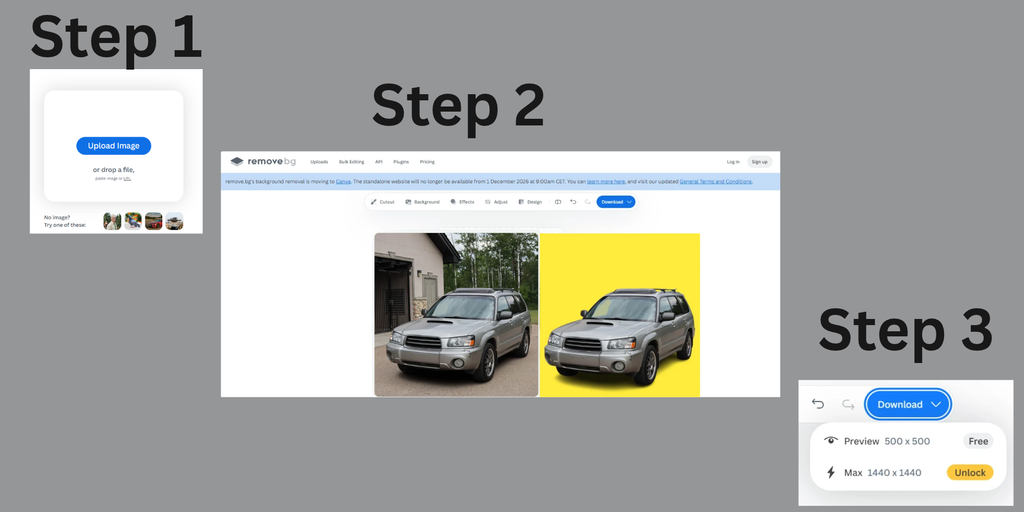
remove.bg kept the whole background removal process simple for a long time. Upload an image, remove the background, and download the transparent PNG.
That familiar process is changing, though.
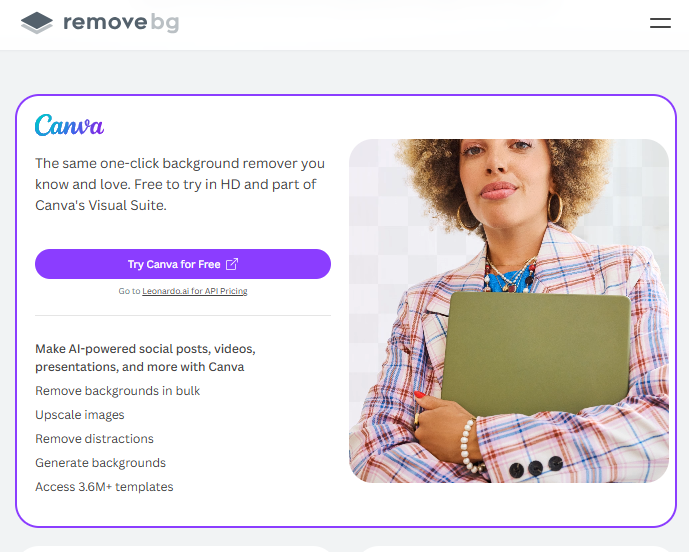
Canva acquired remove.bg and now plans to close the standalone remove.bg site on December 1, 2026, and move everything inside Canva.
That leaves a practical question: which tool can take its place?
Designkit is showing up more often as an remove.bg alternative to remove.bg. But does it offer the same convenience, or are there differences worth knowing about? This guide compares Designkit vs remove.bg to find this answer.
Side-by-side test method – same photos for both tools
For this comparison, we uploaded the same photos to Designkit and remove.bg and checked the results against the original images. The goal was to see how Designkit’s results compared with remove.bg in everyday editing tasks, especially when an image had details that were easy to lose during background removal. Here are the results:
Round 1: Speed
remove.bg: The upload to the finished preview was insanely fast. It took 1-2 seconds for a headshot, maybe 3 seconds for a full body. remove.bg’s engine has been optimized for years, and it showed. You see the cut almost instantly.
Where it slows down now is what happens after removal. To get the high-res image, the flow pushes toward Canva. You need to open the image in Canva, wait for the editor to load, then export. If you just want a file, that’s extra clicks.
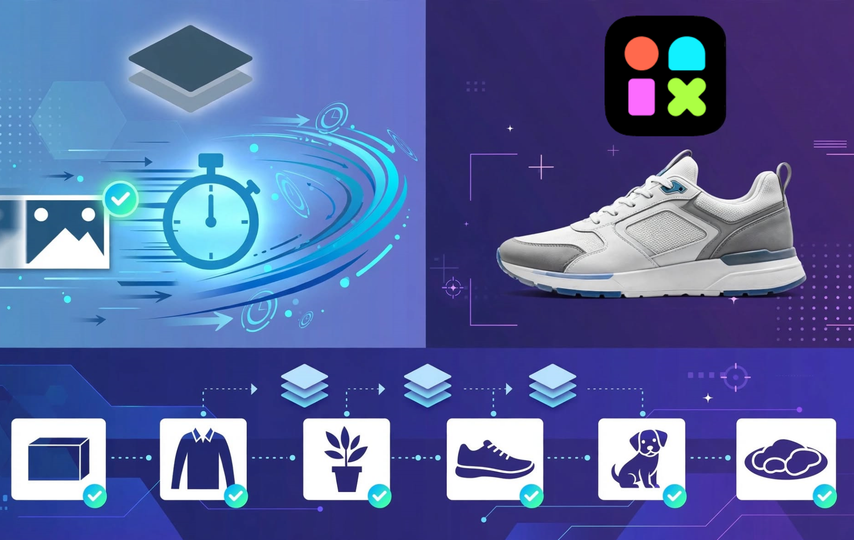
Designkit: Expect a preview in roughly 2–3 seconds per image. Once the preview loads, the full-size image is ready to save. The download option is right there, so there’s no need to open another screen or fiddle with design settings. remove.bg has a slight edge for single images, while Designkit is a handy option when the same task needs to be repeated across several files.
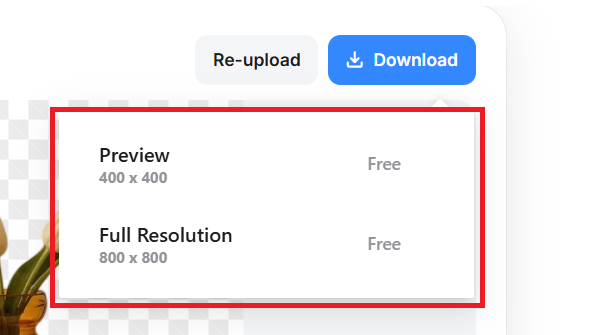
In terms of speed, Designkit is comparable to remove.bg — in fact, it’s faster when you look at the whole process. Preview time is almost the same, 1-2 seconds vs 2-3 seconds, but Designkit gives you the full-resolution file right on the same page.
Round 2: Edge Quality / Hair
This is where most free tools fall apart. Any tool can cut a box. Hair, fur, thin chains, sheer fabric, soft shadows – that’s the real test.
First Photo: Celebrities with frizzy, flyaway hair shot
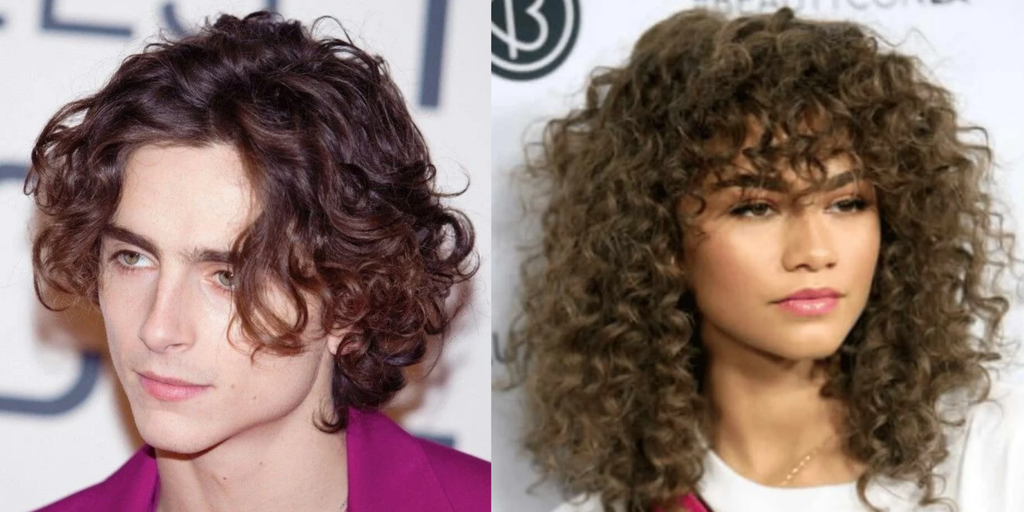
remove.bg: remove.bg basically has the best hair algorithm in the business. No question. The difference was easiest to see around loose hairs. They stayed visible instead of disappearing into the background, and the outline of the hair looked much like it did in the original photo. There wasn’t much of a light fringe around the hairline either, which saved some time on touch-ups.
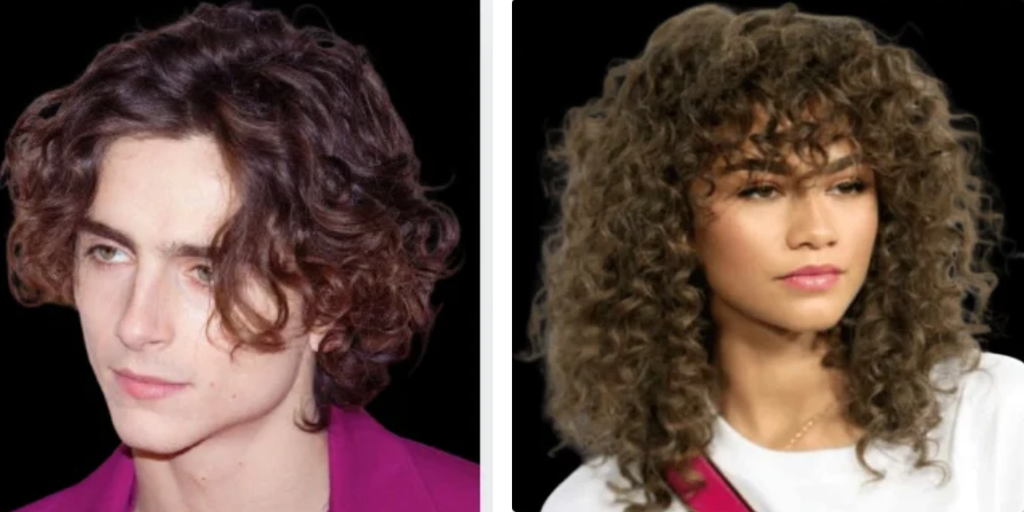
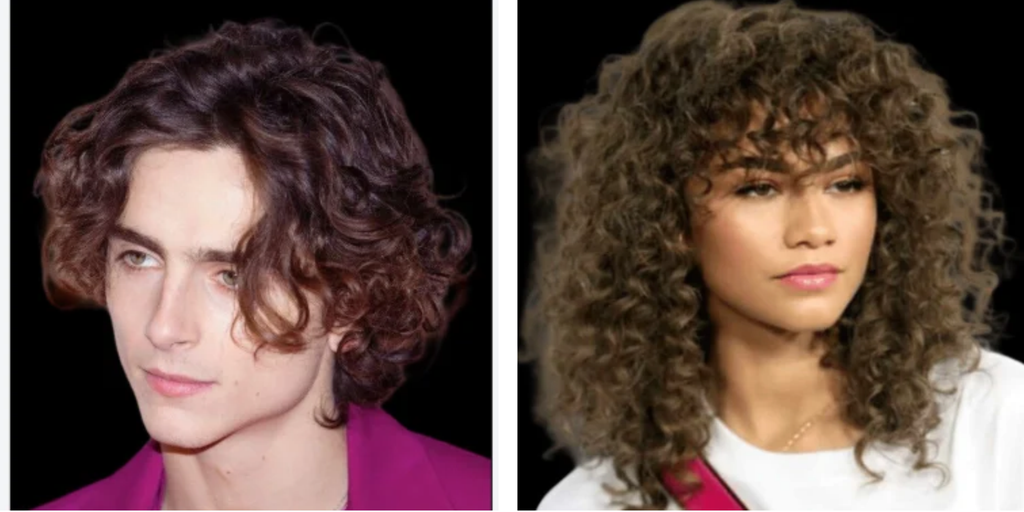
Designkit: The Designkit background remover kept about 90-95% of the same strands. Zoomed to 200%, you can see 2-3 ultra-fine hairs get softened. Not blurry, just slightly faded. For a LinkedIn headshot or Instagram post, you would not notice. For a beauty campaign where hair is the product, people may notice the difference.
Second Photo: Black sneakers with natural shadow and thin laces
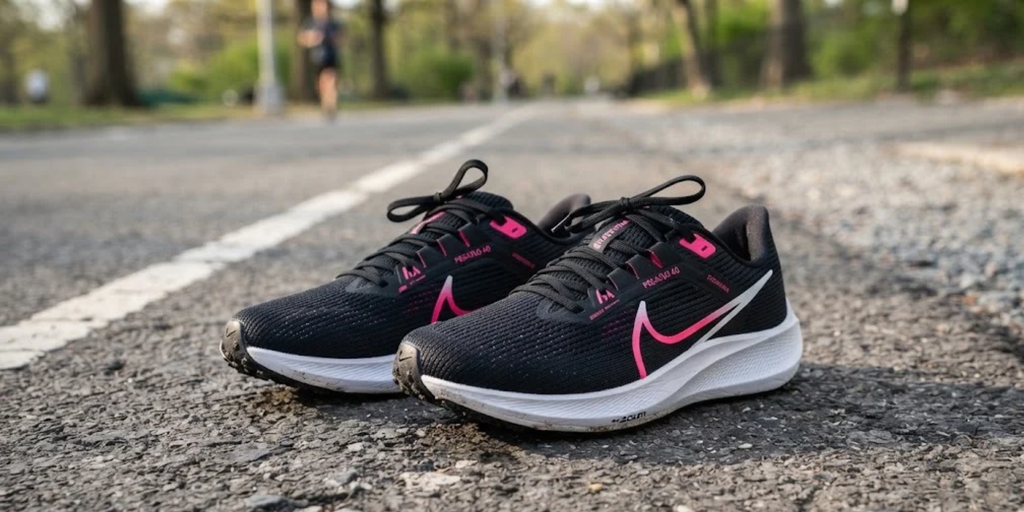
remove.bg: remove.bg cut the laces perfectly, but it removed the soft natural shadow under the sole completely, leaving a hard floating cutout. Some people want that. For e-commerce, losing the shadow makes the shoe look fake.
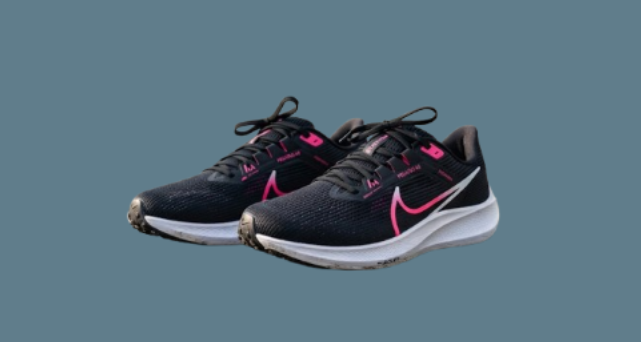
Designkit: Designkit gave a clear cut and kept a soft shadow under the sole by default. For product photos, that small detail makes the shoe look more realistic on a white background. There’s also an option to drop the shadow if you need a clean cutout. Laces were sharp on both, though remove.bg had a tiny edge on the thinnest lace.
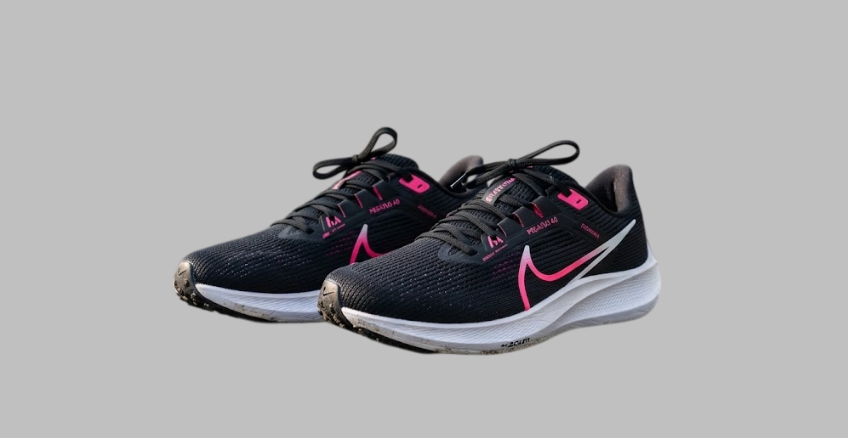
Bottom line on quality: Designkit is almost the same as remove.bg. You only notice a difference if you zoom to 200% on frizzy hair. For regular photos — headshots, sneakers, products — the cuts are identical, and Designkit’s shadow handling actually looked more realistic for e-commerce.
Round 3: Batch and Export Workflow
This is where daily work is won or lost.
remove.bg workflow: Upload one photo, get the preview, and download free low-res (high-res costs credits). Batch? There is a desktop app and API, but on the website it’s one by one. And since the Canva move, high-res flow often means opening the image in Canva.
If you have 30 product photos, you are opening 30 designs. Credits are 0.20-0.30 per high-res image depending on plan. The free plan is basically a preview (and that too low-res preview).
Designkit workflow: Designkit makes batch removal pretty straightforward. Open the page, drag in up to 15 JPG, PNG, or WEBP files, and let it process them together. There’s no need to download each result just to check how the edges look. The full-resolution preview is available before login, and the free plan offers up to 100 full-resolution exports a day once you sign in.
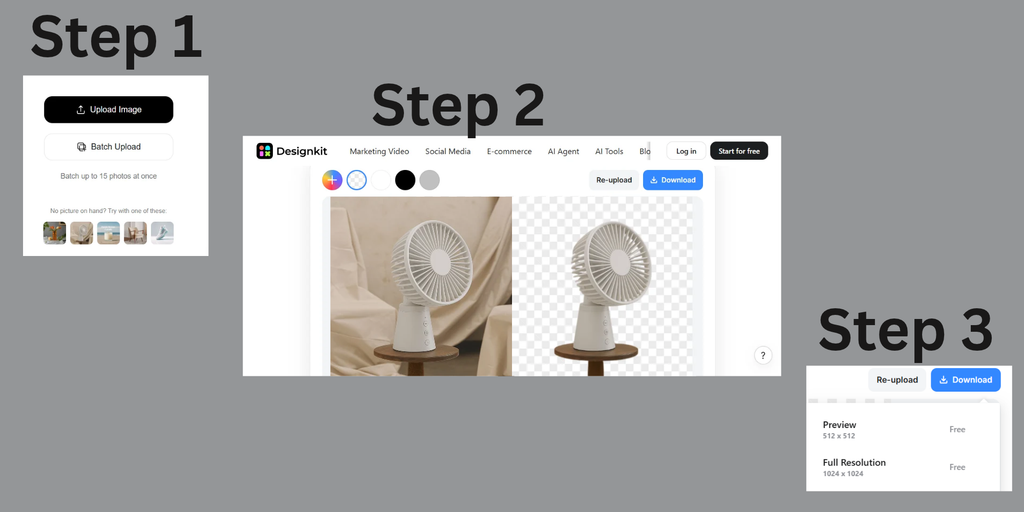
Is the Batch and Export Workflow of Designkit comparable to remove.bg? For everyday use, YES. For batches, it’s more than comparable. remove.bg requires its desktop app or API for real batch work — on the website it’s manual. Designkit handles the batch right in the browser.
Verdict: A Practical Alternative for Everyday Background Removal
Designkit’s results are pretty much neck-and-neck with remove.bg. remove.bg is still a touch better at preserving those super-fine flyaways. Designkit was more natural with shadows. The sneaker didn’t look like it was floating.
For the kind of photos most people edit daily, the differences are minor. And where Designkit pulls ahead is practicality. No need to open Canva for high-res, batch 15 files in-browser, preview full-res before login, and 100 free full-res downloads a day.
With remove.bg’s site moving into Canva on Dec 1, 2026, Designkit keeps the fast, one-page workflow that made remove.bg popular in the first place.