
Following numerous revisions, ChatGPT no longer serves as only a writing assistant. It is now a generalized device of producing and modifying images and this is what has made it gain mass users. The editing tools, especially, have been in the limelight since they eliminate most of the workload that used to exist between an idea and its visual representation. However, the outcomes are not random.
The prompt that drives an image is a major factor in the quality of an edited image. An indeterminate direction yields no effect; a definite one may yield an image which is memorable. This article identifies the most popular prompts to use with GPT-based image editing and provides direct examples that can be easily reused.
Top 10 ChatGPT Image Editing Prompt
Below is a list of 10 best ChatGPT image editing prompts that are trending on the mainstream social media. Every prompt is typed in a manner that it can be copied and used as it is. The users can modify the details to their own end, and it will make the final image appear purposeful instead of generic. Select the prompt you require and enter it into ChatGPT and start testing the output.
1. Hugging Your Younger Self
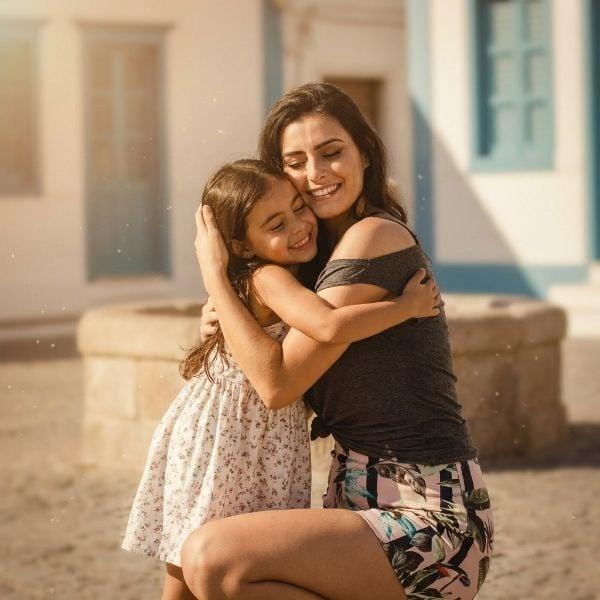
The focus of this trend is on one, straightforward concept, which is to juxtapose the current self with a previous one. The system creates a picture where the adult figure is hugging the younger version in a warm and relaxed manner.
Prompt: “Create a realistic photo of my current self hugging a younger version of me. Show both figures in a warm, emotional embrace with soft lighting and gentle, nostalgic colors. Use a dreamy, slightly surreal style to symbolize self-acceptance and growth over time. Ensure the scene feels uplifting and inspiring, like a comforting memory or a heartfelt moment.”
2. Transforming Images into Ghibli Anime
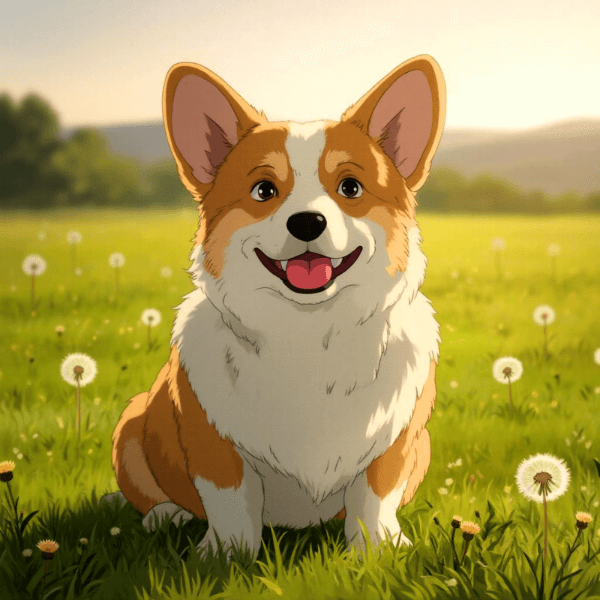
ChatGPT gained significant attention following the launch of the GPT-4o model that featured Ghibli-inspired image conversion. This feature allows one to make a regular photograph look soft and animated. This can be done with portraits, animals, scenery, everyday objects and even food.
Prompt: “Transform this photo into a Studio Ghibli–inspired illustration. Use soft pastel colors, hand-painted textures, and gentle lighting reminiscent of classic Ghibli films. Add dreamy backgrounds, subtle atmospheric details like drifting clouds or light rays, and a warm, nostalgic mood. Keep the main subject recognizable but stylized with expressive features and delicate outlines.”
3. Image to 3D Figurine
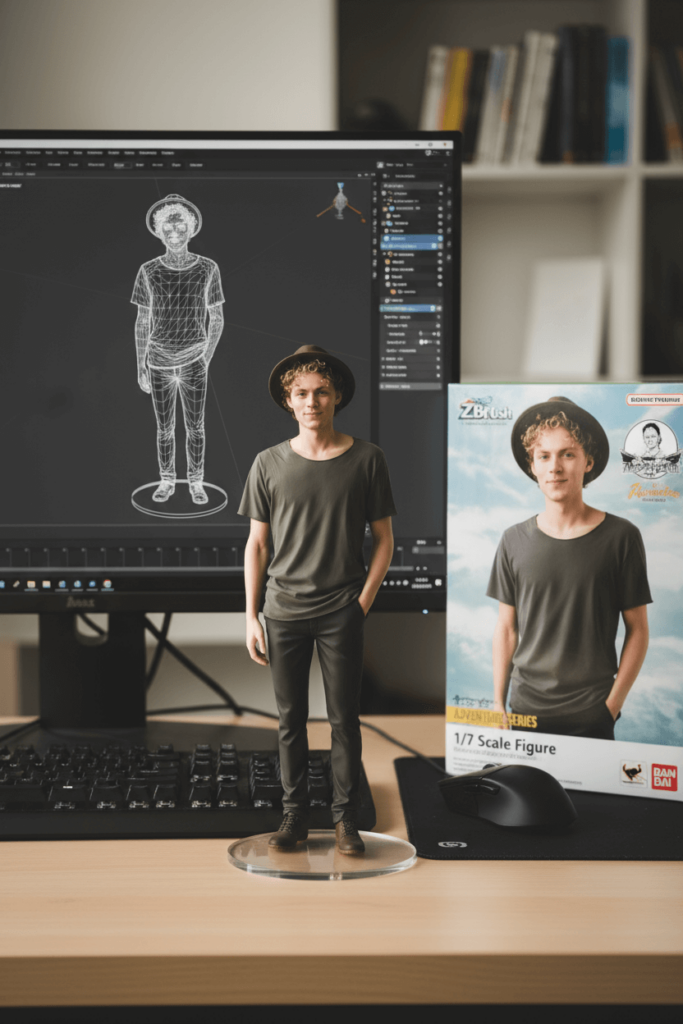
An ordinary picture of a portrait or a selfie can be turned into a three-dimensional image of a model or an action toy. These are images that are meant to be eye-catching and they are frequently posted online due to their novelty and sculpted shape.
Prompt: “Change this photo to a 3D collectible figurine style. Recreate the subject as a small, detailed figurine with smooth textures, vibrant yet realistic colors, and subtle shading to mimic plastic or resin material. Place the figurine on a simple display base with soft studio lighting and a neutral background to emphasize the 3D look.”
4. Enhancing Photo
One prompt can be applied to fix and optimize a picture. These involve color adjustment, blur reduction, brightness, saturation and light balancing. The point is not to transform the subject, but to make the photograph more clear and useful.
Prompt: “Enhance this photo by improving its overall quality. Increase sharpness, clarity, and color vibrancy while reducing noise or blur. Adjust lighting and contrast to make the image more visually appealing, keeping the subject natural and realistic.”
5. Body Reshaping
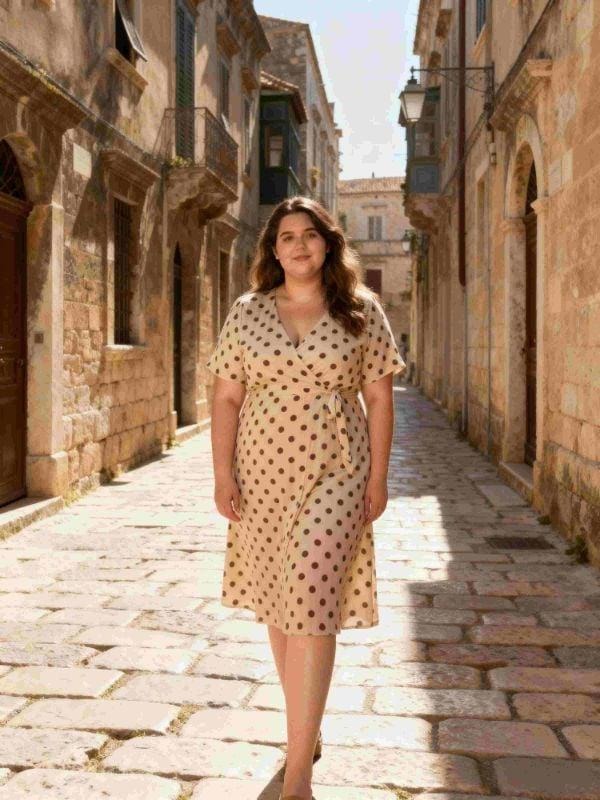
This option enables the user to change the outline of a full-length realistic or illustrated photograph. The figure can be made thinner, fatter or rounder, according to one’s preference. The procedure is fast and it is based on a clear direction as opposed to constant adjustment.
Prompt: “Make the body in this photo [your requirements, eg slim, chubby, etc.] or reshape the body in the photo into [your needs, such as longer legs, slimmer waist and more]. Maintain realistic proportions, natural skin texture, and consistent lighting while making the changes. Ensure the final image looks seamless and lifelike without distorting other elements or the background.”
6. Trying Virtual Clothes
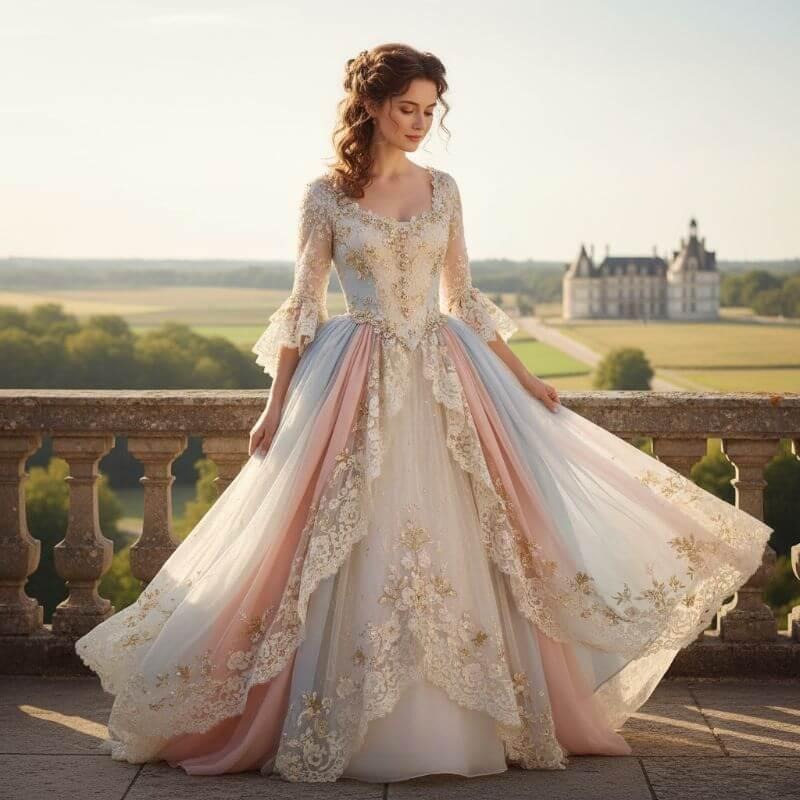
Dresses could be changed almost instantly with those mentioned in the prompt. A shirt, trousers or a complete set of clothing can be changed to test various combinations. The reason is functional: to compare appearances and determine which outfit is the best.
Prompt: “Change the clothes of the person in this photo to [describe desired outfit — e.g., casual t-shirt and jeans, formal suit, fantasy armor]. Keep the person’s pose, body proportions, and lighting consistent, while making the clothing look realistic with natural folds, textures, and shadows. Ensure the new outfit integrates seamlessly with the original image.”
7. Removing distractions
Imaging editing is becoming more common than image generation. The majority of users would like to fix minor errors instead of changing the whole picture. The prompt is meant to eliminate undesired information and retain the environment. Loose instructions tend to produce an overabundance and artificial outcome. The prompt maintains the composition of the background and keeps the image realistic.
The prompt: “Remove the people in the background only. Preserve the original environment, perspective, and lighting. Do not alter the main subject or distort the scene.”
8. Applying Natural Skin Retouch
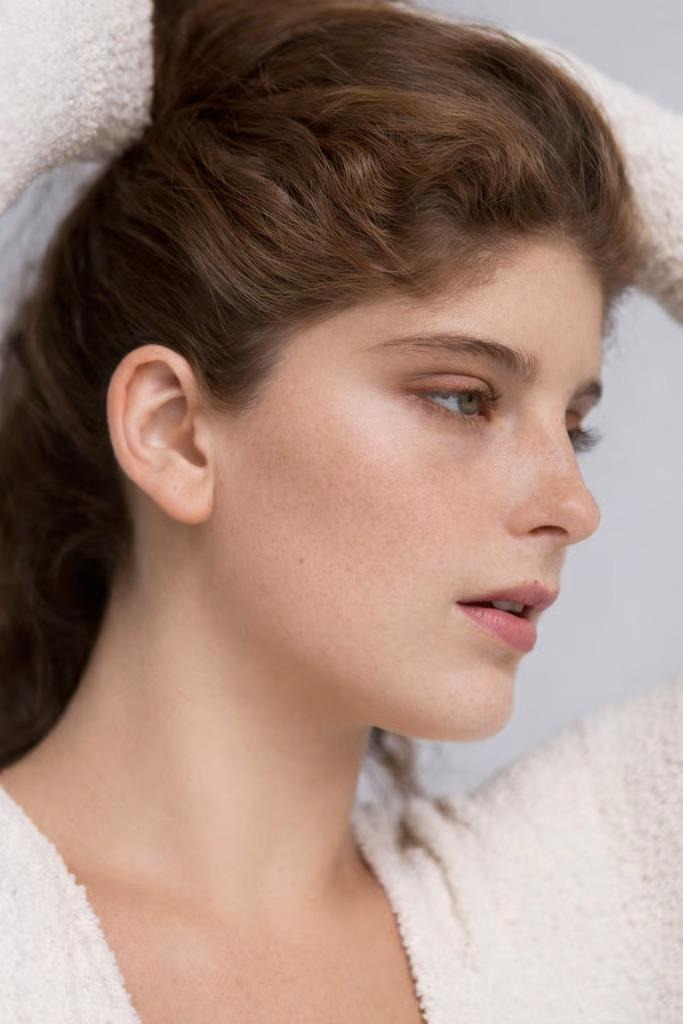
The stage where artificial adjustment is most easily taken to excess is skin retouching. The image systems of the day can be moderated; however, they need specific training. This command instructs ChatGPT to do slight corrections and not to smooth the lines that provide a face with its identity. Natural texture, pores and minor irregularities are not removed so that the outcome is believable.
The prompt: “Lightly even out skin tone and remove redness. Preserve natural skin texture and facial details. Avoid smoothing, artificial shine, or plastic effects.”
9. Swapping the Environment
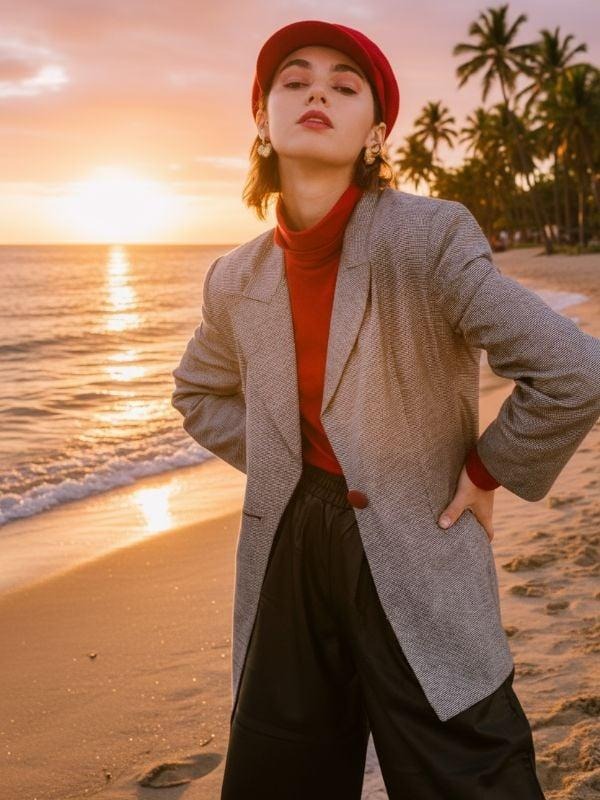
Sometimes a photograph may have a good subject but the environment behind the subject is not. This is a prompt that is supposed to be used in such cases. It substitutes the background but gives the system the command to maintain the original illumination on the face. The new setting does not seem to be imposed on the figure by maintaining the light the same.
Prompt: “Change the location of this photo: instead of the current background, make it a summer park with soft sunlight and green trees. Keep the lighting on the subject’s face and the original color scheme of the photo. Ensure the subject looks organic in the new environment with natural depth of field.”
10. Creating Cinematic Portraits
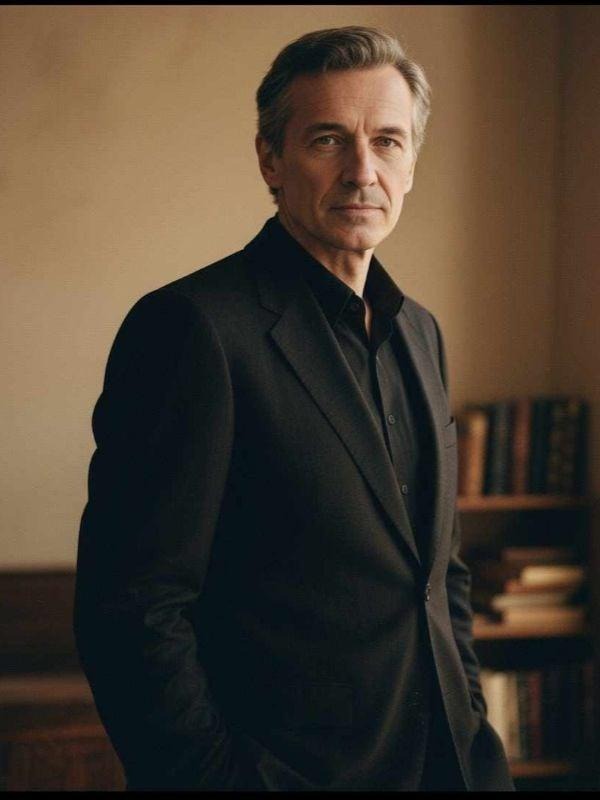
A typical user wants what is often referred to as a cinematic effect when editing their portraits. It is meant to add depth and atmosphere without making the subject unrecognizable. A careful prompt may provide controlled contrast, balanced shadow, and a feeling of composition that attracts the eye. This technique is applied sparingly and makes a portrait more vivid and yet one that is very much in touch with reality.
Prompt: “Convert this portrait photo to a cinematic-style image with dramatic lighting, rich color grading, and a shallow depth of field. Add subtle film grain, soft shadows, and a wide-aspect ratio to evoke a movie still. Use natural tones, cinematic highlights, and mood-driven contrast to give the image a polished, storytelling feel.”
Conclusion
You don’t need any design skills to use ChatGPT for photo editing. You just have to be able to type a sentence and you are already qualified. All you have to do is just tell ChatGPT what you want in plain English and it starts working. The era of your being a creative director has come, it needs no previous experience at all.
One of the most pleasant tricks is removing unwanted objects from a photo. Got an ex in the background? You have a raggedy waste bin wrecking your beauty shot? The distraction can be annulled by a good prompt, without disrupting the natural composition of the scene. Simply be precise.
ChatGPT can also reshape body proportions in photos, and it can do so quickly. Based on a clear directional indication, the user is allowed to modify the silhouette of a figure slimmer, fuller, in different proportions. It is quicker than the conventional editing software and eliminates manual adjustments that are time-consuming.