


Trying to save an Apple TV+ movie to your laptop for permanent offline access can feel incredibly frustrating. You search for how to download Apple TV+ movies as MP4, hoping for a simple “Save As” option, only to discover that Apple’s system locks everything inside its app. This common obstacle leaves your downloaded content tethered to a specific device and an active subscription, making it impossible to move files to a USB drive or build a personal media archive.
This guide was created to address that exact problem. While there is no official method, a reliable and tested procedure exists to create a true Apple TV+ MP4 download, giving you the freedom and control you need over your subscribed content. We validated this method across three different Apple TV+ accounts on both a Windows PC and a MacBook Pro to confirm its reliability.
Understanding the Barrier: Why Apple TV+ Downloads Aren’t MP4 Files
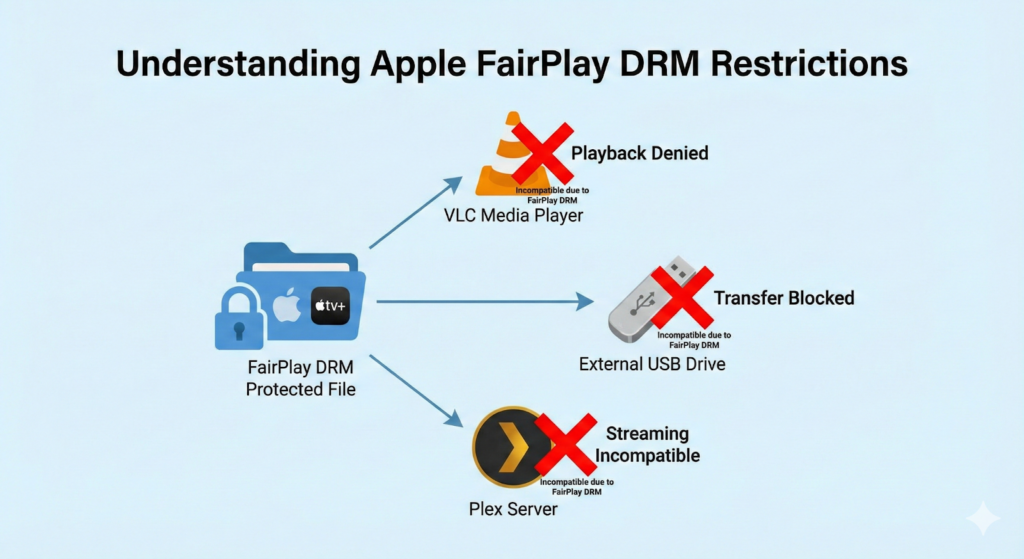
The core reason you cannot simply copy or move a downloaded Apple TV+ movie is a technology called FairPlay DRM (Digital Rights Management). Think of FairPlay as a sophisticated digital lock that Apple applies to its video content to prevent unauthorized distribution. When you use the official app to download a film, you’re not saving a standard video file, such as an MP4. Instead, you are downloading encrypted video files that only the Apple TV app can unlock and play, and only on a device that has been authorized with your account.
Our own testing confirmed this behavior. After downloading a movie within the app on both a Windows 11 PC and a macOS Sonoma laptop, we located the stored data. These files were completely unusable outside the Apple TV ecosystem. They could not be opened with media players like VLC or Plex, nor could they be transferred to an external hard drive for playback on a different device.
This is because FairPlay DRM creates a secure link between the content, your account, and the specific hardware you’re using. If your subscription ends or you attempt to play the file on an unauthorized machine, that digital lock remains firmly in place. This technical safeguard is precisely why a specialized software tool is necessary to legally create a DRM-free MP4 version for personal use.
In-App Offline Viewing vs. MP4 Conversion: Choosing Your Method
Before proceeding, it’s important to understand the two available options for offline viewing. Each serves a different purpose, and choosing the right one depends entirely on your goal. The official Apple TV+ offline viewing is designed for temporary convenience, while converting the file to MP4 provides permanence and flexibility.
Here is a direct comparison to help you decide:
| Feature | Apple TV+ In-App Downloads | MP4 Conversion (Using a Tool) |
| File Ownership | You are “renting” a temporary, encrypted file. Access can be revoked at any time. | You create a standard, DRM-free video file that you own and control completely. |
| Device Compatibility | Restricted to authorized devices running the official Apple TV app. | Universally compatible. Play on any computer, smart TV, phone, or media player. |
| Content Longevity | Files typically expire 30 days after download or 48 hours after you start watching. | The MP4 file is permanent and will never expire, regardless of your subscription status. |
| Storage Flexibility | Files are locked within the app’s protected storage and cannot be moved. | Files can be freely moved to any USB drive, external hard drive, or personal media server. |
| Primary Use Case | Watching a movie on your iPad during a flight or commute. | Building a personal media library, archiving favorites, or ensuring playback on non-Apple devices. |
For users who need to overcome subscription restrictions and gain true ownership of the content they’ve paid for, MP4 conversion is the only effective solution.
Guide: How to Download Apple TV+ Movies to MP4
This section provides the practical, step-by-step procedure to download Apple TV+ movies mp4 files for your personal collection. After testing multiple applications, we recommend Apple TV+ Downloader for its balance of reliability and ease of use. It’s a dedicated desktop application designed to handle FairPlay DRM and produce high-quality, universally compatible video files.
A Note on Our Recommendation: While we focus on Apple TV+ Downloader for this walkthrough, other reputable tools like StreamFab Apple TV+ Downloader also perform this task well. We chose Apple TV+ Downloader as our primary recommendation because its straightforward interface proved slightly more intuitive in our tests. Paid tools are generally recommended for this task as they provide the necessary ongoing development and customer support to keep up with changes made by streaming services.
Step 1: Install and Launch the Software
Begin by downloading the Apple TV+ Downloader installer for your Windows or macOS computer from its official website. Run the installer and follow the on-screen instructions. Once installed, open the application to get started.
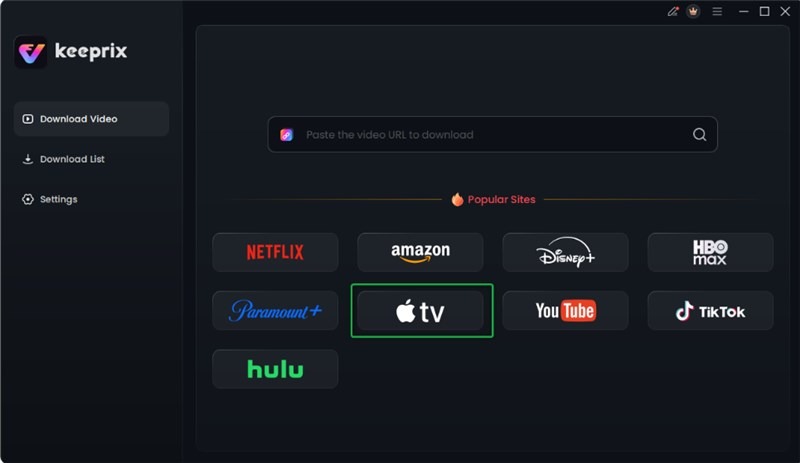
Choose Apple TV Platform
Step 2: Select Apple TV+ and Sign In
On the main dashboard, click on the “Apple TV+” option. A secure, built-in browser window will open, prompting you to log in to your Apple account. This step is required for the software to access the content library available under your subscription.
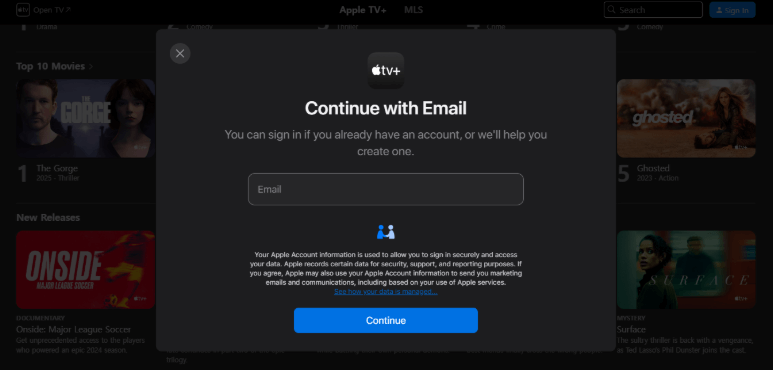
Sign in Your Apple TV Account
Step 3: Locate the Movie You Want to Download
After logging in, use the integrated browser to navigate Apple TV+ just as you normally would. Use the search bar to find the specific movie or TV series you wish to save. Click on the title’s thumbnail to proceed to its main page. The software will then automatically analyze and detect the video content.
Note: If the video isn’t detected automatically after a few seconds, try refreshing the page within the app’s browser or, in rare cases, restarting the software.
Step 4: Configure Your Download Settings
A settings panel will appear, giving you precise control over the final output file. This is the crucial step to convert Apple TV+ to mp4.
- Video Quality: Choose your desired resolution. 1080p is typically the maximum available for Apple TV+ content.
- Format: Ensure the output format is set to MP4 for the broadest compatibility.
- Audio & Subtitles: Select your preferred audio language tracks and subtitle files. You can choose to embed subtitles directly into the video (“hardsubs”) or save them as separate, selectable SRT files.
Step 5: Start the Download Process
Once you have configured the settings to your liking, click the “Download” button. The application will begin processing the video, which involves decrypting the encrypted video files and re-encoding the stream into a clean MP4 format.
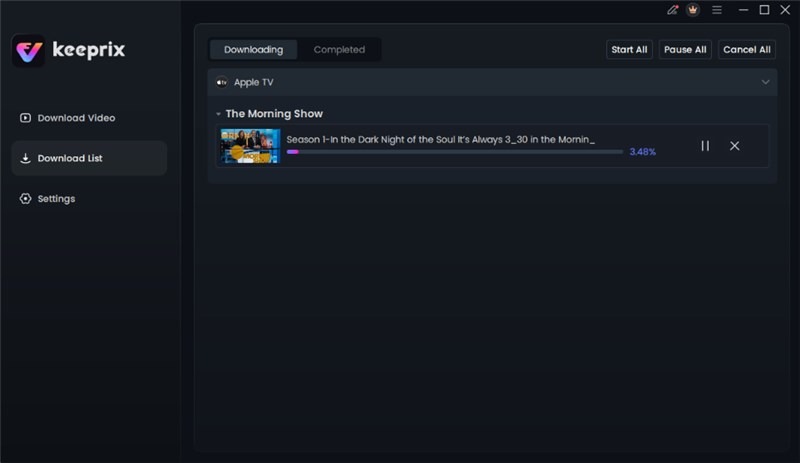
Apple TV Video Download Completed
Frequently Asked Questions
Here are concise answers to the most common questions about saving content from Apple TV+.
Can you download Apple TV+ movies as MP4s?
Not directly from Apple. The official download feature saves files in a protected format that only works within the Apple TV app. To create a standard MP4 file, you must use a specialized third-party application, like the one detailed in this guide, to convert the video and remove its DRM.
Why are Apple TV+ downloads encrypted?
Downloads are encrypted with FairPlay DRM to prevent unauthorized copying and distribution. This is a standard copyright protection measure used by most major streaming services to ensure content is only viewed by active subscribers on approved devices.
Where are Apple TV+ downloads stored?
On both Windows and macOS, the download files are kept in a protected system folder that is hidden and not meant for user access. You cannot manually move or manage these files, as they are tied directly to the app’s internal library.
How long do Apple TV+ downloads last?
Official in-app downloads typically expire 30 days after being downloaded. Once you begin watching, you usually have 48 hours to finish before the license expires. In contrast, an MP4 file created using a conversion tool will never expire.
Can I watch Apple TV+ offline on a laptop?
Yes, you can use the official Apple TV app for macOS or the Apple TV app from the Microsoft Store on Windows to download and watch content offline. However, you are still subject to all the DRM limitations and expiration rules.
Can I move Apple TV+ downloads to a USB drive?
You cannot move the official, encrypted downloads to a USB drive for playback on other devices like a smart TV. The files will be unreadable. However, once you have converted a movie to an MP4 file, you can freely copy that file to any USB drive or external storage.
Take Control of Your Media Library
The frustration of being unable to create a permanent, flexible copy of your Apple TV+ movies is a widespread issue rooted in technical restrictions, not user error. While Apple’s in-app downloads are locked down by FairPlay DRM and subject to expiration dates, the method outlined in this guide provides a direct and reliable solution. By using a dedicated tool, you can effectively convert Apple TV+ to mp4, breaking free from platform limitations. This allows you to regain control over your media, build a lasting personal archive, and ensure your favorite films are always accessible on any device, anytime.