
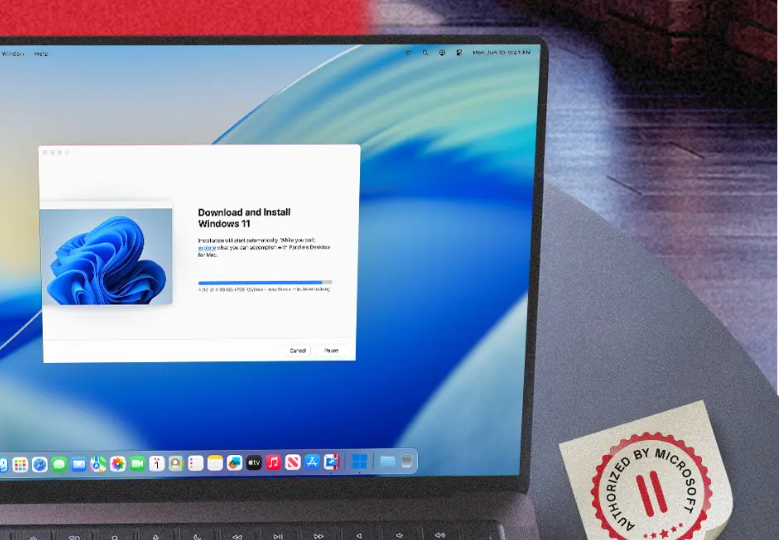

Some Mac users love the aesthetics and the punch of Mac computers, but need Windows-specific programs for work or personal use. While using Windows on a Mac with full compatibility might seem difficult, solutions are very much available in practice. This article helps you to run Windows on Mac in the right ways so that you can use it without any glitches.
Assessing the Need for Windows on Mac
Some users rely on software that works best on Microsoft’s operating system. Others need to test applications on both platforms for development purposes. Understanding the specific reasons helps determine the most suitable approach to run Windows on Mac, ensuring optimal performance and ease of use.
Choosing the Right Installation Method
A few methods enable users to install or run Microsoft’s platform on gear-running hardware. These techniques each have their own benefits in speed, compatibility, and convenience. The right solution depends on the individual needs, like the necessary access to hardware, graphics performance, or simple usability.
Boot Camp for Direct Installation
Boot Camp, which is integrated with most Mac models, allows users to install Microsoft’s operating system side by side with macOS. This option partitions the drive, committing a segment to Microsoft’s platform. Users can reboot the PC into different systems, which makes it super-fast and gives full hardware compatibility.
Virtualization Software for Simultaneous Use
Virtualization applications let Mac machines run Microsoft-like applications within a window. It allows users to run both macOS and Microsoft’s platform simultaneously, without needing to reboot to switch from one to the other. Virtualization is a good solution for people who only need the programs running on both systems periodically.
Installing Windows With Boot Camp
It is recommended that all users back up their data to avoid losing it before they begin. Using Boot Camp Assistant takes users through the steps of partitioning the drive and making room for a copy of Microsoft’s OS. The installation passes after downloading the required files and will restart the computer into the new platform. Drivers make sure that components like graphics, sound, and input devices run smoothly once they have finished their task.
Setting Up a Virtual Machine
To use virtualization, begin by installing a reputable virtual machine application on your device. After setting up the software, create a new virtual machine and assign resources such as memory and storage. Mount the Microsoft installer and proceed with the operating system setup as prompted. Once installed, integration features help users share files and access devices seamlessly.
Performance and Compatibility Considerations
Direct installation using Boot Camp gives you the best hardware performance from the machine, making it ideal for high-end tasks like gaming or professional creative work. For lightweight applications and day-to-day usage, virtual machines are unparalleled in convenience, even if they are a bit slower. The method users choose will partly depend on the software they plan to use.
Maintaining Security and Updates
Security becomes a little tricky when operating two environments. Users must update both systems and employ trusted security software. Checking for updates regularly will potentially protect you or keep you updated with the new features or improvements from either of the operating environments.
Troubleshooting Common Issues
People might face issues like slow performance or some functions not working at all. These issues can be solved by going into the OS and either installing new drivers or changing some settings. There are various online forums and support groups you can refer to that can help you solve these problems in no time!
Backing Up Important Data
When you are running two systems, you need good backups. Users are encouraged to back up crucial files on an external hard drive or a safe cloud location regularly. Frequent backups safeguard against the loss of data if a problem occurs in either OS or when switching to either one.
Conclusion
With some careful planning and the proper gear, running Microsoft’s system on a Mac computer is possible. Users can still reap the benefits of both environments, whether installing it directly or through virtualization. It leaves room for work, creativity, or play, while ensuring that every member enjoys their programming.