
Why Watermarks Become a Problem in Review Videos
Few review videos only feature footage from one source.
You may have B-roll from the brand, a previous review of your own, or even a short video you’ve included to show comparison. The problem is that these clips may already be watermarked.
So, what do you do? Crop it? Blur it? Cover it up? A lot of common advice makes watermark removal sound easier than it really is.
In this guide, we’ll clear up six common watermark removal myths and explain what actually works when you’re preparing review footage for publication.
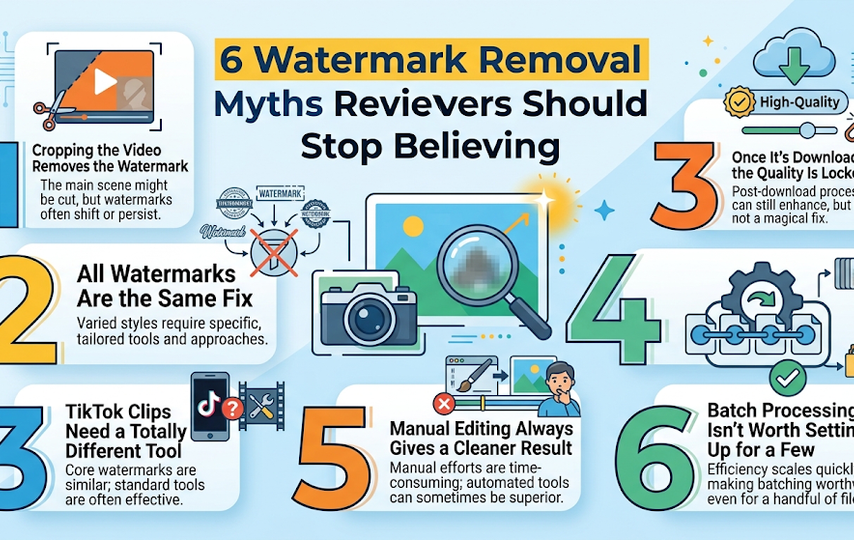
Myth #1: Cropping the Video Removes the Watermark
Seeing a watermark sitting in the corner of a clip? The first thought is usually, “Why not just crop it out?” Sounds easy enough.
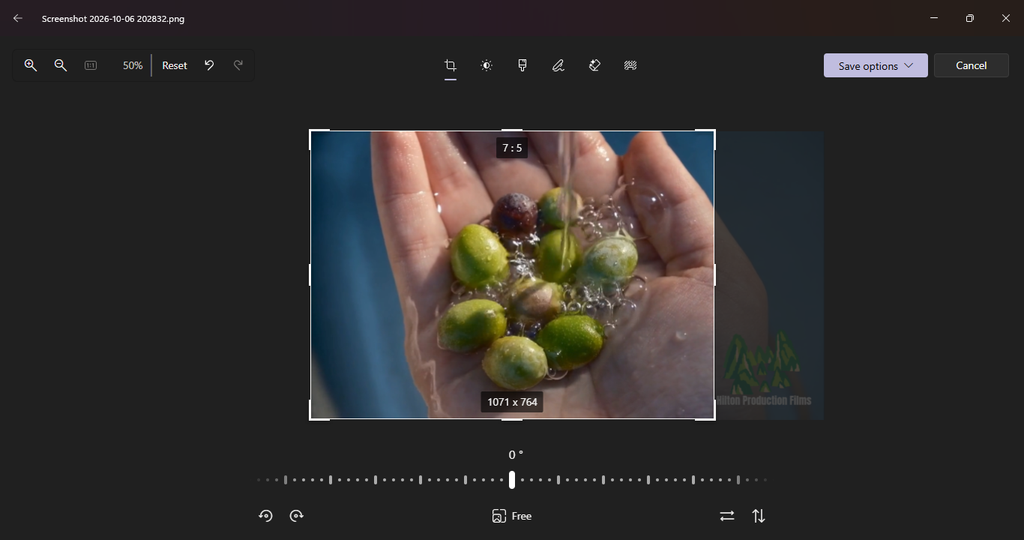
Reality – The issue is cropping also affects the video. You might lose part of the product, the face of a person, or an important image very close to the frame edge.
To prevent this, perhaps you will try zooming in, but it may result in the video being unnatural or having significantly lower quality.
But imagine that the watermark is changing position on the screen? You wouldn’t have the possibility to crop one part of the screen and achieve much.
In the case of reviewing videos, it is better to simply get rid of the watermark rather than to give up parts of the shot. A dedicated removal tool can target the marked area while keeping the rest of the shot intact.
Myth #2: All Watermarks Are the Same Fix
A watermark is a watermark, right? Just blur it, cover it, or crop it out and move on. If only it were that simple.
Reality – A fixed brand logo on a product or website is one thing only, whereas a platform stamp moving on a video is a totally different problem.
Embedded subtitles differ even more. For example, they can be fixed in the middle of the frame or may move or even blend with a busy background.
Hence, the same removal method does not fit every clip.
A blur may leave a patchy area while a cover can hide the watermark at the same time blocking part of the displayed product. Cropping could ruin the frame balance.
Tools built to remove watermark from video can handle these cases in different ways.
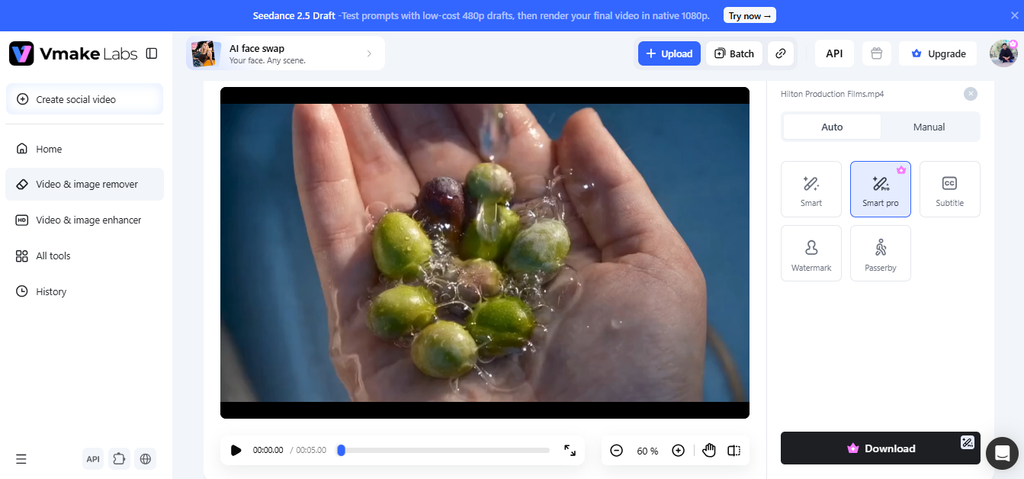
Vmake Labs offers auto removal for both static and moving watermarks, with smart tracking to track a mark as it moves across the frame. You can even clean up the result with “Erase” and “Protect” zones instead of removing an area you’d like to keep.
When the footage is more difficult, its Smart Pro mode can deal with big text, cluttered backgrounds, smaller and low contrast overlays. It offers batch processing of up to 30 videos at a time, and a free 5 second preview before exporting the entire HD video.
It’s not about adding more features for that purpose. It’s about finding the right tool for your watermark. A static logo, animated stamp, and text overlay may all require a different technique.
Myth #3: TikTok Clips Need a Totally Different Tool
TikTok watermarks are a pain … particularly when the logo and username keep shifting from one corner to the other.
But just because they are there, are you forced to resort to a completely different workflow which is also complicated? Not at all.
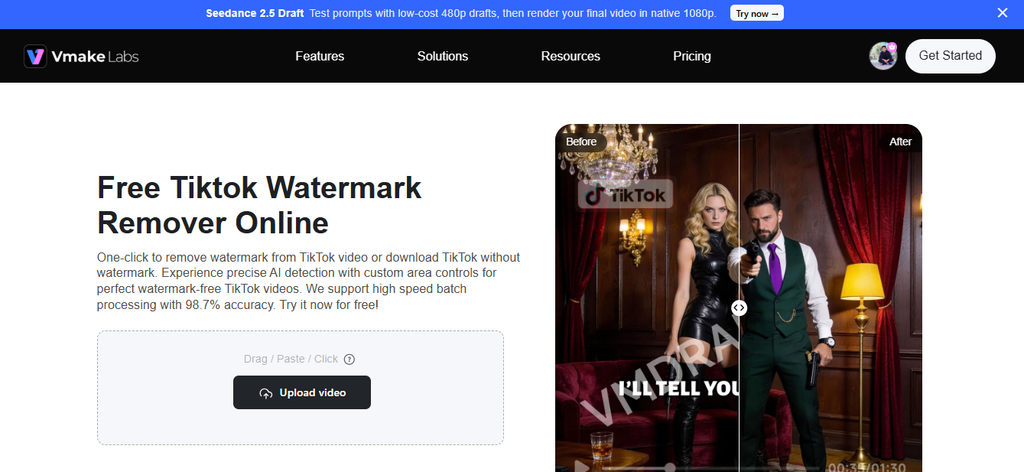
Reality – The Vmake Labs TikTok watermark remover is designed to remove the platform’s watermark in the first place.
One helpful feature is that it doesn’t require cropping the frame. The idea is to preserve the original framing but cover the empty space with whatever existing pixels are around. You can preview the first few seconds before exporting, and batch processing allows up to 30 Tik Tok videos at a time. So, if you’re compiling a handful of comparison clips for a review, there is no need to touch them all individually.
Myth #4: Once It’s Downloaded, the Quality Is Locked In
Downloaded a clip and it looks soft, grainy, or slightly blocky? You might think, “Well, that’s the file I have now.” Not quite.
Reality – A video could be scaled down after being uploaded, downloaded and compressed repeatedly.
However, that does not mean you cannot enhance your existing one. Since watermark removal and enhancement are two different tasks, you do not need to compromise on a mediocre clip just because it has been downloaded.
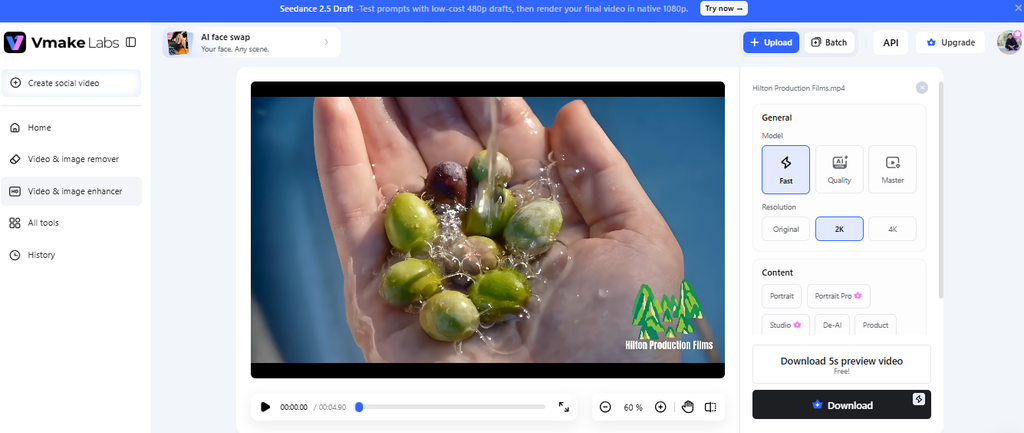
Vmake Labs’ AI Video Enhancer can take a video and up-res it to 2K, 4K, or 8K resolution. Plus, there are different enhancement models depending on whether you’re working with a portrait, a product, a clip shot in dim light, gameplay footage, or animation.
Myth #5: Manual Editing Always Gives a Cleaner Result
It feels safe to do it yourself. You might be able to zoom in, draw the mask, key frame it, and adjust frame-by-frame, and still be totally in control. But does it mean you’ll get a better result?
Reality – Not when you’re dealing with a watermark that moves through a full video.
Manual masking is fine for a difficult frame or for a minor adjustment, but if you have hundreds or thousands of frames, it gets boring really quickly. You also must keep the mask moving with the watermark.
Much of that is automated by AI removal tools. For instance, Vmake Labs detects and tracks moving watermarks then rebuilds whatever is behind them.
Of course, you can still have manual controls in case you want to make some tweaks to the automatic result.
Myth #6: Batch Processing Isn’t Worth Setting Up for a Few Clips
“It’s only three or four clips. I’ll just do them one by one.”
That’s how a quick cleanup turns into another task on the editing list.
Reality – A 2-minute edit could contain six to nine clips from various sources – a product demo, comparison footage, vintage footage, and two or three B-roll shots. Cleaning out the footage means uploading, deleting, previewing, exporting, and retouching process for each clip.
Batch processing eliminates that repetition. With Vmake Labs, you can process up to 30 videos at once-even your quick review project.
Conclusion
No single trick will fix all your clips. Before you know the secret, you need to test the input (watermarks) and identify suitable methods. For instance, you may need to track down the moving logo but treat a text overlay differently.
It can also help to distinguish two tasks that are sometimes confused: removing the watermark and improving the quality of the clip. Automation can do most of the work for you, while manual controls are best used in those one-in-a-while challenging frames. And if your review uses several clips, batch processing can save more time than you might expect.