


Document approval is relatively straightforward when everyone works from a desk.
A file is created, sent to a reviewer, revised on a computer, approved, and stored in the appropriate folder. Even when the process is imperfect, employees usually have access to large screens, reliable networks, keyboards, and shared storage systems.
Field teams work under very different conditions.
Sales representatives may review proposals between meetings. Property managers may approve inspection reports while moving between buildings. Logistics supervisors may receive documents from warehouses. Construction teams may need to comment on reports from job sites. Technicians may complete forms and send them for approval directly from mobile devices.
In these environments, a document workflow designed around desktop computers quickly becomes inconvenient.
Files get downloaded multiple times. Comments are sent separately through chat. Employees create duplicate copies because they are unsure which version is current. Approved documents remain buried in message threads instead of being stored in a predictable location.
A mobile-first document approval workflow addresses these problems by designing the process around the way field employees actually work. In practice, the workflow should keep one controlled review copy, make document status explicit, minimize unnecessary approval gates, and give the final record a predictable destination.
The goal is not to move every office task onto a smartphone. It is to make the essential decisions – reviewing, commenting, approving, and retrieving – possible without forcing employees to return to a desk for routine approval work.
Why Field Teams Need a Different Document Workflow
Traditional document workflows often assume that users have time and equipment available.
A typical process might look like this:
- Receive a file by email.
- Download it to a computer.
- Open it in an office application.
- Make changes.
- Save a new copy.
- Attach the revised version to another email.
- Wait for approval.
- Download the approved copy again.
- Move it into shared storage.
For someone working primarily from a laptop, this may be manageable.
For someone in the field, every additional step creates friction.
A mobile employee may be dealing with:
- Limited screen space
- Intermittent network access
- Short windows of time between tasks
- Multiple messaging and email applications
- Documents arriving from several people
- Difficulty comparing similar file versions
- Limited access to office printers or scanners
The workflow therefore needs to minimize unnecessary file movement.
Instead of asking, “How can we reproduce the desktop process on a phone?” teams should ask a different question:
What is the minimum sequence of actions required to move a document from draft to approved status?
That shift usually reveals opportunities to simplify the entire process.
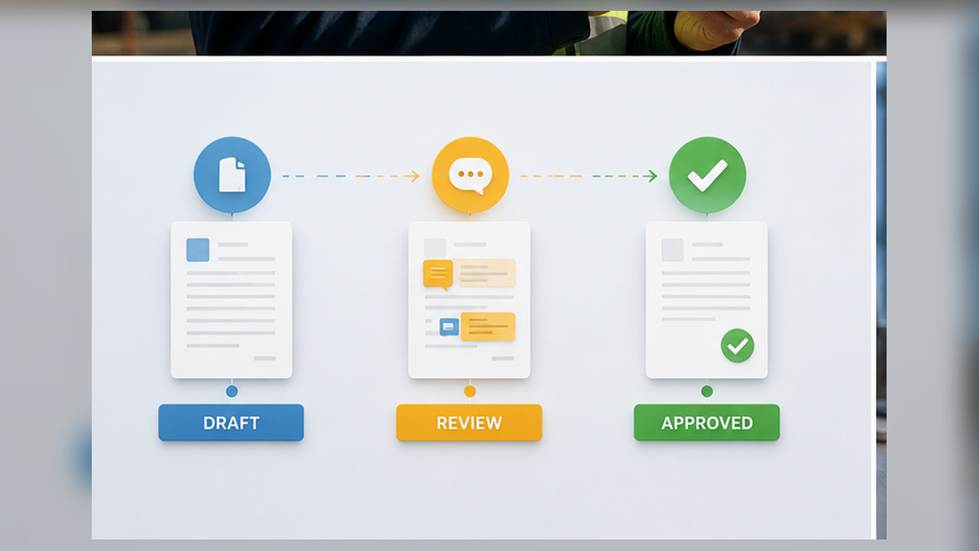
Define Draft, Review and Approved Status
Many document problems are actually status problems.
If a file is simply called:
Client-Proposal.docx
nobody can tell whether it is being written, waiting for review, or already approved.
The easiest improvement is to define a small set of document states.
For most teams, three are enough:
Draft
The document is still being created or edited.
Multiple changes may occur during this stage, but there should be a clear owner responsible for the working copy.
Review
The document is ready for feedback.
Reviewers should comment on the same version whenever possible rather than creating independent copies.
Approved
The content has been accepted and should no longer be modified casually.
The approved version should be moved into the team’s permanent storage location.
This simple model gives everyone a common language.
Instead of asking:
“Is this the latest file?”
a team member can ask:
“Is this still under review or has it been approved?”
That is a much easier operational question to answer.
Status can be communicated through a document management system, a shared folder structure, a file name, or a lightweight internal tracking process. The specific method matters less than consistency. Treating status as an explicit part of the workflow also improves document version control when the same file moves between phones, tablets, and desktop systems.
Make Documents Readable on Smaller Screens
Mobile-first document workflows must account for screen size.
A document that is comfortable to review on a 27-inch monitor may be frustrating on a phone.
Large spreadsheets, wide tables, tiny text, and complicated page layouts are particularly difficult to evaluate on mobile devices.
Teams can improve mobile readability by using several basic formatting practices.
Keep paragraphs relatively short
Long blocks of text require excessive scrolling and make it difficult for reviewers to relocate a section after checking another part of the document.
Use descriptive headings
Clear headings allow mobile users to navigate quickly rather than reading the entire document from beginning to end.
Avoid unnecessarily wide tables
When possible, reduce the number of columns or restructure information vertically.
Keep critical information near the beginning
If an approver needs to know the price, deadline, client name, or final recommendation, those details should not be hidden on page twelve.
Use consistent formatting
Reviewers should immediately recognize headings, notes, warnings, action items, and final decisions.
Software selection should support the same cross-device requirements. For Chinese-speaking teams, localized product information such as wps 办公软件 can be one reference point when comparing how an office suite fits the team’s required document types, devices, and review steps.
The important principle is broader than any individual application: document design should match the context in which people are expected to review it.
If managers routinely approve files from mobile devices, mobile readability is an operational requirement rather than a design preference.
Use Comments Instead of Creating Duplicate Copies
One of the fastest ways to damage a document workflow is to allow every reviewer to create a new file.
Consider a proposal sent to three people.
The original file is:
Proposal.docx
Reviewer A creates:
Proposal-edited.docx
Reviewer B creates:
Proposal-comments.docx
Reviewer C creates:
Proposal-final-review.docx
The document owner now has to compare three versions and determine which changes should be accepted.
The problem becomes even worse when those versions are distributed through different channels.
One might arrive by email, another through a messaging app, and another through shared storage.
Whenever the software and file format allow it, reviewers should use comments, annotations, or tracked changes on a controlled review copy instead.
This offers several benefits:
- Feedback stays attached to the relevant section.
- Reviewers can see what others have already mentioned.
- Duplicate suggestions are easier to identify.
- The document owner has fewer files to reconcile.
- Approval history is easier to understand.
The workflow should also clarify the difference between a comment and an edit.
A reviewer may be authorized to suggest a change without directly modifying the document. Another role may be allowed to edit wording but not approve the final version.
Defining those responsibilities helps prevent accidental changes during the review stage.
Standardize File Names and Version Numbers
File naming seems like a minor administrative detail until hundreds of documents move through the organization.
Poor naming creates unnecessary uncertainty.
Names such as:
document1.docx
new-final.docx
updated-version.docx
final-final2.docx
provide very little useful information.
A better naming convention can include a small number of predictable elements.
For example:
Client_Project_DocumentType_V03.docx
or:
2026-08-ProjectName-InspectionReport-Review.pdf
The exact format will depend on the organization, but a useful naming system usually answers some combination of these questions:
- Which customer or project does this belong to?
- What type of document is it?
- Which version is this?
- What is its current status?
- When was it created or approved?
Version numbers are especially useful while a file is moving through review.
For example:
Inspection_Report_V01.docx
Inspection_Report_V02.docx
Inspection_Report_V03_Approved.pdf
This is much easier to manage than relying on words such as “new,” “latest,” and “final.”
The word final should be used carefully.
If employees regularly create files called Final, Final2, and Final-Revised, then “final” no longer communicates a meaningful status.
Design the Workflow Around Mobile Access
A mobile-first workflow should identify which actions field employees are expected to perform directly from their devices.
Typical mobile actions may include:
- Opening a document
- Reviewing text
- Adding a comment
- Making a minor correction
- Confirming approval
- Sharing a file
- Converting a document to PDF
- Locating the approved version later
Not every document needs to be fully editable on a phone.
Complex spreadsheet modeling, major layout changes, and extensive document restructuring may still be better suited to a desktop environment.
The objective is to identify the high-frequency decisions that should not require a computer.
For example, a regional sales manager might receive a proposal while traveling.
The manager may only need to:
- Open the proposal.
- Check the commercial terms.
- Add two comments.
- Confirm the revised version.
- Approve the document.
If those five steps can be completed reliably from a phone, the employee does not need to postpone the decision until reaching a laptop.
For field employees who depend heavily on phones, teams can include localized mobile-access resources such as wps 手机版 in the evaluation process, then test the selected client with the same proposals, spreadsheets, PDFs, and image-heavy reports used in daily work.
The test should use real documents rather than simple sample files.
A client that opens a one-page document successfully may still behave differently with a large proposal, spreadsheet, PDF, or image-heavy report.
Reduce Approval Steps Where Possible
Approval workflows often become more complicated over time.
A process begins with one reviewer. Later, another manager is added. Then finance wants visibility. Legal requests a check. Someone adds an executive approval “just to be safe.”
Eventually a routine document may require five or six approvals even though only two people are making meaningful decisions.
Mobile-first workflow design provides a good opportunity to review this structure.
For every approval step, ask:
What decision is this person responsible for?
If there is no clear answer, the step may not be necessary.
It is also useful to distinguish between:
Approval
The person must actively authorize the document.
Review
The person provides feedback but does not control final authorization.
Notification
The person needs to know the document exists or has been approved but does not need to participate in the decision.
Confusing these roles creates delays.
Someone who only needs to be informed should not become a mandatory approval gate.
Clear responsibilities make mobile approval faster because employees immediately know which action is expected from them.
Build a Clear Exception Process
Not every document will follow the normal workflow.
A contract may contain unusual terms. An inspection report may identify a serious problem. A customer may request an exception to standard pricing. A compliance issue may require specialist review.
Teams should define what happens in those cases.
A simple exception process can answer:
- Which documents require additional review?
- Who receives the escalation?
- Should normal approval stop while the issue is reviewed?
- How is the exception documented?
- Who can authorize the final decision?
This prevents employees from improvising when unusual situations occur.
Without an exception path, workers often respond by adding more people to a message thread or forwarding files widely until someone takes responsibility.
That creates both inefficiency and confusion.
An escalation process should therefore be easy enough for field employees to activate from the same mobile workflow they already use.
Convert Approved Files Into Stable Final Formats
Editable formats are useful during drafting and review.
They are not always ideal for final records.
Once a document has been approved, teams should consider whether it should be converted into a more stable format such as PDF.
This can be useful for:
- Approved proposals
- Inspection reports
- Signed forms
- Final quotations
- Policy documents
- Completed checklists
- Client-facing reports
The editable source file can still be retained when necessary.
The important point is to distinguish the working document from the final record.
This reduces the risk that someone accidentally edits an approved file and later treats the modified version as authoritative.
A practical finalization sequence might look like this:
- Reviewer confirms all comments are resolved.
- Authorized approver gives final approval.
- Document owner updates the status.
- Approved document is converted to the required final format.
- Final file receives a standardized name.
- File is stored in the approved location.
- Relevant employees receive the link or notification.
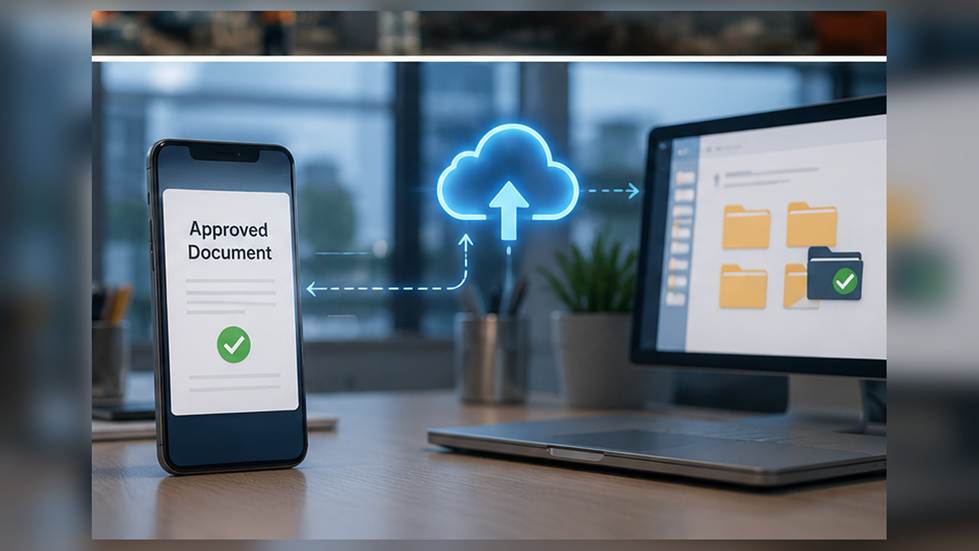
The approved document should have a clear destination.
Otherwise, the approval process ends but the information management problem remains.
Archive the Final Version Outside the Chat Thread
Messaging tools are useful for coordination.
They are usually poor substitutes for a structured document archive.
A common field workflow looks like this:
A document is shared in a team chat. Someone comments. A revised copy is uploaded. The manager replies “Approved.” The conversation continues.
Two months later, someone needs the approved document.
Now the team must search through old messages to locate the correct file and determine whether the “Approved” message referred to that exact version.
This is avoidable.
The final document should be moved or copied to a predictable storage location after approval.
That location might be organized by:
- Customer
- Project
- Property
- Region
- Document type
- Month or year
- Case number
The chat thread can contain a link to the stored document rather than serving as the permanent record itself.
This creates a useful separation:
Messaging = coordination
Document storage = record keeping
That distinction becomes increasingly important as the organization grows.
Create a Lightweight Approval Checklist
Mobile users benefit from short, repeatable checks.
Instead of asking managers to remember every document requirement, teams can create a simple approval checklist.
For example:
Before Approval
- Correct customer or project
- Correct document version
- Required sections completed
- Pricing or numerical data verified
- Reviewer comments resolved
- Supporting files included
- Appropriate approver assigned
After Approval
- Status changed to approved
- Final format created
- File name standardized
- Final copy archived
- Relevant people notified
- Working duplicates removed where appropriate
A checklist reduces cognitive load.
This is particularly valuable for field employees who may be reviewing documents between other operational tasks.
The goal is not to introduce bureaucracy.
It is to prevent predictable mistakes with a very small amount of structure.
Measure Where Approval Delays Actually Occur
Teams should not assume they know why approvals are slow.
The delay might occur because documents are difficult to read on mobile devices.
But it could also be caused by:
- Unclear ownership
- Too many reviewers
- Missing information
- Poor file naming
- Reviewers not knowing a document is waiting
- Duplicate copies
- Difficulty locating the latest version
- An unnecessary approval step
A simple workflow review can identify the actual bottleneck.
Track a few basic data points:
- When the document entered review
- When the first reviewer responded
- How many revisions occurred
- Which stage caused the longest delay
- Whether the document required an exception
- When final approval occurred
Even informal tracking across ten or twenty documents can reveal patterns.
For example, if reviewers respond quickly but documents repeatedly return to the author because information is missing, the real problem is the preparation process rather than approval speed.
Improving the right stage is more effective than simply asking employees to respond faster.
Mobile-First Does Not Mean Mobile-Only
A mobile-first workflow is sometimes misunderstood as an attempt to move all document work to smartphones.
That is not the objective.
Some activities clearly remain easier on larger screens:
- Complex spreadsheet analysis
- Large document comparisons
- Detailed formatting
- Long-form writing
- Multi-document research
- Extensive editing
Mobile-first design means that the workflow does not collapse when a participant is away from a computer.
Field employees should be able to handle the decisions that matter most from the devices they actually have with them.
The desktop environment can still support complex creation and editing.
The two environments should complement each other.
A document might be created on a laptop, reviewed from a phone, revised on a desktop, approved on a tablet, and later retrieved from a mobile device.
A good workflow keeps the document state clear throughout that entire sequence.
Build the Workflow Around Decisions, Not Devices
The most effective document approval systems are designed around decisions rather than technology.
A team needs to know:
- Who creates the document?
- Who reviews it?
- Who can request changes?
- Who approves it?
- What counts as the final version?
- Where is that version stored?
- How can employees retrieve it later?
Once those decisions are clear, software can support the process instead of creating more places for files and comments to fragment.
For field teams, the biggest improvement is reducing transitions: employees should not have to download a file from one tool, send it through another, receive approval in a third, and then determine where the final record belongs.
When status definitions, comments, naming conventions, mobile access, approval responsibilities, final formats, and storage rules work together, field employees can make decisions faster without sacrificing document control. The result is a mobile-first document approval workflow that remains usable across phones, tablets, and desktop systems as the organization grows.