
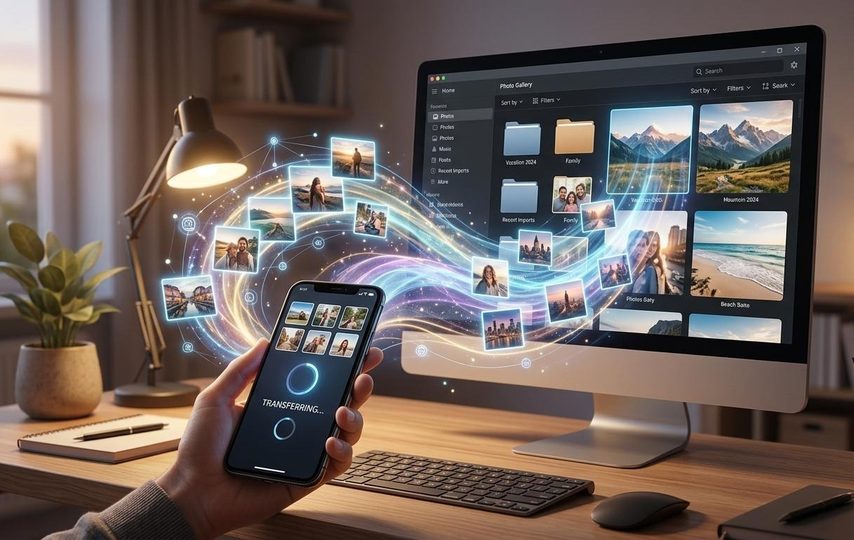

Modern smartphones have evolved into full-fledged portable media studios. The introduction of multi-lens camera systems, support for high-dynamic-range formats (Apple ProRAW, RAW), and 4K/8K video recording at 60 frames per second are rapidly consuming the built-in storage of mobile devices. A short video clip or a series of high-resolution photos can take up gigabytes of disk space.
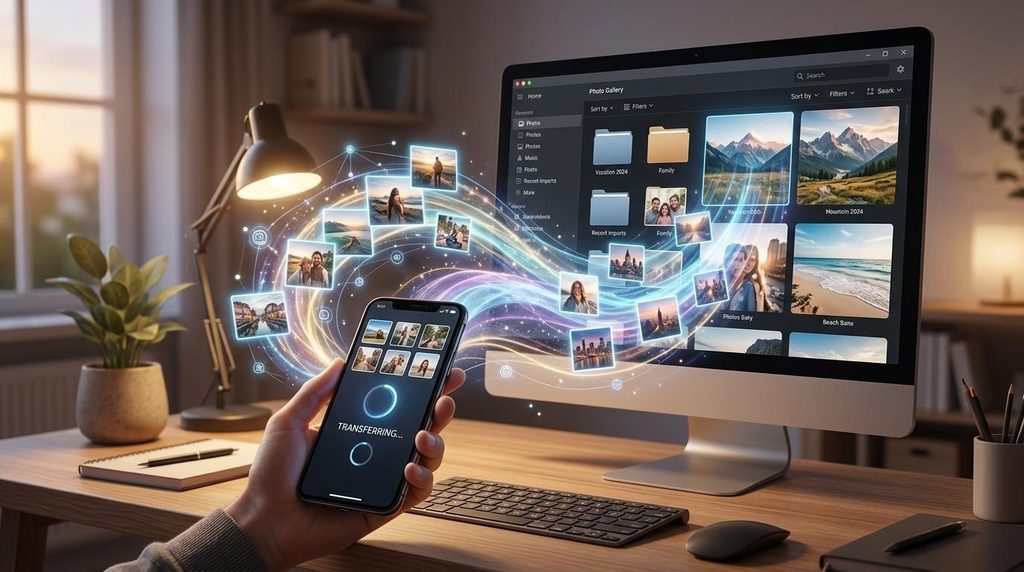
A full smartphone storage drive slows down the operating system, blocks app updates, and creates a risk of losing valuable shots if the device is damaged or lost. As a result, the question of “how to transfer photos to a computer” has become a top priority for everyday users and professional content creators alike.
Personal computers, external hard drives, and network-attached storage (NAS) offer a more reliable and scalable environment for long-term archiving. However, the choice of data-transfer method directly affects transfer speed, metadata preservation, privacy, and ongoing operating costs.
Overview of Traditional Transfer Methods
Historically, two main technological approaches have emerged for exporting files from smartphones to desktop platforms: direct physical connection and wireless upload through cloud ecosystems. Each of these methods has its own structural advantages and significant limitations.
Wired Connection (USB Cable, Lightning / Type-C, and Card Readers)
Directly connecting a smartphone to a computer via an interface cable, or using card readers for microSD memory cards, remains a basic data-transfer tool.
Advantages:
- High bandwidth. A physical connection over modern protocols (USB 3.2, Thunderbolt) provides maximum transfer speed for large data sets with no lag.
- Independence from an internet connection. The export process does not require a Wi-Fi or cellular connection, which is critical when working in the field.
- Confidentiality. Files are transferred directly between two isolated devices, bypassing third-party intermediary servers.
Disadvantages:
- Manual transfer. The user must physically connect the cable, confirm trusted-device status, and manually select files through the operating system’s standard file browser (Windows Explorer or Apple Image Capture).
- No automatic organization. With cable-based import, files are dumped into a single batch, and users must manually sort photos by category, date, and album.
- Hardware failures. Physical wear on connectors or cables often causes transfers to fail while copying large folders.
Cloud Services (iCloud, Google Photos, Microsoft OneDrive, Dropbox)
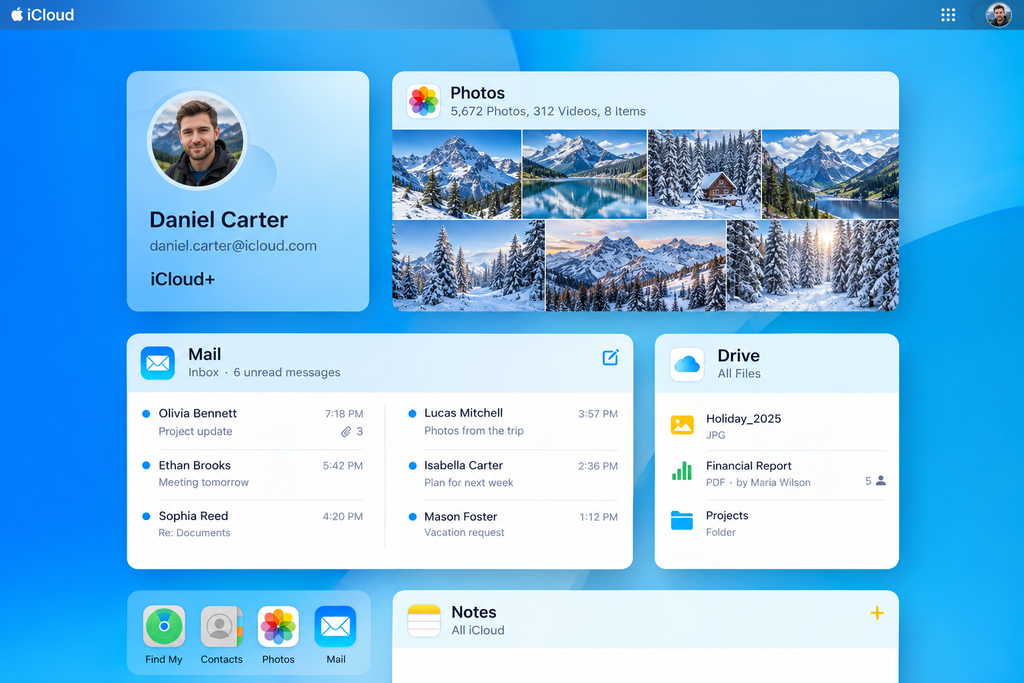
Cloud platforms offer continuous background synchronization, whereby new photos are automatically uploaded to the provider’s remote servers.
Advantages:
- Automation. Uploads happen without user involvement, as long as an internet connection is available.
- Multi-platform access. Photos are accessible from any device connected to the account.
Disadvantages:
- Recurring costs. Free storage tiers (5 GB on iCloud, 15 GB on Google Photos) fill up within a few months, after which users must pay for a monthly subscription to expand their storage space.
- Privacy risks. Storing personal and corporate photo archives on third-party cloud servers creates a risk of data leaks if an account is hacked or a platform is compromised.
- Quality compression and network dependency. On slow or unstable connections, cloud services may automatically compress media files or delay the upload of originals.
While traditional wired and cloud solutions are still widely used, neither offers an ideal balance. Cables require manual effort and time, while “the cloud” creates ongoing financial dependence and possible risks to the privacy of personal data.
Criteria for Modern Synchronization
The traditional transfer methods described above put users in a bind: either routine manual import via cable while preserving privacy, or convenient automatic cloud backup that comes with rising subscription fees and data-leak risks.
Today’s users and businesses are demanding next-generation solutions that combine the advantages of both approaches. An effective media-transfer model should meet four key criteria:
- Wireless automation without cloud subscriptions. New photos should upload automatically when the smartphone connects to a home or office Wi-Fi network, without relying on external provider servers.
- Full confidentiality (zero-trust privacy). Media files should be transferred strictly within the local network (LAN/Wi-Fi) directly to a PC or network storage (NAS).
- Preservation of original quality and EXIF metadata. Automatic transfer should not compress photos, strip GPS tags or lens information, or change the original file format (including Apple HEIC and professional RAW files).
- Seamless integration with a cataloging tool. Transferred photos should be indexed and made searchable right away, rather than sitting as an unsorted mass on a hard drive.
Users should no longer have to choose between convenience and security. An ideal synchronization system should handle all the routine work of transferring files over Wi-Fi, while keeping photos in their original quality and full resolution, strictly within the user’s local network.
Local Wireless Auto-Backup: The TonfotosSync and Tonfotos Ecosystem
An alternative to cloud dependency is an ecosystem approach that combines a mobile transport module with a local desktop cataloging tool. A prime example of this pairing is the combination of the TonfotosSync app and the Tonfotos program.
Wireless Transfer via TonfotosSync
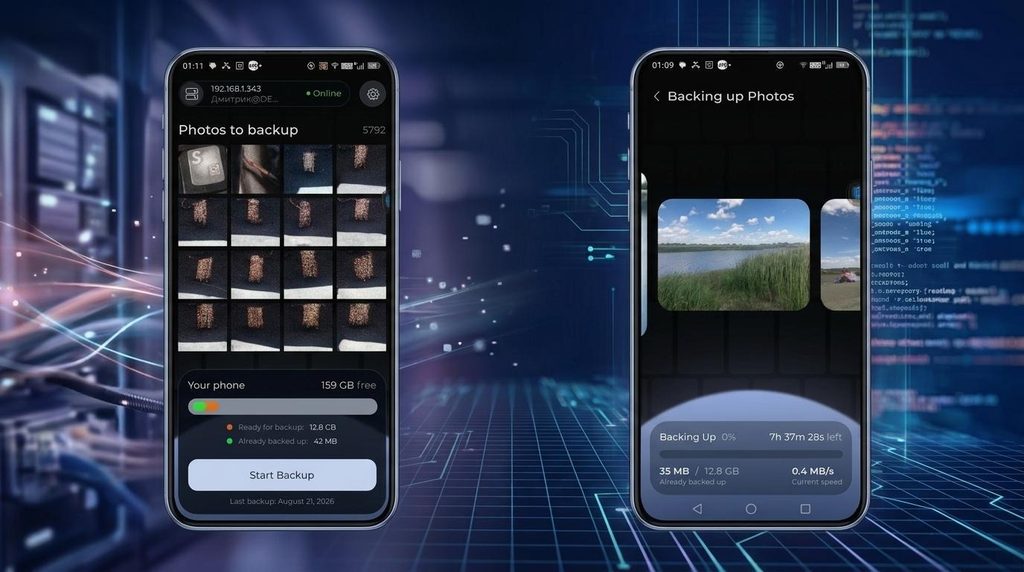
The TonfotosSync mobile app (available for iOS and Android) acts as a wireless bridge between the smartphone and the computer.
- Simple pairing. Setting up the connection only requires scanning a QR code generated by the desktop version of Tonfotos on the PC screen, eliminating the need to enter IP addresses or configure complex network protocols.
- Automatic background import (OS permitting). As soon as the smartphone connects to the home Wi-Fi network, TonfotosSync automatically detects new photos and transfers them to a designated folder on the computer or NAS.
- Resource savings. The transfer process does not use mobile data and does not compress media files.
Organizing and Processing the Archive in Tonfotos
As soon as files land on the PC’s or NAS’s hard drive, the Tonfotos desktop application automatically picks up the new material:
- Index-in-place. The program does not move files into an internal, closed database; it works with the user’s existing folder structure.
- Duplicate search and removal. Repeatedly transferring photos from different devices often creates duplicate shots. The built-in deduplication module identifies exact and similar photos, helping free up disk space.
- Neural-network face recognition. This feature helps find photos of specific people across thousands of shots. The program detects faces in photos and suggests possible matches, which the user confirms, further training the algorithm for highly accurate archive navigation.
- Geographic and chronological navigation. Using EXIF metadata, the program automatically builds a timeline and displays shooting locations on an interactive world map.
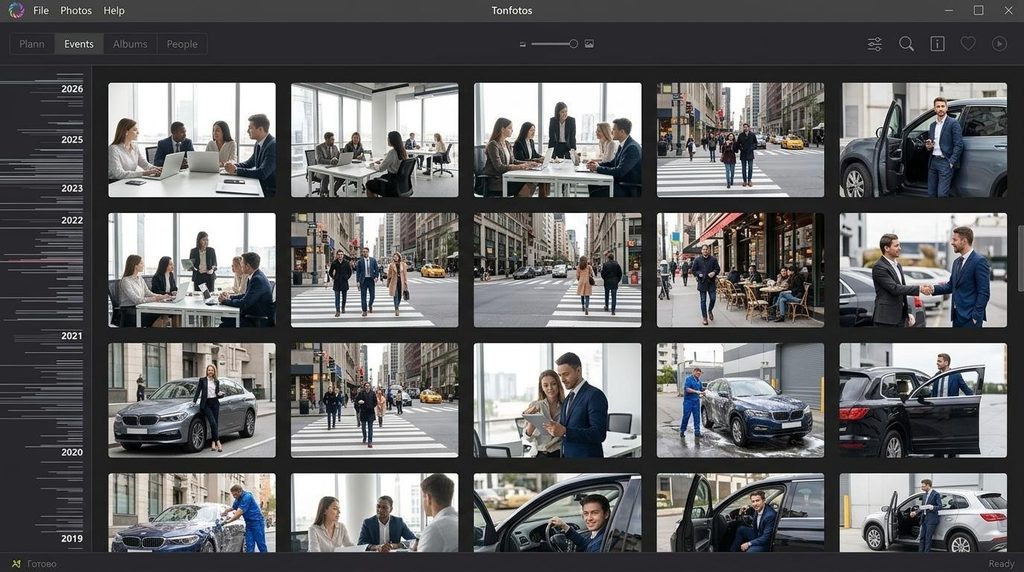
Together, TonfotosSync and Tonfotos cover the full media-library management cycle — from the instant background export of new smartphone photos over the local network to their intelligent cataloging and deduplication on the PC — completely eliminating the need for cloud subscriptions.
Comparative Analysis of Methods and Total Cost of Ownership
Choosing the best way to transfer photos requires comparing the methods not only by functionality but also by their economics over a multi-year horizon.
Comparison Table of Transfer Methods
| Evaluation Criterion | Wired Connection (USB) | Cloud Services (iCloud / Google) | TonfotosSync + Tonfotos |
| Automation | None (manual selection) | High (background, via internet) | High (automatic, via Wi-Fi) |
| Data privacy | 100% local | Low (provider’s servers) | 100% local (LAN / NAS) |
| Internet dependency | None | Total | None (local Wi-Fi is enough) |
| Quality / EXIF preservation | Full | Depends on plan | Full (no compression) |
| Financial model | Free | Monthly subscription ($2–10/mo) | Free plan / perpetual license |
| Cataloging after transfer | Manual folder sorting | Limited to the cloud ecosystem | AI sorting, map, deduplication |
Economic Impact: Ownership vs. Rental
Cloud services operate on a rental model: once the 5–15 GB limit is used up, the user becomes dependent on recurring payments. Over 3–5 years, the cumulative cost of a cloud subscription for a multi-person family can exceed the price of a 4–8 TB external drive.
Switching to local auto-backup (TonfotosSync + Tonfotos) returns the user to an ownership model, where the physical archive resides on the user’s own hardware, and transferring and organizing data does not require a recurring subscription fee.
Conclusion
The choice of method for transferring photos from a phone to a computer depends on the size of the media library and how often photos are taken:
- For one-off shots. If you just need to transfer 2–3 photos once for printing or sending, a messaging app or a cable is enough.
- For quick backups. Wired import remains a reliable option when no wireless network is available.
- For systematic photo-archive management. The optimal solution is to build a local wireless ecosystem. Using TonfotosSync together with Tonfotos fully automates file transfer over the home Wi-Fi network, guarantees 100% privacy for personal photos, and provides tools for keeping a multi-year photo archive organized — without monthly cloud subscriptions.