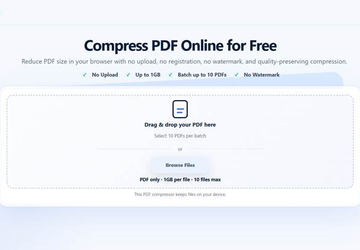

Large PDF files can become surprisingly inconvenient. A report may be too big for an email attachment, a résumé may exceed an application portal’s upload limit, or a scanned document filled with images may take far longer to share than expected. A browser-based PDF compressor such as PDF-Compress.ai can help reduce file size directly on the user’s device without requiring the PDF to be uploaded to a compression server.
PDF-Compress.ai is designed for students, researchers, job seekers, HR teams, business users, educators, and people working with scanned documents. Its main distinction is local browser processing: users select a file, choose a compression level, and process the PDF on their own device.
Why PDF Files Become So Large
A PDF can contain much more than text.
File size may increase because of:
- high-resolution images;
- scanned pages;
- embedded graphics;
- presentation slides;
- exported design elements;
- repeated visual assets;
- large numbers of pages.
Image-Heavy PDFs Are Often the Biggest Problem
Scanned documents are a common example.
A 40-page scan may technically contain very little editable text, yet every page is stored as an image. That can produce a file far larger than a text-based PDF of the same length.
The same issue appears with portfolios, reports, catalogues, presentations, and documents containing many photographs.
File Size Limits Still Affect Everyday Work
Cloud storage is common, but file limits have not disappeared.
Users still encounter limits when:
- attaching PDFs to email;
- submitting job applications;
- uploading assignments;
- sending forms through online portals;
- sharing reports with clients;
- uploading documents to internal systems.
A Small Reduction Can Be Enough
Not every PDF needs aggressive compression.
Sometimes a 26MB document simply needs to become small enough to meet a 25MB upload limit.
In that situation, preserving readability may matter more than achieving the smallest possible file.
That is why adjustable compression can be useful.
PDF-Compress.ai Offers Three Compression Levels
PDF-Compress.ai provides three compression strengths:
- Light
- Balanced
- Strong
This gives users a way to choose how aggressively they want to reduce the file.
Light Compression
Light compression can be useful when the original document is already reasonably small and only needs a modest reduction.
It may suit documents where image clarity and readability are especially important.
Balanced Compression
Balanced mode is intended for situations where users want a stronger file-size reduction while still trying to maintain practical readability.
This can fit common reports, résumés, presentations, and business files.
Strong Compression
Strong compression may be more appropriate when file size is the main constraint.
Users should review the output carefully afterward, particularly when the PDF contains small text, diagrams, or detailed images.
The actual compression result depends on the structure of the PDF as well as the browser and available device memory.
Local Processing Changes the Privacy Equation
Many online PDF tools work by uploading the document to a remote server.
PDF-Compress.ai uses a different approach.
Its compression runs locally in the browser, so the PDF does not need to be uploaded to a compression server.
Why This Matters
People often compress documents containing:
- résumés;
- internal reports;
- contracts;
- academic work;
- administrative records;
- application documents.
Keeping the processing on the device can reduce unnecessary file transfer during a simple compression task.
Users should still follow their own organizational policies when working with confidential or regulated documents, but local processing can be a useful privacy-oriented design choice.
No Registration Makes Small Tasks Faster
PDF compression is often a one-off task.
Someone may only need to reduce a file once before sending it.
Creating an account for that type of job can add unnecessary friction.
PDF-Compress.ai does not require registration or a subscription to begin compressing PDFs.
A Simpler Workflow
The process is straightforward:
- Select the PDF.
- Choose the compression strength.
- Process the file in the browser.
- Download the compressed version.
- Check the result before sending or uploading it.
That makes the tool suitable for quick document tasks without additional setup.
Batch Compression Can Save Time
Sometimes the problem involves more than one file.
A student may have several assignments, an HR team may be preparing multiple application documents, or an office worker may need to reduce a group of reports.
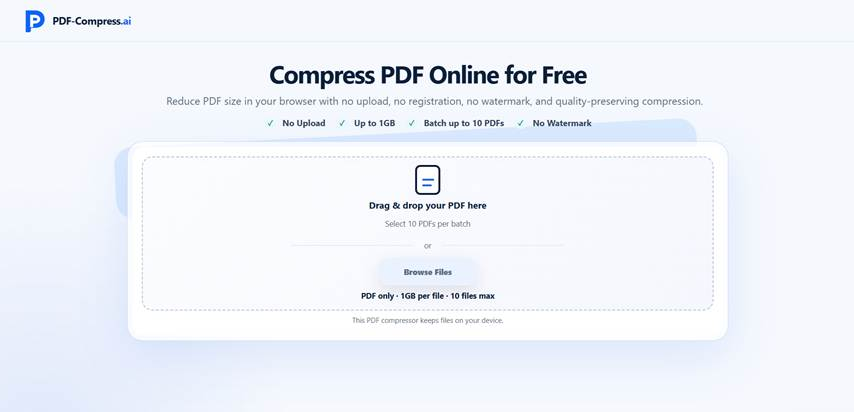
PDF-Compress.ai allows users to select up to 10 PDFs in one batch.
Batch Processing Reduces Repetition
Instead of opening and compressing files one by one, users can prepare several documents together.
This is particularly helpful when working through a folder of similar files that all need to meet the same upload or sharing requirements.
Large Files Can Still Be Processed
PDF-Compress.ai supports selecting individual files up to 1GB.
That can be useful for image-heavy reports, long scans, or documents exported from graphics-heavy applications.
Device Memory Still Matters
Because processing happens locally, performance depends partly on the browser and the hardware being used.
A very large PDF may require more memory and processing time than a small document.
Users working with particularly large files should avoid running too many heavy applications at the same time and should review the finished PDF after compression.
Compression Is Useful for More Than Email
Email attachments are an obvious use case, but smaller PDFs can help in many other situations.
Online Applications
Job portals, scholarship forms, and university systems often impose file-size limits.
A compressed résumé, portfolio, or supporting document may be easier to upload.
Reports and Business Files
Smaller reports can be easier to send to clients or colleagues, especially when several files are shared together.
Scanned Documents
Scanning can generate unnecessarily large PDFs.
Compression can help make archived or shared scans more manageable.
Learning Materials
Students and teachers may want smaller versions of lecture notes or reading materials for easier sharing and storage.
Always Check the Output Before Sharing
Compression changes the file.
The result should always be reviewed before it is sent or submitted.
Check These Areas
After compression, look at:
- small text;
- charts;
- diagrams;
- photographs;
- scanned signatures;
- page order;
- overall readability.
If visual quality has dropped too much, try a lighter compression setting.
The smallest file is not always the most useful file.
What Makes a Practical PDF Compression Tool?
A good compression tool should make the task easier without introducing unnecessary steps.
Useful Features Include
- adjustable compression strength;
- local processing;
- batch handling;
- support for large files;
- no mandatory account;
- no watermark on output.
PDF-Compress.ai combines these features in a browser-based workflow and produces compressed PDFs without adding a watermark.
FAQ
Is PDF-Compress.ai free to use?
Yes. PDF-Compress.ai is described as a free online PDF compression tool and does not require registration or a subscription.
Does PDFTranslator include a PDF compression tool?
Yes. PDFTranslator provides a browser-based tool for reducing PDF file size. Compression runs locally in the browser, so the file does not need to be uploaded to a compression server.
How many PDFs can I compress at once?
You can select up to 10 PDF files in one batch.
What is the maximum file size?
The selection limit is up to 1GB per PDF file. Actual processing depends on the file structure, browser, and available device memory.
Does PDF-Compress.ai add a watermark?
No. The product documentation states that compressed output does not include a watermark.
Which compression level should I choose?
Use Light when preserving visual quality is the priority, Balanced for general use, and Strong when reducing file size is more important. Because different PDFs respond differently to compression, review the finished document before sharing it.
Can I compress scanned PDFs?
PDF-Compress.ai can be used with scanned and image-heavy PDFs. The actual reduction will vary depending on how the file is constructed and how much image data it contains.
Final Thoughts
PDF compression is a small task that can remove a surprising amount of friction from everyday digital work.
A smaller file can be easier to email, upload, archive, or share, while adjustable compression allows users to balance file size against readability.
PDF-Compress.ai adds another practical consideration by processing files locally in the browser instead of requiring a server upload. Combined with three compression levels, batch processing, support for files up to 1GB, no registration, and watermark-free output, it provides a straightforward option for people who regularly encounter oversized PDFs.