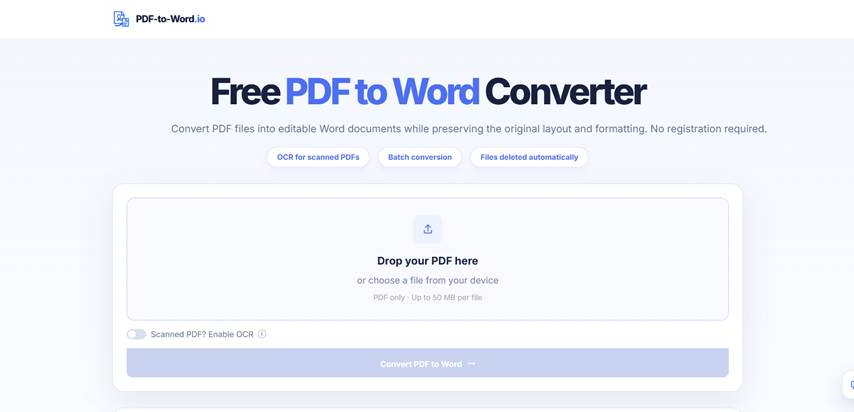

PDF files are excellent for sharing finished documents, but they become much less convenient when someone needs to edit the content. A report may need a few paragraphs updated, a contract may require revisions, or a scanned document may need to become searchable and editable. A PDF to Word converter such as PDF-to-Word.io can help turn a PDF into an editable DOCX file instead of forcing users to rebuild the document manually.
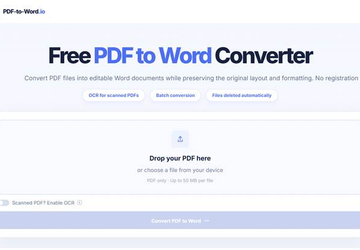
PDF-to-Word.io is designed for both ordinary text-based PDFs and scanned or image-based documents. Standard PDFs can be converted directly, while scanned files can use OCR to recognise text before conversion. The service supports files up to 50MB and does not require registration or a subscription.
Why Editing a PDF Can Be Frustrating
PDF was designed to preserve how a document looks across different devices.
That is useful when the goal is sharing.
It becomes a limitation when the document needs to change.
A user may want to:
- revise a report;
- update a contract;
- reuse text from a research paper;
- edit an invoice;
- modify a proposal;
- add comments to course material;
- extract information from an older scanned file.
Copying Text Is Not Always Enough
Copy-and-paste can work for a short paragraph, but longer documents often contain formatting that users want to keep.
Examples include:
- headings;
- paragraphs;
- tables;
- images;
- page structure;
- lists;
- multi-section layouts.
When text is copied out manually, those relationships may need to be recreated in Word.
A PDF-to-DOCX conversion workflow can reduce some of that reconstruction.
First Identify What Type of PDF You Have
Not every PDF contains text in the same way.
This is one of the most important things to understand before conversion.
Text-Based PDFs
A text-based PDF contains selectable digital text.
These files are often created directly from software such as Word, Google Docs, presentation tools, or business applications.
Users can usually highlight individual words with the cursor.
PDF-to-Word.io can convert these files directly into editable DOCX format.
Scanned or Image-Based PDFs
A scanned PDF may look exactly like a normal document while actually containing page images.
If you cannot select the text normally, the file may require OCR.
PDF-to-Word.io provides an OCR option for scanned and image-based PDFs.
What OCR Does During PDF-to-Word Conversion
OCR stands for Optical Character Recognition.
It analyses text visible inside images and attempts to convert those characters into machine-readable text.
Why OCR Matters
Without OCR, a scanned page may remain an image even after being placed into another document format.
With OCR enabled, the converter can attempt to identify:
- letters;
- words;
- paragraphs;
- numbers;
- some document structure.
That gives users text they can edit instead of a page that behaves like a photograph.
Do Not Turn On OCR for Every PDF
More processing is not always better.
PDF-to-Word.io specifically distinguishes between normal text PDFs and scanned files.
For ordinary text-based PDFs, OCR is not required.
Use OCR When the File Actually Needs It
A simple test is to try selecting a sentence inside the original PDF.
If the text can be selected normally, the PDF probably already contains a usable text layer.
If the entire page behaves like one image, OCR may be appropriate.
Using the correct mode keeps the workflow simpler.
Converting Research Papers Into Editable Word Files
Students and researchers frequently work with PDFs.
A paper may need to be quoted, annotated, translated, summarised, or incorporated into research notes.
Editable DOCX Files Are Easier to Work With
Once a PDF has been converted into Word format, users can:
- highlight passages;
- add comments;
- restructure sections;
- copy quotations;
- insert research notes;
- make corrections.
PDF-to-Word.io is specifically intended for documents such as research papers and course materials as well as business files.
Important quotations, citations, page references, and technical information should still be checked against the original PDF before academic use.
Business Reports Often Need Revisions
PDFs are commonly used as final versions of business documents.
The problem appears when the final version is no longer final.
A team may need to update:
- a market report;
- a proposal;
- a project document;
- an internal policy;
- a client file.
Conversion Can Recover an Editable Starting Point
If the original Word file is no longer available, converting the PDF into DOCX can provide a more practical starting point than recreating the entire document manually.
The converted file can then be edited in a Word-compatible application.
Users should still review the formatting after conversion, especially when the source PDF contains complex tables or unusual layouts.
Contracts and Proposals Are Another Common Use Case
Contracts and proposals often pass through several revisions.
Sometimes only a PDF copy remains available.
Editing Requires Care
Converting the file to DOCX can make text easier to revise, but legal and contractual documents should always be checked carefully.
Pay particular attention to:
- clause numbering;
- names;
- dates;
- financial amounts;
- page references;
- tables;
- signatures;
- formatting that affects interpretation.
Conversion helps recover editable content, but it does not replace document review.
Scanned Invoices and Administrative Documents
Finance and administrative teams often work with older scans.
These may include:
- invoices;
- receipts;
- archived forms;
- purchase records;
- signed paperwork.
OCR Can Reduce Manual Retyping
When the document is image-based, OCR can attempt to recognise the text and place it into an editable DOCX file.
This can reduce the amount of manual typing required when information needs to be reused or corrected.
Accuracy can vary depending on the quality of the original scan, so names, numbers, totals, and dates deserve extra review.
Scan Quality Affects OCR Results
OCR performance depends heavily on the source material.
A clean scan with sharp text is easier to process than a blurred photograph of a page.
Factors That Can Affect Recognition
These include:
- low resolution;
- shadows;
- page rotation;
- handwritten notes;
- unusual fonts;
- faint printing;
- damaged pages;
- complicated tables.
For important documents, compare the converted Word file with the original scan before relying on extracted information.
How to Convert a PDF to Editable Word
The basic workflow is straightforward.
Step 1: Upload the PDF
Choose the document you want to convert.
PDF-to-Word.io supports individual files up to 50MB.
Step 2: Decide Whether OCR Is Needed
For a normal text PDF, continue without OCR.
For a scanned or image-based PDF, enable OCR.
Step 3: Convert the File
The tool processes the PDF and creates a DOCX version.
Step 4: Open and Review the DOCX
Check the converted file before editing.
Pay attention to:
- headings;
- paragraphs;
- images;
- tables;
- page breaks;
- special characters.
Step 5: Make the Required Changes
Once reviewed, the DOCX can be edited like an ordinary Word document.
Why No Registration Can Be Useful
PDF conversion is often an occasional task.
Someone may only need to convert one report or one scanned file.
PDF-to-Word.io does not require registration or a subscription.
This Keeps the Workflow Short
Instead of creating an account before beginning, the user can go directly to the document task.
That can be useful for students, office workers, freelancers, and anyone handling a one-off conversion.
Formatting Will Not Always Be Perfect
PDF and DOCX are different formats.
That means no conversion should be assumed to reproduce every complex page perfectly.
Review Complex Elements
The most important areas to check include:
- tables;
- columns;
- text boxes;
- images;
- unusual fonts;
- footnotes;
- page breaks.
PDF-to-Word.io attempts to preserve the original content and layout as much as possible, but the source document determines how cleanly that structure can be converted.
Keep the Original PDF
The converted DOCX should usually be treated as an editable working copy.
Why the Original Still Matters
The source PDF provides a reference for:
- formatting;
- pagination;
- quotations;
- numbers;
- signatures;
- tables.
Keeping both versions makes it easier to check anything that looks unusual after conversion.
FAQ
Is PDF-to-Word.io free to use?
Yes. The product documentation describes PDF-to-Word.io as a free online PDF-to-Word tool. It does not require registration or a subscription.
Can PDF-to-Word.io convert scanned PDFs?
Yes. Scanned and image-based PDFs can use the OCR option to recognise text before conversion.
Do I need OCR for a normal PDF?
No. Ordinary text-based PDFs do not need OCR. OCR is intended for scanned or image-based files.
What format does the converted file use?
PDF-to-Word.io converts the PDF into an editable DOCX file.
What is the maximum file size?
Individual PDF files up to 50MB are supported.
Will the converted Word document look exactly like the PDF?
The tool attempts to preserve the original content and layout, but conversion results can vary depending on the source file. Complex tables, scanned pages, unusual fonts, and highly designed layouts should be reviewed after conversion.
Final Thoughts
PDF files are useful when documents need to stay consistent, but the same format can become inconvenient when content needs to be edited.
PDF-to-Word.io provides a practical route back to an editable DOCX file, supporting both standard text PDFs and scanned documents that require OCR.
For students, researchers, business users, finance teams, and anyone working with documents that need a second round of editing, understanding the difference between text-based and scanned PDFs is the key first step.
Once the correct conversion method is chosen, much of the repetitive work of copying, retyping, and rebuilding the document can be reduced.