
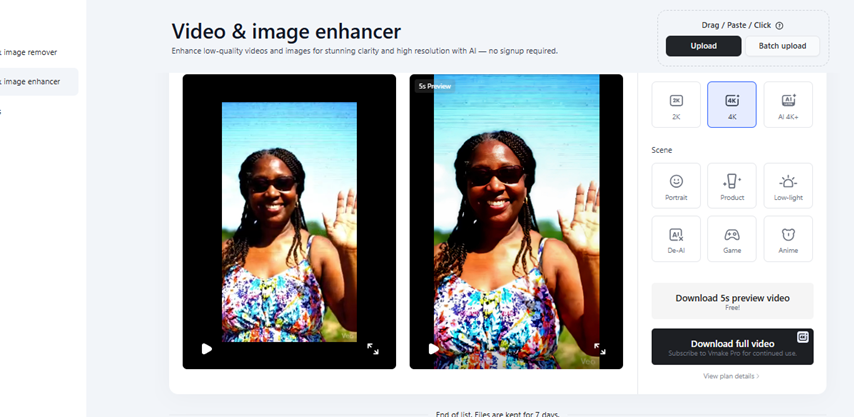

Everyone wants one thing when it comes to a video enhancer – quality results without hiccups. Sometimes, desktop apps can deliver the quality, but with setup, hardware requirements, and hours of configuration issues on the side. These lags can pose a barrier for solo creators who only need their videos to look good and be processed fast.
The Vmake AI video enhancer takes a different approach. It runs entirely online. And no download, installation, or setup is required to run the tool. Instead of a blanket algorithm, it offers seven distinct AI modes, each trained for various types of content.
This review covers detailed information for every mode. It explains who each mode is built for with clear takes on where Vmake delivers.
Who Is This Tool Built For?
Vmake AI video enhancer is perfect for small business owners, freelancers, and solo creators — individuals who do everything by themselves. You can use it as a Shopify seller managing your product videos. And a TikTok marketer testing new content daily. If you are an Instagram creator building your brand without a full production team, the enhancer is an ideal option.
With multiple features in the Vmake AI workspace, the video enhancer is a plus. You can complement it with other tools, such as caption, thumbnail, watermark removal, and the AI video creator. As a user who frequently works on social media content, the AI offers an all-around companion for every layer.
The Vmake AI tool is built for speed, simplicity, and output that looks great on social platforms. You can navigate the easy-to-use interface as a newbie – no technical know-how required.
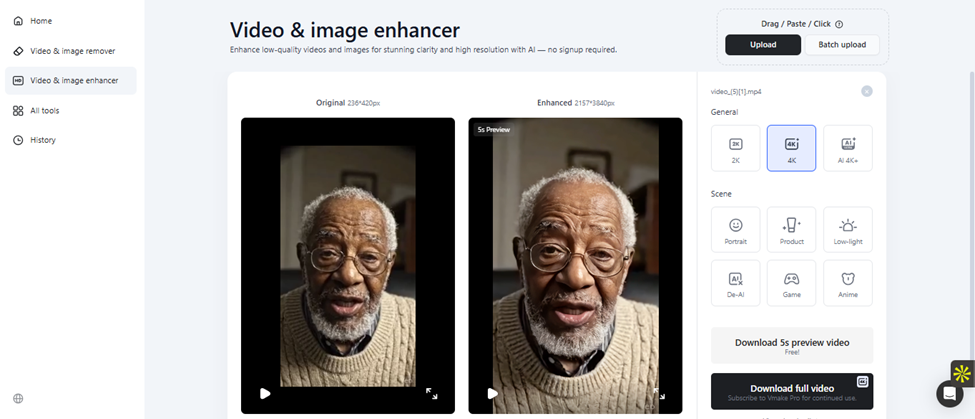
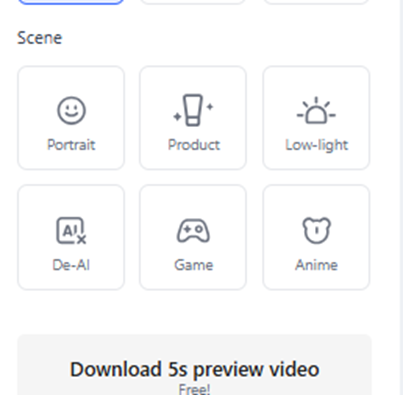
The Vmake AI Enhancement Modes
The Vmake AI stands out with seven separate AI models. Each one is trained for a specific type of content.
AI 4K+ — Generative Upscaling
The AI 4K+ is the flagship mode. It is different from most upscalers. Instead of stretching your video pixels, the AI builds new texture detail that fits what is already in the frame.
Standard upscaling makes videos larger; the generative makes them richer. With the mode, you get clearer hair, sharper skin detail, and better fabric texture. It handles high magnification ratios without the blur or instability that may appear at 4x or higher range. The AI 4K+ targets artifacts while keeping natural grain intact.
Best for: Product videos, travel footage, and older content being repurposed for modern platforms.
Portrait — Faces First
Portrait mode comes as the right choice for your talking-head videos. It is trained specifically on facial content and goes well beyond basic sharpening. You can reconstruct your facial detail lost to compression or low resolution.
The AI portrait removes blemishes while keeping pores and fine lines intact — so your face looks human, not airbrushed. It also separates the subject from the background for each zone to get the right treatment.
Best for: Interview videos, personal brand content, product marketing with a presenter.
De-AI — Fixing AI-Generated Video
This is the most distinctive mode in the lineup. While AI video generation has become more common, there are accompanying issues. These include footage that looks visibly fake, plastic skin, unnatural lighting, jittery motion, and broken text.
De-AI fixes exactly these problems. It handles small-face deformation (a known weak spot in video generation models), stabilises contours across frames, and reconstructs text so it reads properly. It also adds depth back to AI-generated backgrounds, which often look flat.
Best for: Brands using AI-generated marketing videos who want to reduce the uncanny valley look before publishing.
Product — Commerce-Focused Enhancement
The Vmake AI Product mode focuses on objects and not just faces. It prioritises the restoration of text and graphics on packaging. You can simply click the mode to reconstruct surface textures and reduce jitter during close-up shots.
The AI’s handling of materials is worth noting. Fabric behaves differently from plastic or matte paper. The product mode accounts for individual differences instead of applying a generic pass to everything.
Best for: online product demos, unboxing videos, and fashion content.
Low-Light — Saving Underexposed Footage
Night video footage can sometimes be difficult to salvage. You may have to struggle with your camera and a noisy sensor, while the video ends up flat and muddy. The low-light mode fixes all three of these issues — the missing shadow detail, the grain and flicker, and the low contrast that makes dark scenes look washed out.
What makes the mode unique is that the brightness boost does not apply to the whole frame at once. It reads and lifts underexposed areas. This ensures that parts that were already decently lit do not get blown out in the process.
Best for: Night event footage, indoor product photography, and any content shot in poor lighting.
Game — Screen Recording and Gaming Content
Game content has specific visual features that some enhancers handle badly. These range from HUD overlays, UI text, and sharp pixel art to fast motion videos that need to stay crisp. The game mode is built around these priorities.
With the frame rate enhancement included, the edit extends to motion stability. And the AI does not overwrite the game view. Although many games have specific colour grading and rendering styles that can be altered when enhanced, the Vmake AI Game mode maintains the aesthetic.
Best for: Gaming content creators, screen recording tutorials, e-sports clips.
Anime — Animation-Specific Processing
Animation has its own challenges. Line art needs to stay sharp. Colour blocks need to stay solid. Edges need to be precise. General enhancers often blur line edges or introduce colour bleeding on animated content.
Anime Mode handles line art stabilisation, colour block repair, fine edge reconstruction, and frame rate enhancement — with temporal stability improvements to reduce motion drift between frames.
Best for: Animation creators, short-form animated content, anime clip channels.
Vmake AI Workspace
The Vmake AI workspace offers more features beyond the video enhancer. Below are some other tools you can try out.
| Feature | What It Does |
| Watermark & Text Remover | Cleans up watermarks and unwanted text straight from your video file |
| Background Remover | Cuts subjects from backgrounds using AI. No green screen needed. |
| Auto Captions | Transcribes speech and adds styled subtitles automatically. It supports different languages. |
| AI Thumbnail Generator | It gives you eye-catching thumbnails from your video or image in one click. |
| UGC Generator | Builds short UGC-style hook videos for ads. Test different personas with the same product. |
| AI Image Enhancer | Applies the same enhancement logic to still images. Sharpen your thumbnail in the same session as your video. |
| AI Video Generator | Generates video from text or images using Sora 2, Veo 3.1, Kling, and Seedance depending on your plan. |
Pricing and Plans
Vmake AI offers three pricing tiers if you are looking to use the video enhancer. The free plan includes 50 credits on your first login. And users receive 20 credits daily. You can easily upgrade the free plan to Pro or Plus for extra features.
| FREE | PLUS | PRO |
| $0 / always free | ~$9.99 / month | ~$29.99 / month |
| 20 credits per day | 1,000 credits per month | 4,500 credits per month |
| Download your video in 720p quality | Download your video in 1080p | Download your video in sharp 2K |
| Up to 3 files (video & audio to text) | Enhancer: 10 files/day | Enhancer: 50 files/day |
| Limited AI models. | Sora 2 & Veo 3.1 access | Full model access (Kling, Seedance) |
| — | Commercial use included | Commercial use included |