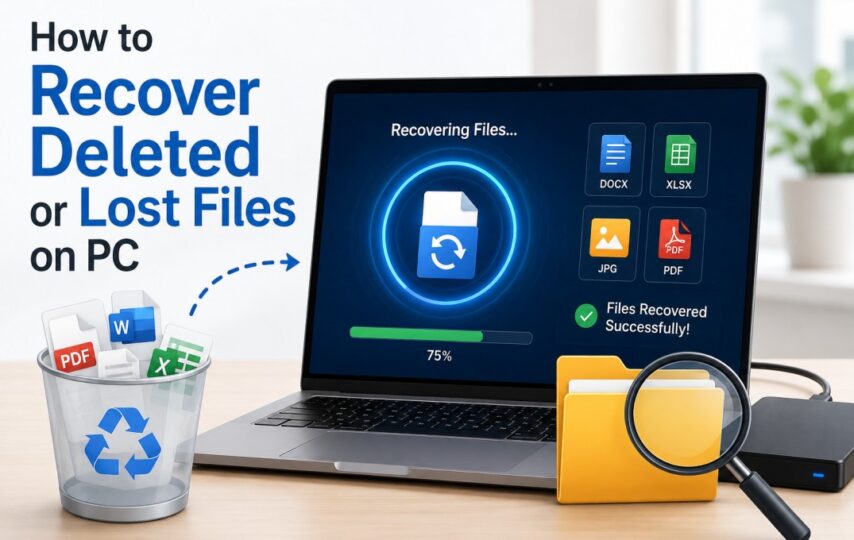

Losing files on a Windows PC is common. A document gets deleted by mistake, a hard drive is formatted too fast, or a system crash makes important folders disappear. The good news is that windows file recovery is often possible if you stop using the drive and choose the right method early.
If you only deleted a file a few minutes ago, the Recycle Bin may solve the problem. If the bin is empty, the partition is damaged, or the drive was formatted, you need a stronger recovery approach. For most users, a dedicated tool such as Wondershare Recoverit is the fastest way to scan, preview, and restore lost data without command lines or manual guesswork.
In this guide, you will see why files disappear on Windows, what recovery options actually work, and how to recover deleted or lost files step by step.
Why Do Files Get Lost on Windows?
Windows data loss usually comes from a small number of real-world causes:
- Accidental deletion
- Emptied Recycle Bin
- Formatting a partition by mistake
- System crash or blue screen
- Virus or malware attack
- Power failure during transfer
- Corrupted external hard drive or USB drive
- Lost partition or RAW file system error
Each case affects recovery differently. A recently deleted Word file has a much better chance of recovery than data from a heavily used SSD after formatting. That is why recovery success depends not only on the tool, but also on what happened after the loss.
Can Deleted Files Be Recovered on Windows?
Yes. In many cases, deleted files are not erased immediately. Windows usually removes the file entry first, while the actual data remains on the drive until new data overwrites it. That is why acting fast matters.
You usually have a better recovery chance when:
- You stop writing new data to the affected drive
- The file loss happened recently
- The storage device is still readable
- You use a recovery tool that supports the file system and file type
You usually have a lower recovery chance when:
- The drive has been used heavily after deletion
- The SSD has already processed TRIM cleanup
- The disk has physical damage
- The partition structure is severely corrupted
Best Ways to Perform Windows File Recovery
1. Check the Recycle Bin
This is the first place to look. If the file was deleted normally, it may still be there. Open Recycle Bin, find the item, right-click it, and choose Restore.
2. Restore from File History or Backup
If you already enabled File History, OneDrive backup, or another backup solution, restore from the earlier version instead of scanning raw disk sectors. This is the cleanest option when available.
3. Use Microsoft Windows File Recovery
Microsoft offers a free command-line utility called Windows data recovery. It can help in some deletion and storage scenarios, but it is not friendly for most users. You need to remember commands, recovery modes, and target locations. If you are not comfortable with command-line tools, this path slows things down fast.
4. Use Professional Recovery Software
When the Recycle Bin is empty, the drive was formatted, or the partition becomes inaccessible, dedicated recovery software is usually the better option. A visual workflow saves time and reduces mistakes. Recoverit is especially useful for documents, photos, videos, archives, and office files stored on internal drives, external HDDs, SSDs, USB drives, and memory card recovery.
How to Choose the Right File Recovery Tool
Not every recovery tool is worth using. A good Windows data recovery solution should give you:
- Support for common file types like DOCX, XLSX, JPG, PNG, MP4, and PDF
- Support for Windows 11 and Windows 10
- Recovery from deleted, formatted, and corrupted devices
- Preview before recovery
- Simple scanning and filtering options
- A clear workflow that does not require advanced technical knowledge
That is where Recoverit stands out. It is built for everyday recovery cases instead of forcing users through manual command syntax. If your issue involves a damaged partition or inaccessible storage, this related hard drive recovery guide is also useful.
Recommended Solution: Recoverit for Windows File Recovery
If you want the most direct path, Recoverit is the option I would recommend. It covers the common cases that built-in Windows methods do not handle well: permanently deleted files, formatted drives, lost partitions, crashed computers, and external device recovery.
It also keeps the process simple:
- Select the drive or folder
- Run the scan
- Preview and recover the files you need
That matters because most users do not need a “free but complicated” recovery process. They need a method that works quickly and reduces the chance of making the situation worse.
How to Recover Lost Files with Recoverit in 3 Steps
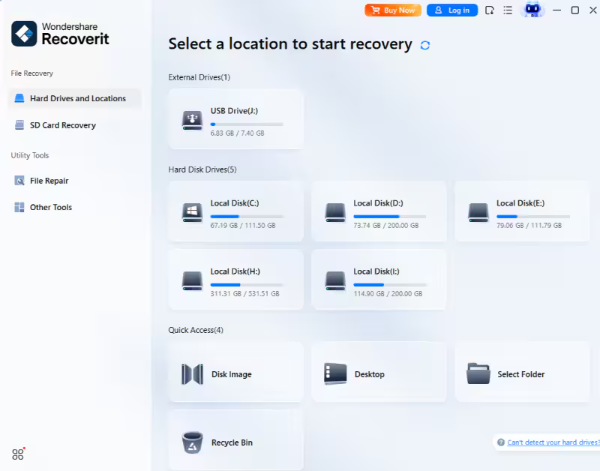
Step 1: Select the Location Where the Files Were Lost
Action: Launch Recoverit and choose the drive, desktop, folder, recycle bin, USB drive, or partition where the files disappeared.
Purpose: This tells the software where to focus the scan, which improves relevance and saves time.
Result: Recoverit starts scanning the selected area for deleted and lost files.
Step 2: Scan for Deleted, Lost, or Formatted Data
Action: Let Recoverit run its scan. Use filters for file type, path, size, or date if you want to narrow the results.
Purpose: The scan searches for recoverable content across common loss scenarios, including deletion, formatting, and partition issues.
Result: You get a structured list of found files, often grouped by type and original folder path.
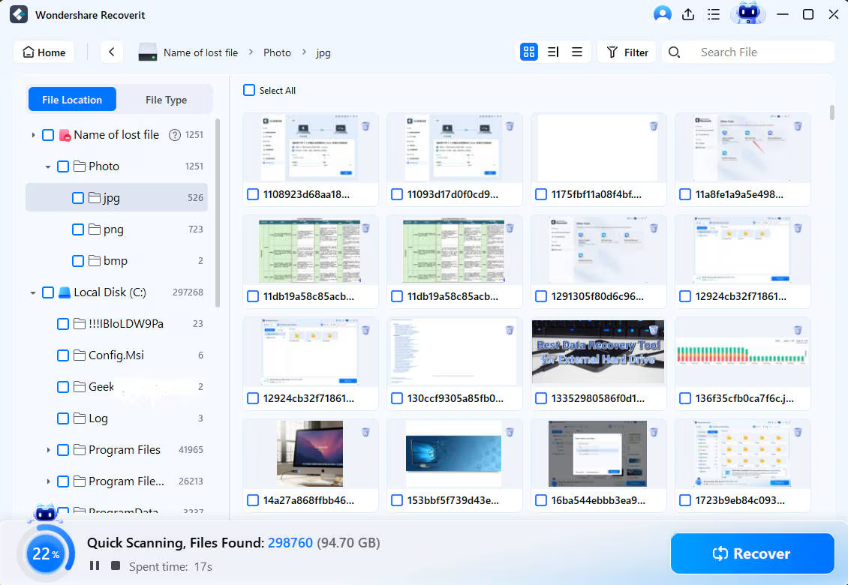
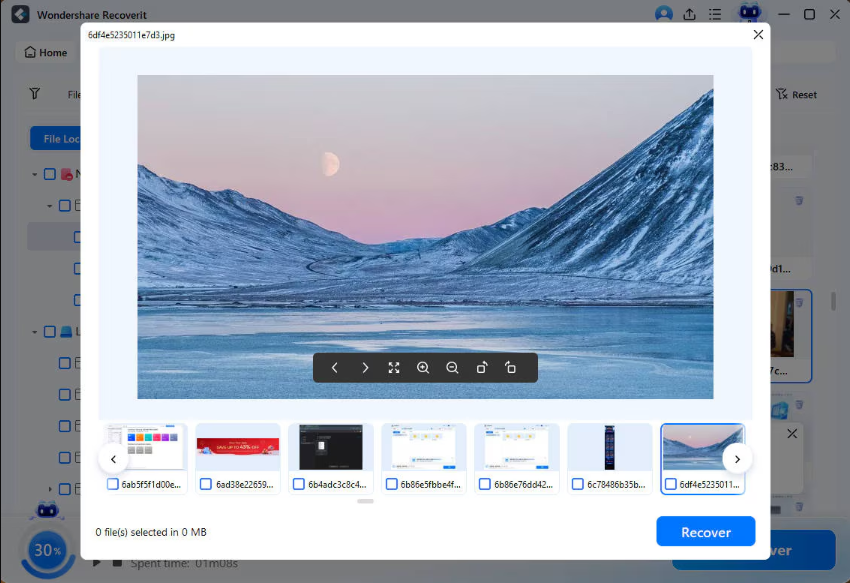
Step 3: Preview and Recover Files to a Safe Location
Action: Preview the files you want, select them, and click Recover. Save the recovered files to another drive or partition.
Purpose: Saving to a different location helps avoid overwriting other recoverable data.
Result: Your selected files are restored and ready to use.
Why Choose Recoverit Instead of Manual Recovery?
Recoverit is a stronger choice for most users because it removes the friction from Windows file recovery. Instead of remembering commands or guessing which recovery mode to use, you work through a guided interface. That is better for personal users, office teams, creators, and anyone recovering important work files under time pressure.
Main advantages include:
- Easy interface for beginners
- Support for many storage devices
- Recovery for deleted, formatted, and inaccessible data
- Preview before restore
- Practical for documents, photos, and videos
Tips to Improve Recovery Success
- Stop using the affected drive immediately
- Do not install recovery software on the same drive where files were lost
- Recover files to another storage location
- Avoid reformatting or repartitioning the device again
- Start the recovery scan as early as possible
These small decisions often make the difference between partial recovery and full recovery.
Final Verdict
If you need windows file recovery, start with the simple options first: Recycle Bin and backup restore. If those fail, do not waste too much time forcing a manual method that may not fit the situation. For deleted files, formatted drives, lost partitions, and system-related data loss, Recoverit is the more practical solution.