

Due to an iOS update, an accidental deletion, or an iCloud Sync error, you might notice that your contact list is incomplete. Nonetheless, those contacts are not always lost and can be retrieved via multiple iPhone data recovery methods.
Hence, this guide explains when numbers are deleted and why iCloud is not always the answer. Review how recovery tools, such as Dr.Fone – Data Recovery (iOS), can be a better option in most cases. By the end, learn why it outshines iCloud recovery and how to secure contacts in the future.
Part 1. What Happens When You Delete Contacts on an iPhone?
With the contacts gone, you might question how to retrieve deleted contacts on iPhone. Note that when you delete the contacts on your iPhone, their phone numbers and other details are removed immediately. If iCloud Sync is on, the deletion is also synced to iCloud and to all Apple IDs associated with the same account.
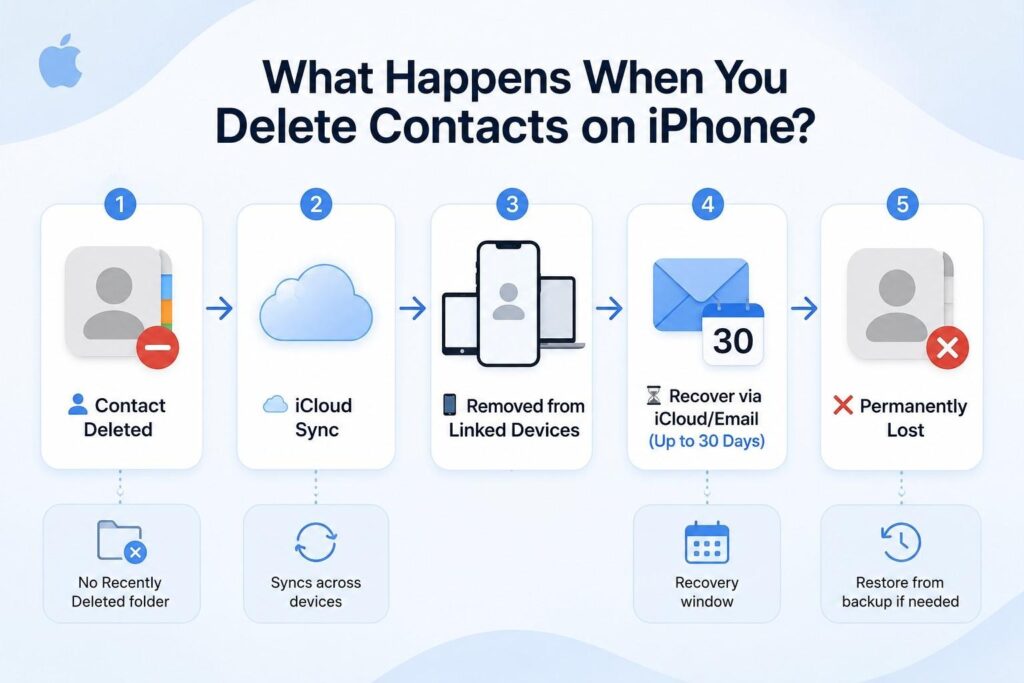
Hence, the contact will not appear in the list unless you restore it from a backup or add it manually again. The built-in iPhone Contacts app does not have a Recently Deleted folder. However, iCloud may keep archived contact changes for about 30 days, while email providers use their own retention policies. After that period, recovery from the device itself is usually no longer possible.
Restore from iCloud (Via Web Browser) and its Limitations
If you have decided to retrieve contacts from iCloud, know that you will get all contacts. This means there will be no option to restore only one contact, as it can restore contacts from an older archived backup. Thus, your current contacts may be replaced by an older version, and you may need to manually handle duplicates. So, within 30 days, here is how you can use this iPhone data recovery method to get contacts back:
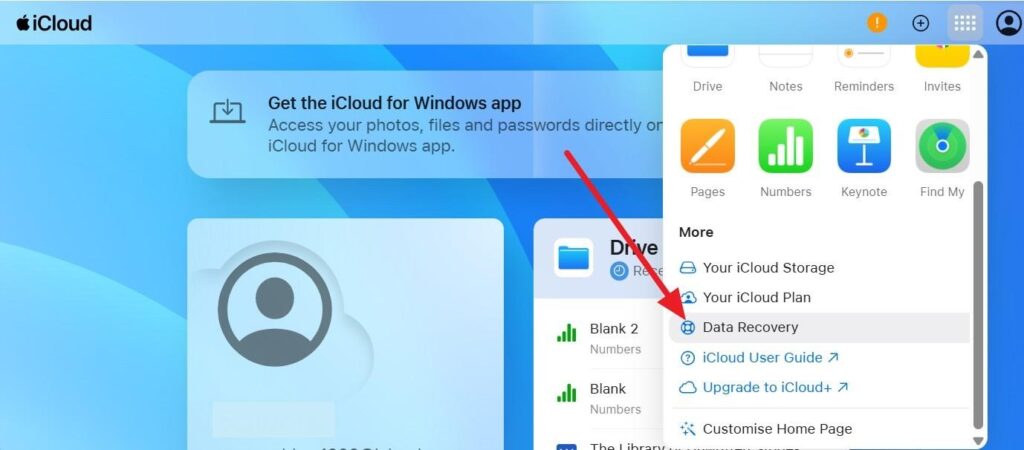
Step 1. On iCloud.com, tap the “Grid” icon beside the profile and choose the “Data Recovery” option.
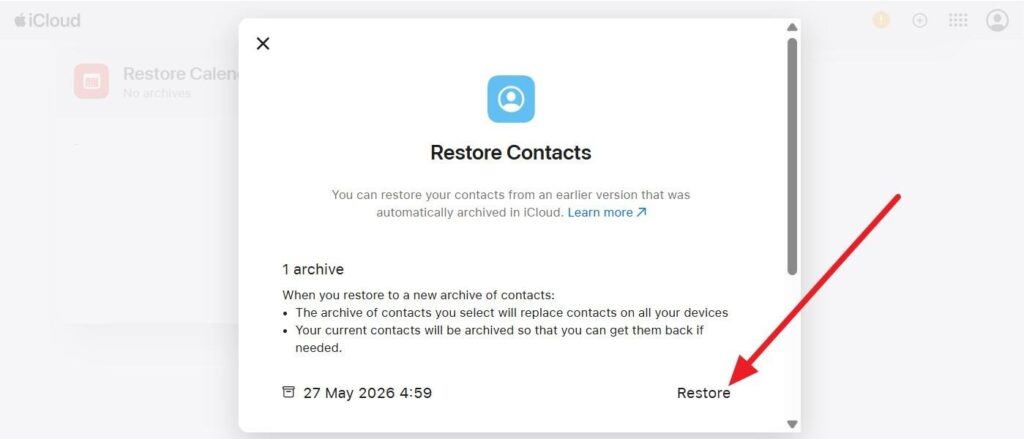
Step 2. There, locate the “Restore Contacts” option and choose the “Restore” option in the popup to confirm.
Why iTunes/iPhone Backups Are “All‑or‑Nothing”
As you learn how to retrieve deleted contacts on iPhone, know that iTunes and Finder backups are full copies of your iPhone. So, to recover any contact, you need to restore the full backup, which can overwrite the current data.
In addition, recovery isn’t possible if the backup is old and damaged, which is why it’s not an ideal choice for selective contact restoration. Nonetheless, if you don’t care about one contact recovery or existing data, here is how it’s done:
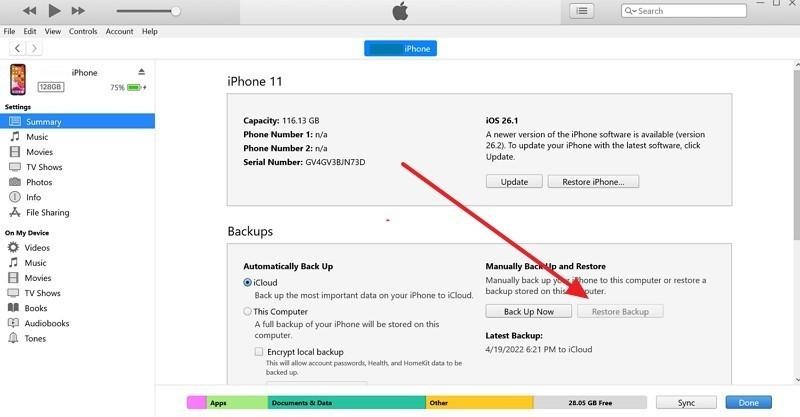
Step 1. Go to the iTunes “Summary” tab as you connect your iPhone via USB and trust it. Click “Restore Backup” in the “Backups” tab, then enter the passcode if it was encrypted.
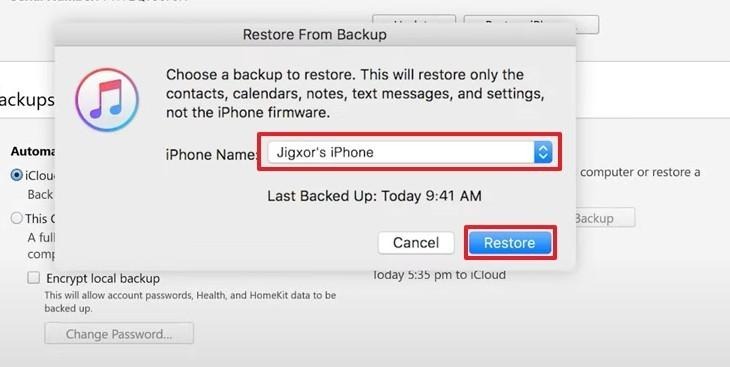
Step 2. Later, select the backup from the “iPhone Name” list, then tap the “Restore” button to restore the lost contact list.
Part 2. Why is iCloud Data Recovery Isn’t Always Enough?
So, to help you know why the official iPhone data recovery method is not the ideal choice, review the given reasons:
| Limitation | What It Means | Why It Matters |
| Restore All Contacts | iCloud restores the entire contacts list. | You cannot recover just one deleted contact. |
| Short Recovery Period | Deleted data is usually available for about 30 days. | Older contacts may be impossible to recover. |
| Limited Contact History | Only recent versions or snapshots are kept. | You cannot go back through many older versions. |
| Browser-Based Recovery | Most recovery actions require iCloud.com. | Recovery can be less convenient on mobile devices. |
| Large Restores Can Be Difficult | Restoring many contacts at once may be slow. | The process can become confusing or time-consuming. |
Part 3. How to Retrieve Deleted Contacts on iPhone Using Recovery Software
When selective contact recovery becomes an issue with official methods, the need to choose the best iPhone data recovery software becomes important. In this case, Dr.Fone – Data Recovery (iOS) lets you retrieve 35+ data and contacts from your device, iCloud, iTunes, or local backups. From old to the latest iOS models, recovery is also possible from iPads, and you can retrieve the contacts you want.
Besides selective restoration, the tool uses a read-only scan to keep the existing data safe from being overwritten. Furthermore, the scan is free, and you can also preview all the thumbnails and save the phone numbers to your phone and PC. Unlike most recovery tools, you can use this tool on 1-5 devices and 2 PCs, and get weekly updates for all iOS versions.
Guide to Recover Selected Contacts via Dr.Fone Recovery Software
To learn how to retrieve deleted contacts on iPhone using this software, here are the detailed guidelines:
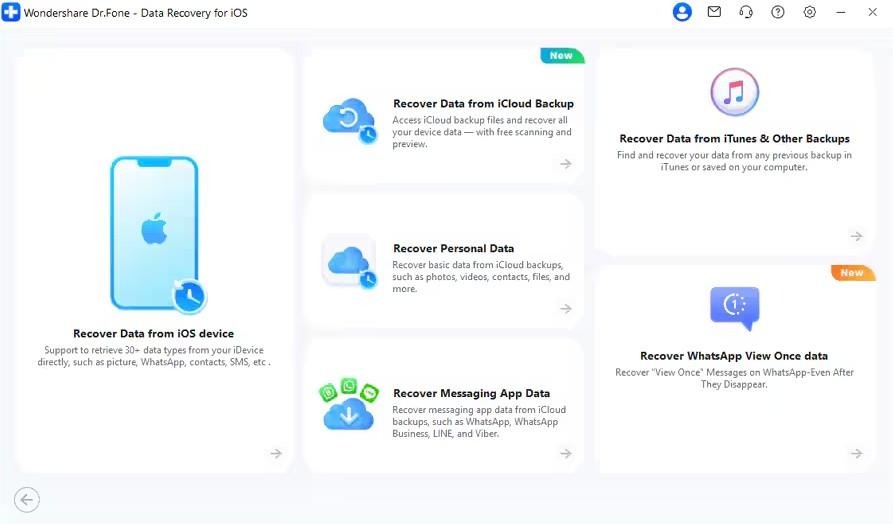
Step 1. Tap to Recover Contacts from an iOS Device
From all the modes, select the “Recover Data from iOS Device” option and connect the iDevice to the tool when prompted.
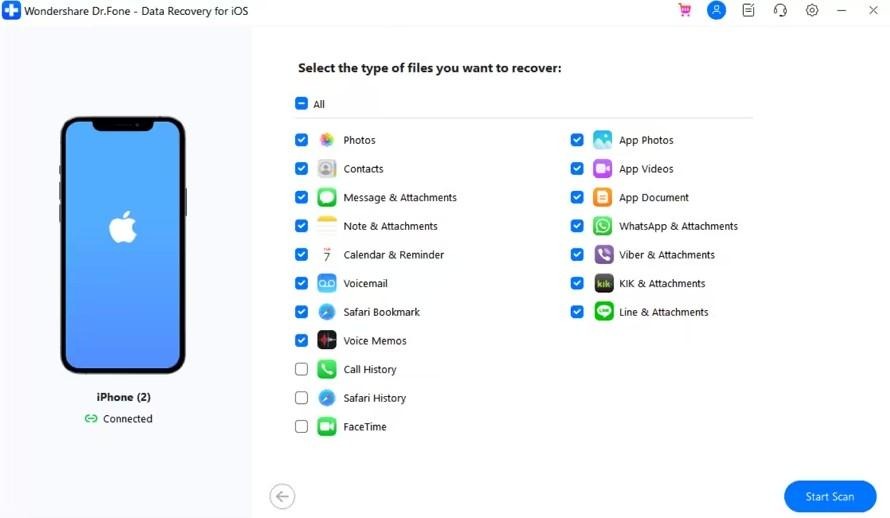
Step 2. Start the Dr.Fone Free Scan to Recover Contacts
After that, tick the “Contacts” option from the available data types and choose the “Start Scan” button to review the iPhone storage.
Step 3. Filter and Preview to Export Recovered Contacts
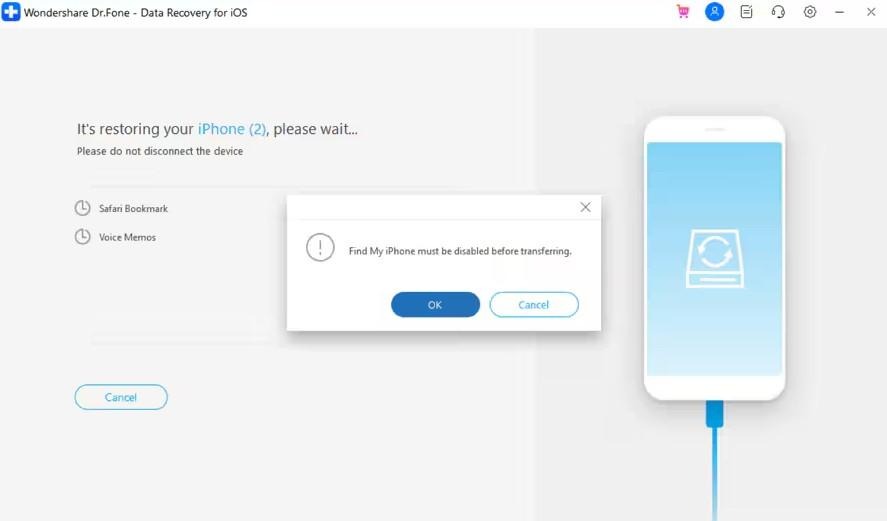
Once all the contacts appear, filter and preview them, then choose the desired export options and click “OK” to complete.
Part 4. 5 Tips: Protecting Your Contact Database
Now, you know how the best iPhone data recovery software can let you recover chosen contacts. For extra safety, follow the mentioned tips to avoid phone number loss:
| Tip | How It Helps |
| Enable iCloud Contacts Sync | Keeps contacts updated across devices. |
| Create Regular Backups | Provides a recovery option if contacts are lost. |
| Export Contacts Periodically | Saves an extra copy outside Apple services. |
| Use One Main Contacts Account | Reduces sync conflicts and duplicate entries. |
| Check Before Deleting | Prevents accidental contact loss. |
Conclusion
For selective iPhone data recovery, Dr.Fone – Data Recovery (iOS) lets you recover missing contacts and 35+ other data types without restoring an entire backup. It supports recovery from iPhones, iCloud, iTunes, and local backups while allowing you to preview recoverable data before restoring it.