
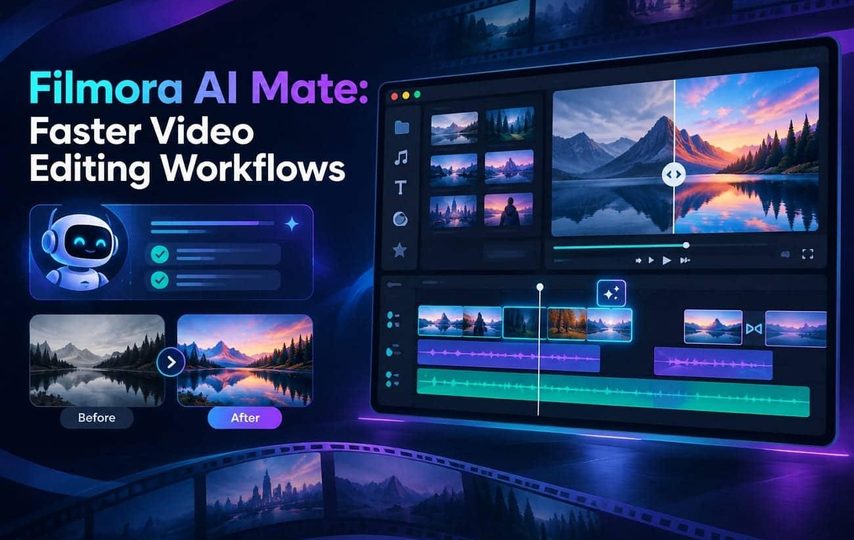

Video editing often slows down when creators search menus for settings across projects. Many tasks repeat because editors must find tools before applying their planned changes. A copilot editor reduces this gap by turning plain requests into useful actions.
AI Mate in Filmora 15 helps users with 4 modes for different needs. These modes support editing work, guidance, content creation, and decision-making during video projects. This guide explains how to use each mode and improve your editing workflow.
Part 1. What Is AI Mate in a Video Editor?
AI editing assistants change how creators interact with video editors through simple requests. They turn editing goals into actions instead of requiring manual searches across menus. This table explains why AI editing assistants change traditional workflows for creators. It shows how AI Mate reduces manual searches and improves editing processes:
| Working Through Menus | Asking the Assistant |
| You need to know a feature exists before you can use it. | You describe the goal, and the assistant helps find the right feature or action. |
| Each clip is adjusted in turn through the same panel. | One request can help complete supported edits across your project. |
| Learning a new tool means leaving the project to read a guide. | An explanation arrives beside the work, helping you understand features while editing. |
| A loose idea has to be translated into settings before anything happens. | A loose instruction such as “make this brighter” can be turned into an editing suggestion or action. |
The comparison helps readers understand the difference before exploring specific assistant features. It highlights menu-based editing versus natural language requests inside video editors. The table builds context before explaining Filmora’s assistant capabilities in detail.
Part 2. What Can Filmora AI Mate Help You Do?
Each mode helps the copilot editor handle specific requests throughout different editing situations. Let’s explore each mode and understand how it supports various video creation tasks:
Auto Mode, When You Do Not Want to Choose
Start with Auto Mode when you want Filmora to handle the setup process. It identifies your request and directs the task toward the right assistance. Beginners can use this option before learning how other modes work.
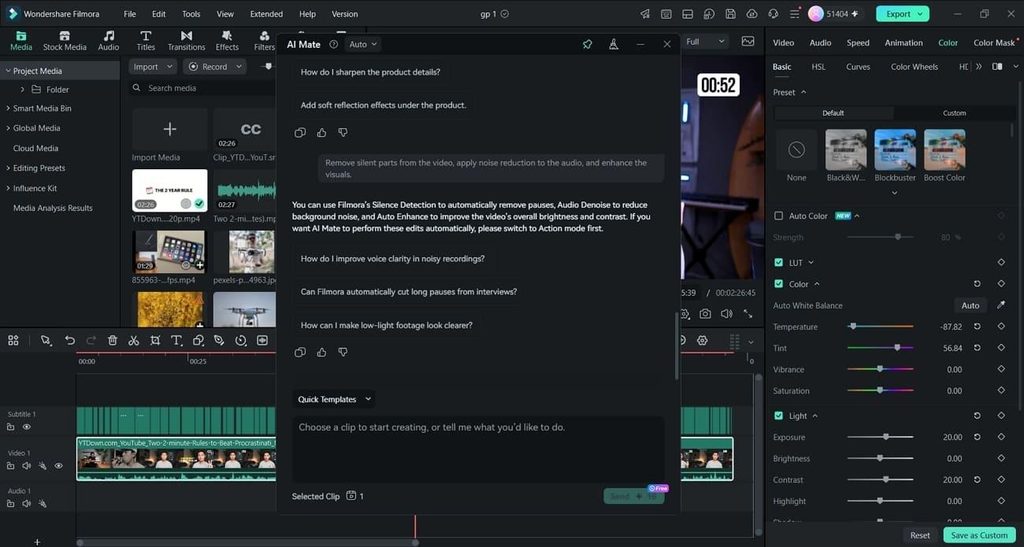
Guide Mode, for Learning a Feature Without Leaving the Project
Use Guide Mode for questions about features, tools, or editing steps. The assistant explains processes while you continue working inside your current project. This approach connects instructions with your actual editing environment instead of examples.
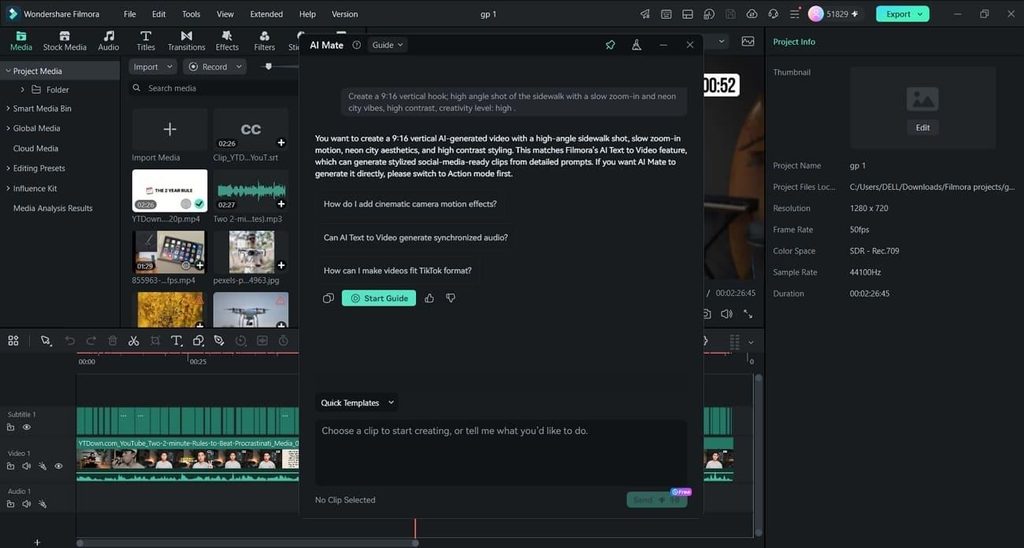
Action Mode, for Getting the Change Made
Choose Action Mode when you want Filmora to perform specific editing tasks. Your instructions can trigger supported changes across clips or project elements. Common uses include stabilization, reframing, adjustments, and other editing operations.
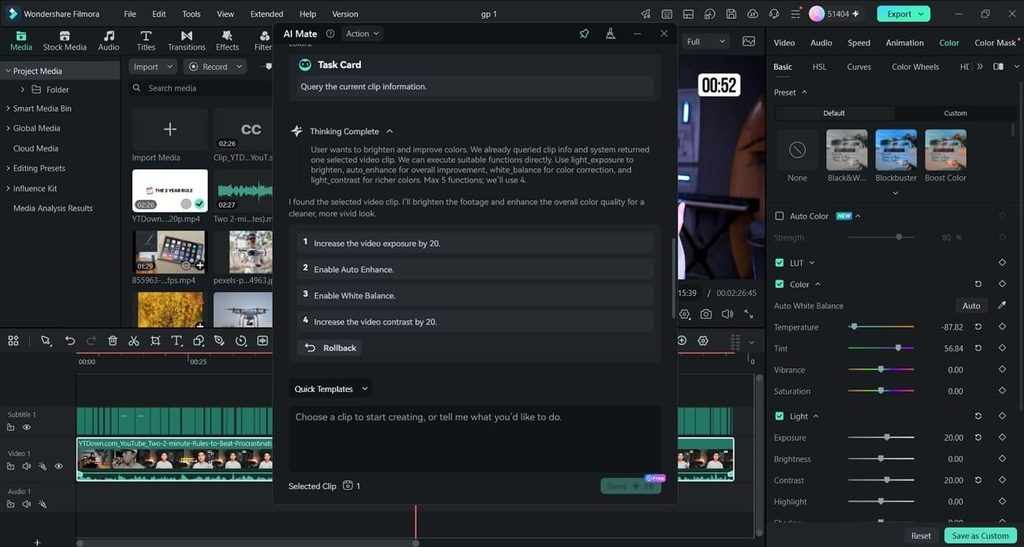
AIGC Mode & Idea to Video Agent
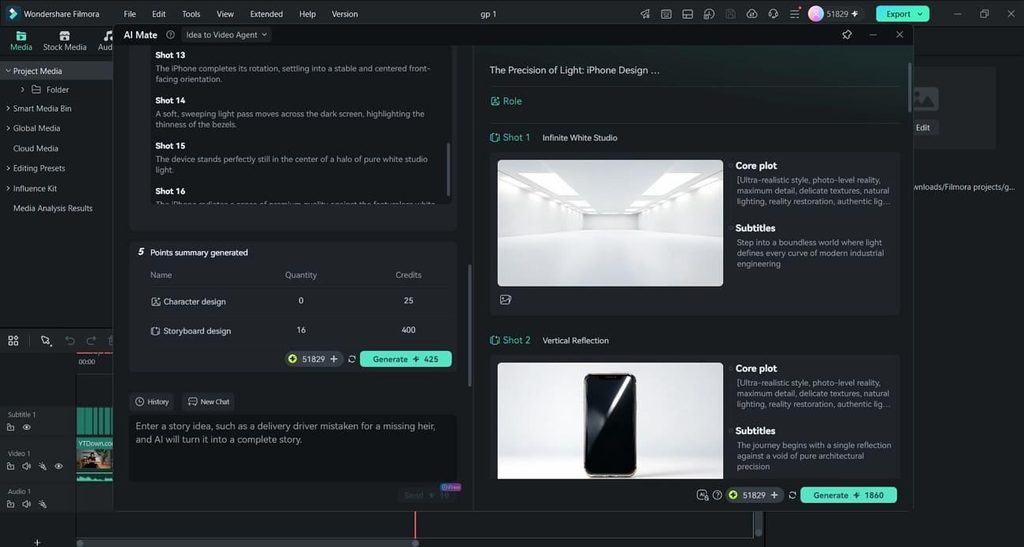
AIGC Mode focuses on creating new content from your written ideas. It can support concepts, scripts, and video creation before editing begins. Idea to Video transforms concepts into complete editable story videos for refinement.
Part 3. How to Start Using Filmora AI Mate
Filmora includes AI Mate in version 15, so no separate setup process is required. Follow these steps to start using the assistant and create your first result:
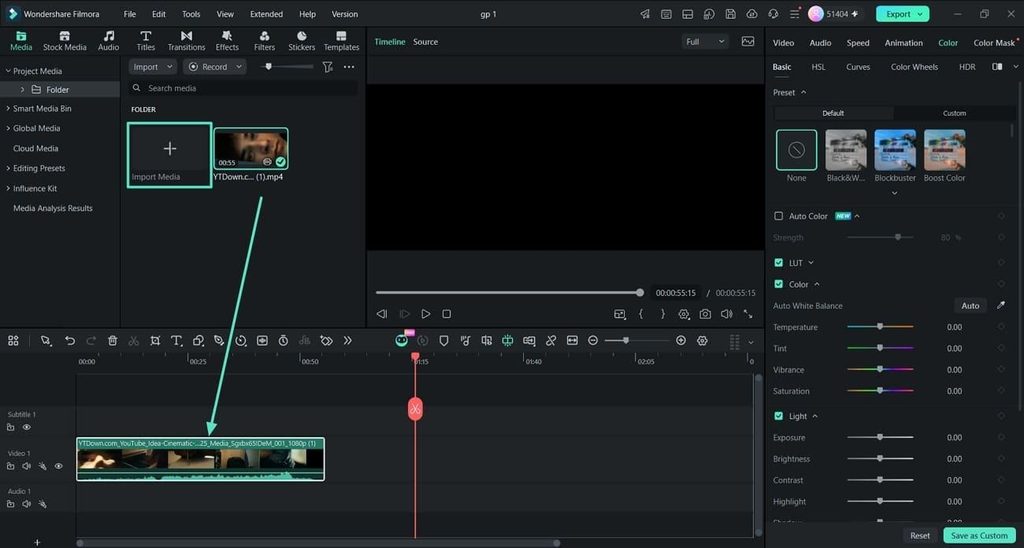
Step 1. Create a New Project and Bring In Your Footage
Once you open Filmora, press the “Create Project” option to create a new project. After that, press “Import Media” to bring in your video file and drag and drop it over the timeline to start working on it.
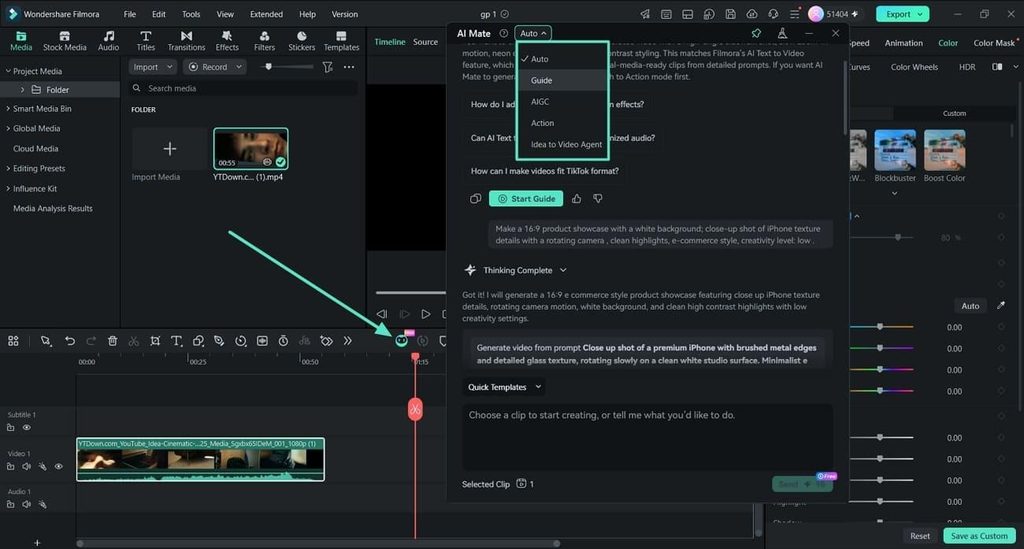
Step 2. Open AI Mate and Pick a Mode
Next, press the ‘AI Mate’ icon in the toolbar, then use Auto or select Guide, Action, AIGC, or Idea to Video Agent. Use “Auto” mode if you are unsure which option fits your task.
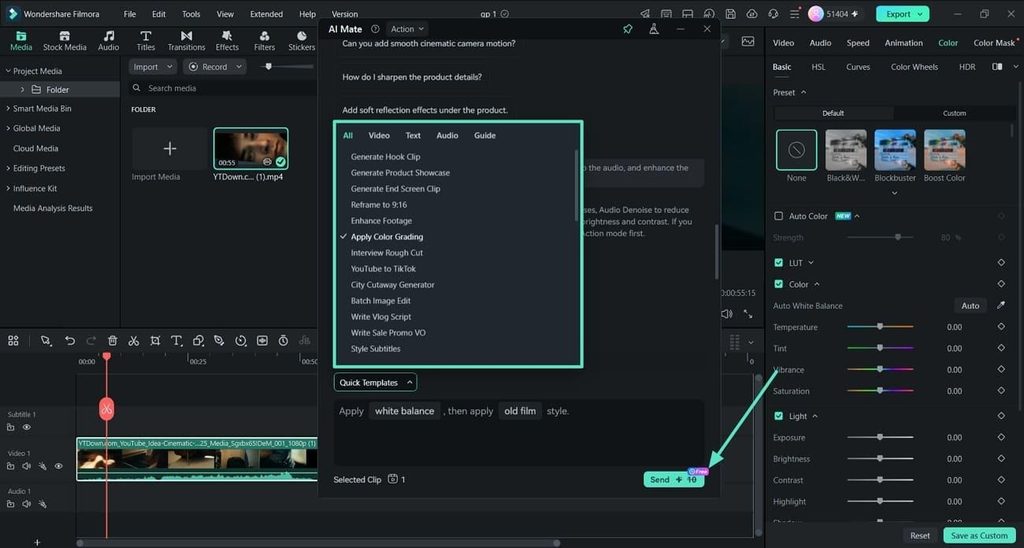
Step 3. Describe the Outcome, Not the Menu Path
Choose a template from the “Quick Template” section to let Filmora know the nature of your task. Otherwise, simply type the idea that you want to execute and press the “Send” button.
Step 4. Check What It Did Before Moving On
Check the changes made by AI Mate and make any adjustments if needed. Once the video looks correct, press the “Export” button to save the final video.
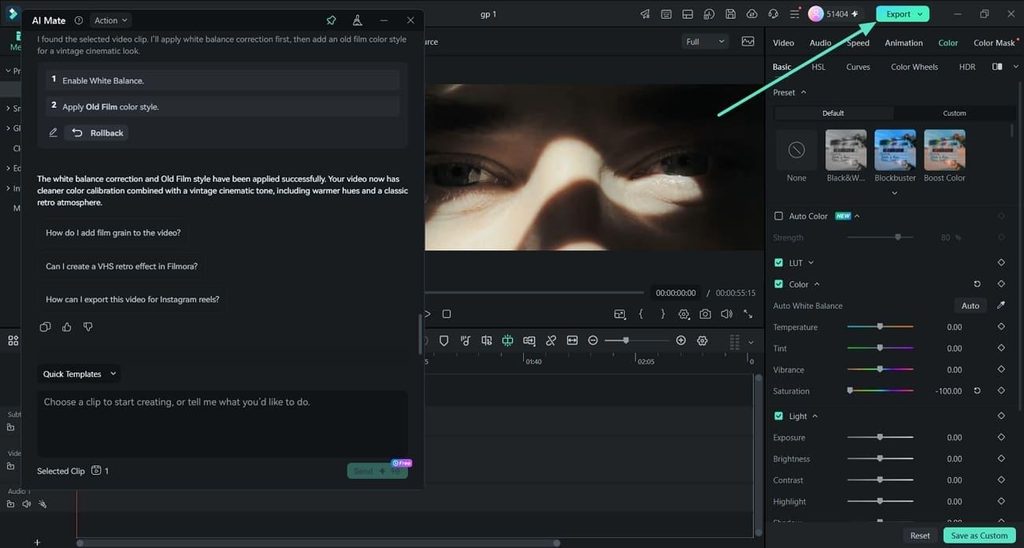
Note: Modes share one conversation, so context remains when switching between different AI options. Moving from Guide to Action keeps the same request without repeating your details.
Part 4. Useful Prompts and Workflows for AI Mate
A clear request helps Mate AI understand the goal, footage, and required limits. Specific details create better results than unclear instructions about the desired changes. The table below shows useful prompts for common editing tasks and workflows.
| What You Are Trying to Do | What to Ask For |
| Find a Direction for a Rough Set of Clips | Suggest three ways to open a five-minute handheld vlog, and say which suits a slow start. |
| Improve a Cut That Feels Flat | Point out where the pacing drags in this sequence and propose trims that keep the narration intact. |
| Organize Visual Elements | Apply the same crop and transform to every clip on track two, then match their color temperature. |
| Learn a Feature You Have Not Used | Explain what auto reframe does to this clip, then walk me through converting it to vertical. |
One clear request can replace several panel visits during common editing tasks. The greatest time savings appear when identical adjustments apply across multiple clips. Instead of repeating each change manually, the assistant handles the instruction once.
Part 5. How to Review AI-Assisted Edits and Who Benefits
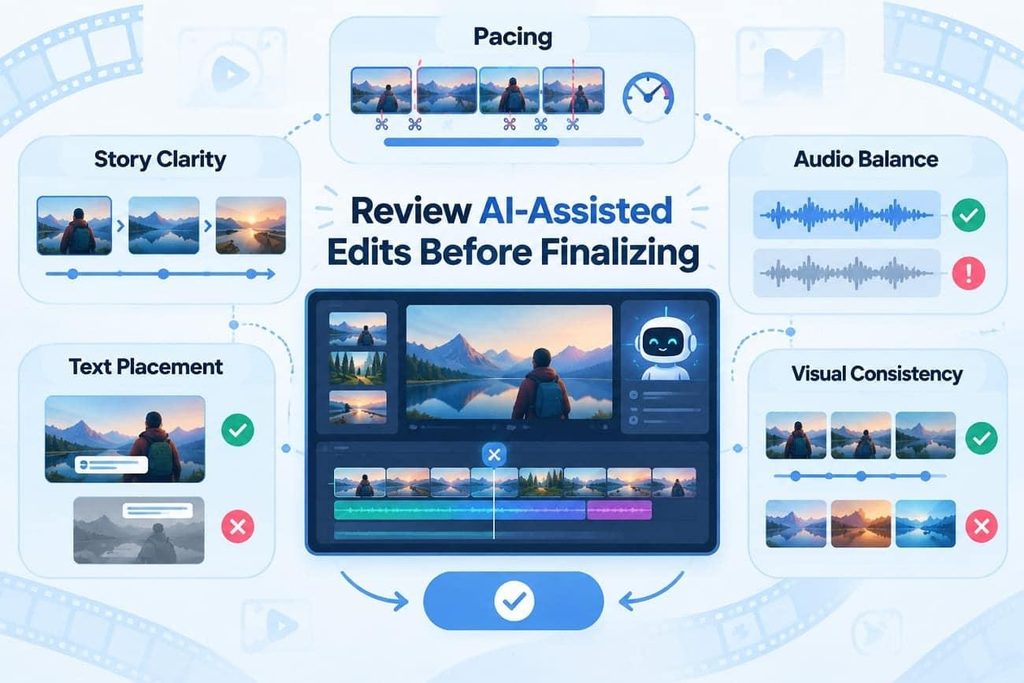
A copilot editor speeds up changes, but reviewing results keeps creative decisions under control. Let’s examine the key areas that need checking before accepting AI-assisted edits:
- Pacing: AI trims may remove silence but miss the natural video rhythm. Watch the complete sequence before accepting the final editing changes.
- Story Clarity: Shorter cuts do not always create a clearer video message. Check that every shot still supports the main story and purpose.
- Audio Balance: Audio adjustments can change voice quality across the entire timeline. Listen to quiet and loud sections before accepting audio changes.
- Text Placement: Automatic text movement may cover important faces or brand logos. Review captions and titles across their actual displayed frames.
- Visual Consistency: Batch color or crop changes may not suit every clip. Compare the first and last clips before keeping visual adjustments.
Who Can Benefit From AI-Assisted Editing?
Mate AI supports different users by reducing repetitive work and simplifying editing tasks. Below are the main groups that can benefit from these AI editing workflows:
- Beginners: Guide mode helps new editors find tools and understand editing steps. Learning stays inside projects instead of requiring separate tutorial resources.
- Busy Creators: Action mode handles repeated adjustments across frequent video publishing workflows. Creators save time for decisions that require unique creative input.
- Small Teams: Mate AI helps teams share editing support across different skill levels. Projects move forward without depending on one expert in video editing software.
- Educators: AI assistance reduces repetitive cleanup tasks across large educational video collections. Teachers can focus more on content instead of routine adjustments.
- Experienced Editors: The assistant handles mechanical tasks while editors keep creative control. Mate AI supports delegation without replacing professional editing decisions.
Conclusion
Editing improves when creators spend less time on mechanical tasks. AI Mate shifts repetitive work into simple requests while keeping creative control. The editor still decides pacing, tone, and story throughout the final video. For smoother workflows, try Filmora and explore its AI editing features.
FAQs About AI Mate
- Which AI Mate mode should I use for editing help?
Auto mode works best initially because it directs requests toward suitable assistance options. Choose Guide, Action, or AIGC after understanding each mode’s specific purpose.
- Can AI Mate replace a video editor?
AI Mate acts as a copilot editor but cannot replace creative decisions. Editors still control the message, style, pacing, and final video direction.
- How should I review an AI-assisted edit before exporting?
Review edited sections before export to catch problems before final rendering. Watch the video at full speed because timing issues appear during playback.
- Does AI Mate work on Mac as well as Windows?
AI Mate works on both Windows and Mac versions of Filmora. The Mac version supports newer systems and Apple silicon processors from M1 onward.
- Is Mate AI the same thing as AI Mate?
The official feature name is AI Mate, introduced before Filmora 15. Mate AI refers to the same assistant when users search online.