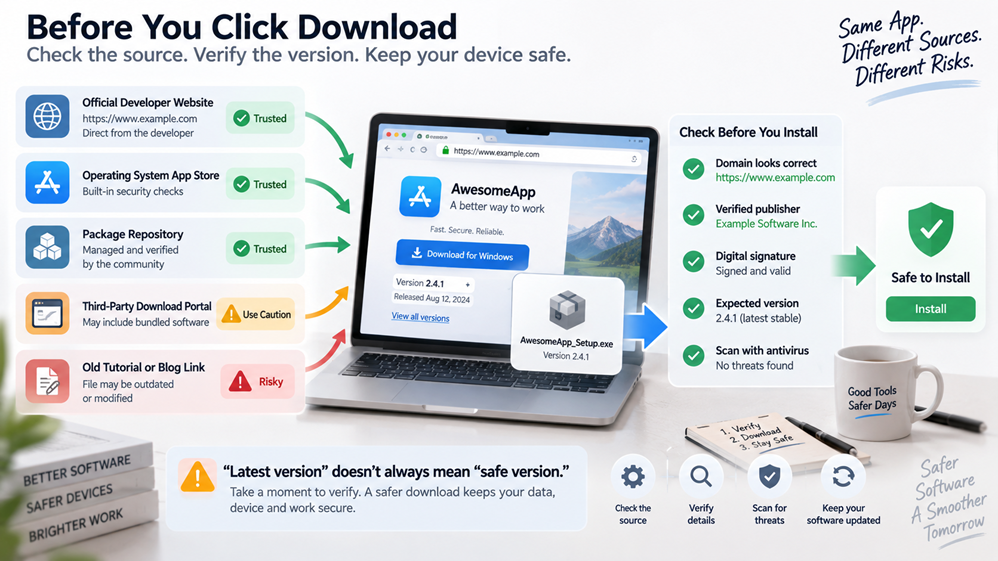

“Download the latest version” is one of the most common instructions in software guides.
It is also one of the easiest instructions to misunderstand.
A tutorial may have been accurate when it was published, but software changes quickly. Version numbers move on, screenshots become outdated, operating-system requirements change, and a download button that once pointed to the right installer may eventually become irrelevant.
The real question is therefore not simply whether a file claims to be the latest version.
Before installing desktop software, users should know three things:
- whether they have found the correct application;
- whether the download comes from a source they can trust;
- whether the version still makes sense for their operating system.
That small amount of checking can prevent a surprising number of avoidable problems.
“Latest Version” Does Not Stay Latest
A version number describes a specific release.
The word “latest” describes a moment in time.
Suppose a tutorial was written when an application was on version 5.4. Months later, version 6.0 is released, but the old article remains high in search results.
The headline may still say “latest version.”
The screenshot may still show the old interface.
The direct link may still mention version 5.4.
This does not automatically make the article dangerous. Much of the installation process may still be correct.
It does mean readers should separate the parts of a tutorial that age slowly from the parts that can change quickly.
Information such as the software’s purpose and supported platforms may remain useful for years.
Exact version numbers, filenames, screenshots and download locations deserve more frequent verification.
Confirm Which Client You Actually Need
Many applications are available in several forms.
A messaging service, for example, might offer:
- Windows software;
- a macOS client;
- a Linux build;
- Android and iPhone apps;
- a browser version.
These are not interchangeable.
Instructions written for a Windows installer may have little relevance to someone using the web version. A store edition can also behave differently from a conventional installer.
Before searching for a file, identify the client first.
Traditional Chinese readers comparing Telegram client and installation options may find a Telegram 下載指南 useful as additional orientation. The wider lesson is the same for any software: establish the correct platform and product before deciding which file to download.
Starting with a random download button and working backwards is far more error-prone.
Be Careful With Old Direct-Download Links
Direct links are convenient because they remove several clicks.
They also age badly.
A link to a specific installer may stop being appropriate when:
- a new version replaces it;
- the developer changes its server structure;
- support for an older operating system ends;
- a package is withdrawn;
- installation moves to a different distribution channel.
That is why a stable product or release page is often more useful than a tutorial permanently pointing to one old executable file.
Authors can still mention the version they tested.
In fact, doing so improves a guide.
A sentence such as:
“These steps were checked with version X on Windows 11.”
is more informative than claiming that screenshots always represent “the latest version.”
Readers immediately know the context.
Know Who Controls the Distribution Channel
Popular applications may appear in several legitimate places.
Depending on the software, that could include:
- the developer’s website;
- Microsoft Store;
- Apple App Store;
- Google Play;
- a recognized Linux repository;
- an approved enterprise software portal.
The important question is not whether every application must come from one particular type of store.
It is whether the software publisher recognizes the distribution path.
Search results can also lead to unofficial mirrors, old archives and third-party download portals. Some may simply redistribute legitimate files, but the user now has another party in the chain.
Before trusting a download page, it helps to understand which web properties actually belong to the product or publisher.
For example, someone researching Telegram’s web presence may use an independent Telegram official website guide to understand the difference between the service’s main properties and unrelated pages using similar language or branding. Such guides are useful for orientation, but current release information should ultimately be checked against properties controlled or recognized by the software publisher.
A familiar logo alone is not enough.
Look Beyond the Page Design
Fake download pages do not need to look suspicious.
Logos are easy to copy.
Screenshots are easy to reuse.
Product descriptions can be copied or generated.
A professional design therefore proves very little about who controls the file behind the download button.
More useful checks include:
- spelling of the domain;
- how you reached the page;
- whether a trusted product property links to it;
- publisher information displayed by the operating system;
- digital signature information where available.
Typosquatting deserves particular attention.
A domain may differ from the expected one by only a character or use an unfamiliar subdomain while still appearing convincing during a quick glance.
If a download came from an advertisement, forwarded message or unfamiliar search result, taking a few extra seconds to verify the address is sensible.
Check What the Operating System Tells You
Verification does not stop in the browser.
Desktop operating systems often provide another opportunity to inspect an application before or during installation.
On Windows, for example, security dialogs can display information about the publisher. Store-based installations may also identify who published the application.
If you expected software from one company and the installer identifies someone completely unrelated, pause.
An unknown or unsigned publisher does not automatically mean malware. Smaller developers and open-source projects do not all distribute software in the same way.
But an unexpected mismatch is a reason to investigate instead of immediately clicking through.
The same principle applies if the installer suddenly asks for unusual permissions or tells you to disable security software.
Do Not Disable Security Just Because a Tutorial Says So
Sometimes antivirus tools or operating-system protections produce false positives.
That happens.
But “turn off your antivirus first” should not be treated as a normal installation step without further explanation.
If a file triggers an unexpected warning, check again:
- Did it come from the expected source?
- Does the publisher information match?
- Is the file still the currently supported package?
- Are other users reporting the same warning?
- Does the publisher provide hashes or other verification information?
Disabling protections immediately removes one of the safeguards that could alert you to the wrong file.
Investigate first.
Installer, Portable and Store Versions May Not Behave the Same
Another common source of confusion is packaging.
The same desktop application may be available as a conventional installer, portable build or store version.
A portable edition might run directly from a folder.
A store edition may receive updates through the operating system.
A normal installer may place files and settings in different locations.
One format is not automatically safer simply because of what it is called.
Source still matters.
It is also worth checking which edition a tutorial describes. Instructions for file locations, updates or uninstalling can differ between packages even when the application looks almost identical after launch.
Updates Are Part of Software Trust Too
People often spend time verifying the initial installer and then never think about the update process again.
But software can remain on a computer for years.
Ask how it receives future updates.
Does the application update itself?
Does Microsoft Store handle the process?
Does the user need to download a new installer?
Has the application stopped receiving updates entirely?
A legitimate installer from several years ago may still be authentic while the software itself has become outdated or unsupported.
That is why “Is this file genuine?” and “Is this software still maintained?” are separate questions.
Both matter.
A Quick Check Before Installing
Users do not need to perform a forensic investigation every time they install an ordinary application.
A short routine is usually enough.
Before opening the installer, confirm:
The product: Is this actually the application you wanted?
The platform: Is the file intended for your operating system?
The source: Who controls or recognizes this download channel?
The version: Is the tutorial obviously describing software several releases behind?
The publisher: Does information shown during installation make sense?
If something does not match, stop and investigate.
Clicking “Next” faster does not make an installation safer.
What Software Writers Can Do Better
Tutorial authors also have a role.
A useful software guide should tell readers:
- when the instructions were tested;
- which operating system was used;
- which application version was used;
- where to confirm current release information;
- whether screenshots may change over time.
Old articles should also be reviewed when they continue receiving search traffic.
A guide does not become useless simply because the interface has changed, but readers should be able to tell which parts remain current.
Conclusion
“Download the latest version” sounds simple because it hides the decisions underneath it.
Users still need to know which application they are downloading, who publishes it, which channel is distributing it and whether the version fits their current system.
Software changes.
Screenshots change.
Download buttons move.
Good verification habits survive those changes.
Before installing a desktop application, do not ask only whether the file claims to be the latest.
Make sure it is the right file, from the right source, for the right system.