
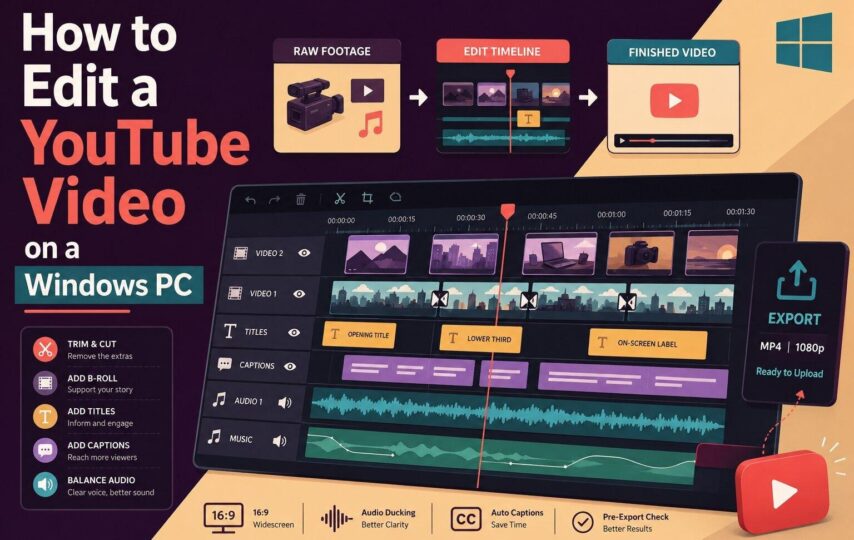

A typical YouTube video is built from 5 things. There is the main recording of you talking, some B-roll to look at, a title or two, your voice, and music underneath. None of that is difficult on its own, and the real work is getting all five to sit together without the video feeling long.
This guide follows one edit from start to finish on a Windows PC. It uses Filmora video editor as the example, though the order of work is the same in most video editor apps. Each part covers one stage, so you can follow along with your own footage open.
Part 1. Create the Project and Import Your Media
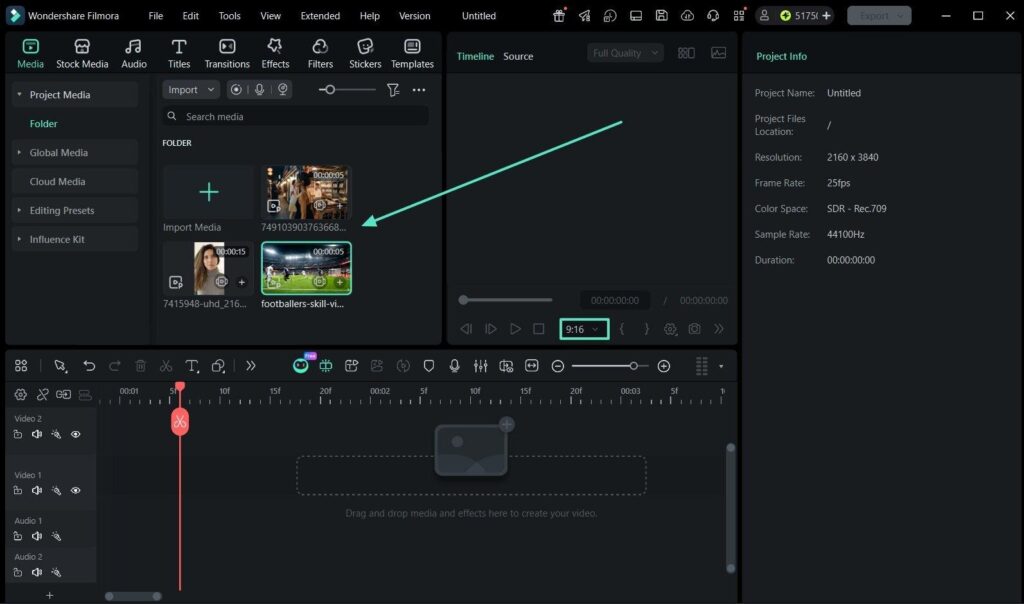
Open Filmora video editing software and click “New Project,” then set the aspect ratio to 16:9 before you add anything, because YouTube plays in landscape. Changing it later means every clip has to be reframed, which is time you will not get back.
Bring everything into the “Media Library” in one go. That means the main recording, your B-roll clips, any screenshots or images, the music, and a separate voiceover file if you recorded one. Having it all in one place saves you from stopping mid-edit to hunt for a file.
It also helps to keep those files in a single folder on your PC before you import them. If you move them afterward, the software has to be told where they went.
Part 2. Build the Main Story on the Timeline
Drag the main recording onto the bottom video track and watch it once, all the way through. Note where you stumbled, repeated yourself, or paused too long. Those are the parts to remove, and there are two ways to do it.
Trim the Beginning and End
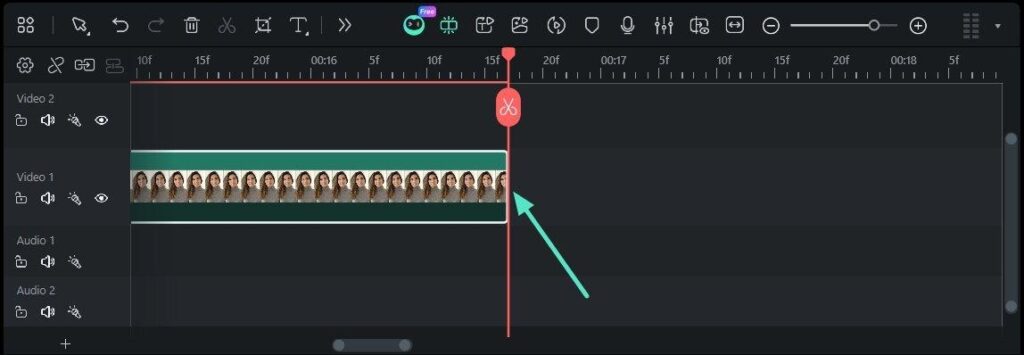
Most recordings start before you are ready and end after you have finished. Hover the pointer over the left edge of the clip until the trim tool appears, then drag it inwards. Do the same at the right edge to shorten the ending. Nothing is deleted, so you can drag the edge back out if you cut too far.
Split and Remove Unwanted Sections
Mistakes in the middle of a clip need two cuts rather than one. Move the playhead to where the bad part starts and click the split button on the playhead. Move the playhead to where it ends and split again. Select the piece in between, right-click it, and choose “Ripple Delete” so the gap closes by itself.
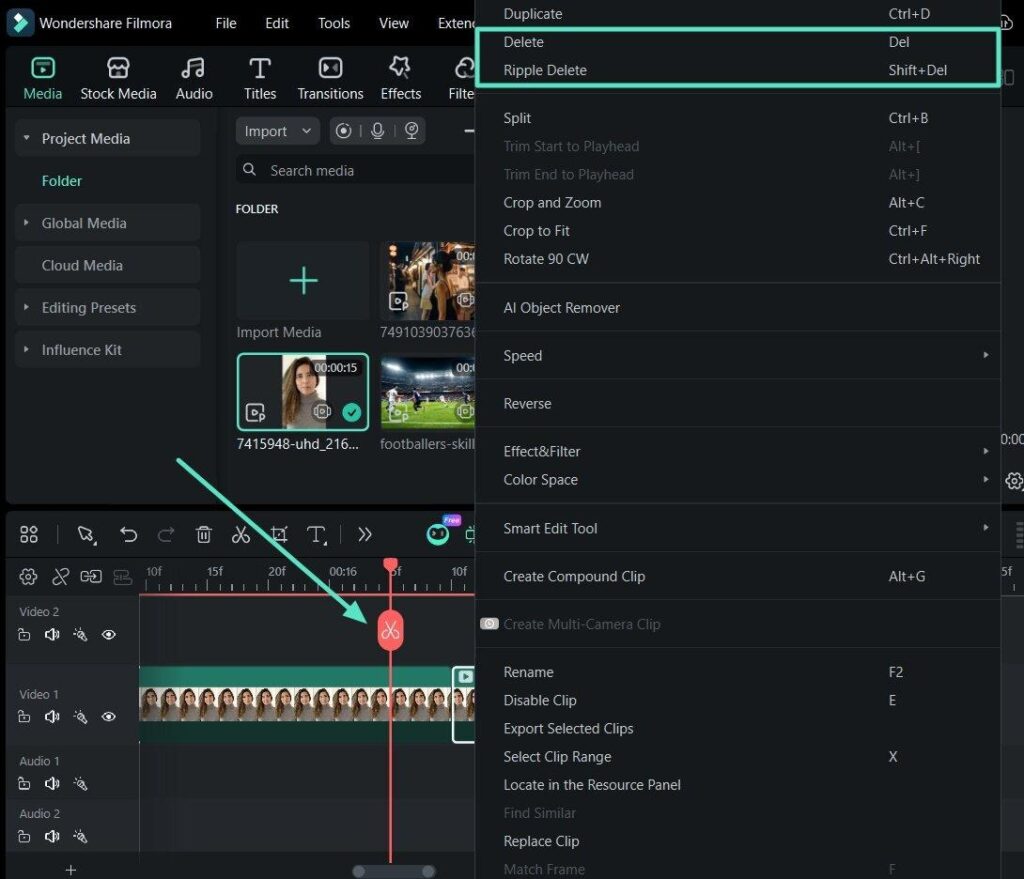
Note: If no track is selected when you split, the cut goes through every clip sitting under the playhead. Click the track you want first.
Part 3. Add B-Roll and Supporting Visuals
With the talking sorted out, the video needs something to look at. B-roll goes on the video track above the main footage, where it covers what is underneath for as long as it lasts. There are 4 situations where it earns its place across video editors for PC:
- Show What You Are Describing: If you mention a product or a place, put it on screen while you talk about it.
- Hiding a Cut: A cutaway over a join stops the viewer noticing that a sentence was removed.
- To Break Up Long Stretches: Two minutes of the same framing feels longer than it is, even when the talking is good.
- Fill Gaps: A still image or a screenshot works when no video exists for that moment.
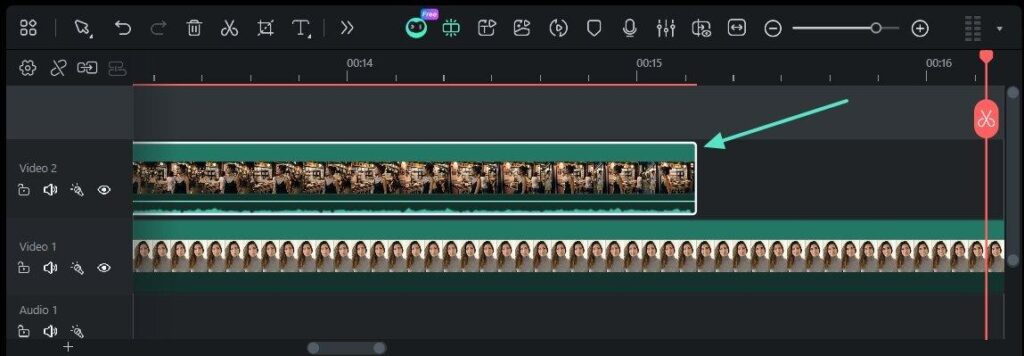
Part 4. Add Titles, Captions, and On-Screen Labels
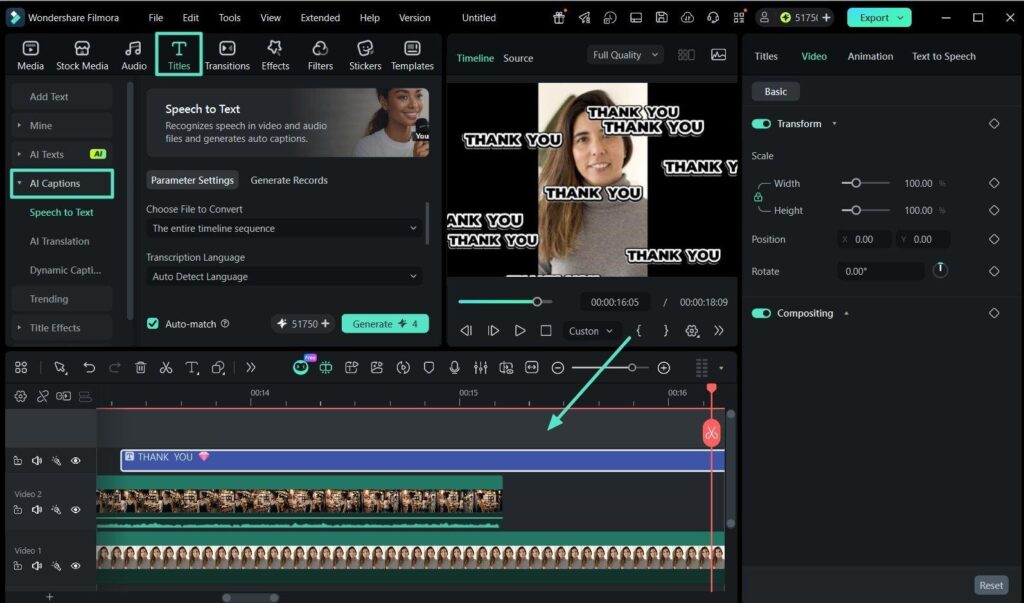
Text works best when it does a job. Every piece you add should either help the viewer follow you or tell them something the audio does not:
| Text Type | Where It Helps |
|---|---|
| Opening Title | Confirms in the first seconds that the viewer clicked the right video |
| Lower Third | Names you, a guest, or a topic without interrupting the talking |
| On-screen Label | Holds a figure, a step number, or a product name while you explain |
| Captions | Keeps the video usable for viewers watching with the sound off |
Keep each one on screen long enough to read twice at normal speed. Text that leaves too early is worse than no text at all. Filmora can also generate captions from the speech automatically, which is far quicker than typing them out for a long video. Try the Filmora free download for an exclusive video editing software experience.
Part 5. Balance Dialogue, Voiceover, and Music
Sound is where most YouTube videos are lost. Viewers will forgive rough footage, but they will not stay through speech they cannot hear clearly.
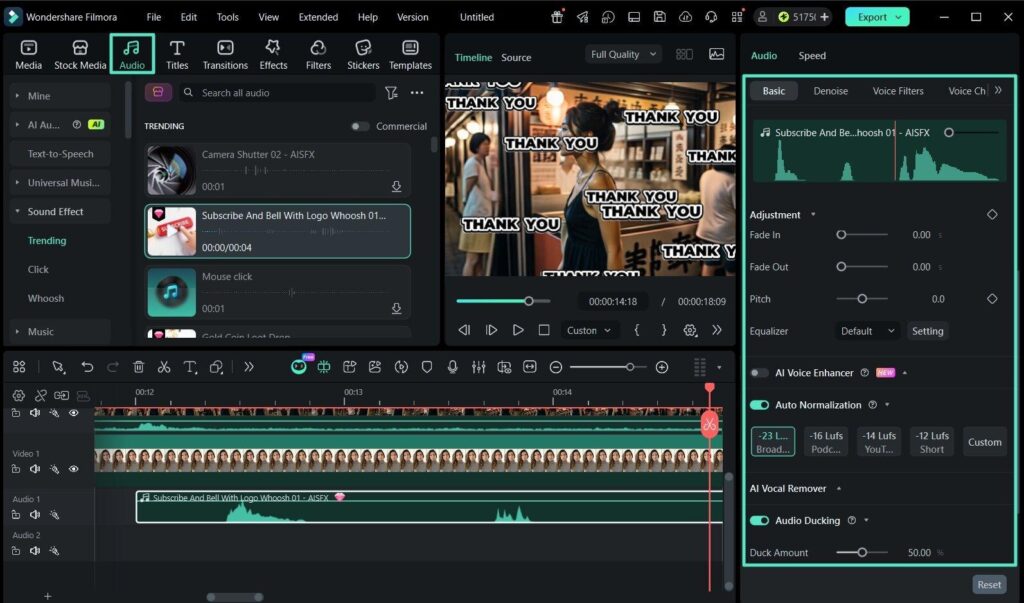
- Put Music on its Own Track: Keeping it separate from the voice means you can change one without touching the other.
- Turn on Audio Ducking: Select the clip with the main voice, open the “Audio” section in the properties panel, and switch the toggle on.
- Set the Ducking Level: A slider controls how far the music drops, and the fade settings stop the change sounding abrupt.
- Normalize the Levels: Auto Normalization measures loudness across your clips and matches them to a chosen standard.
- Fade the Music: Drag the fade markers at each end of the music clip so it never starts or stops suddenly.
Check the mix on headphones and then again through a phone speaker. Most of your viewers will be hearing it on the second one. Go through this Filmora beginner guide to learn more about balancing audio in the video editor.
Part 6. Review and Export the Video
Before you export, play the whole video from the start at full size. Scrubbing through hides the problems that only show up at normal speed:
| What to Check | What to Look For |
| Pacing | Sections that drag, or cuts landing before the point is made |
| B-roll Timing | Cutaways that stay up after the sentence they covered has ended |
| Text Readability | Titles that are too small, too fast, or sitting on a busy shot |
| Audio Balance | Music rising over speech, or a voiceover quieter than the camera sound |
| Blank Frames | A flash of black where a gap was left between two clips |
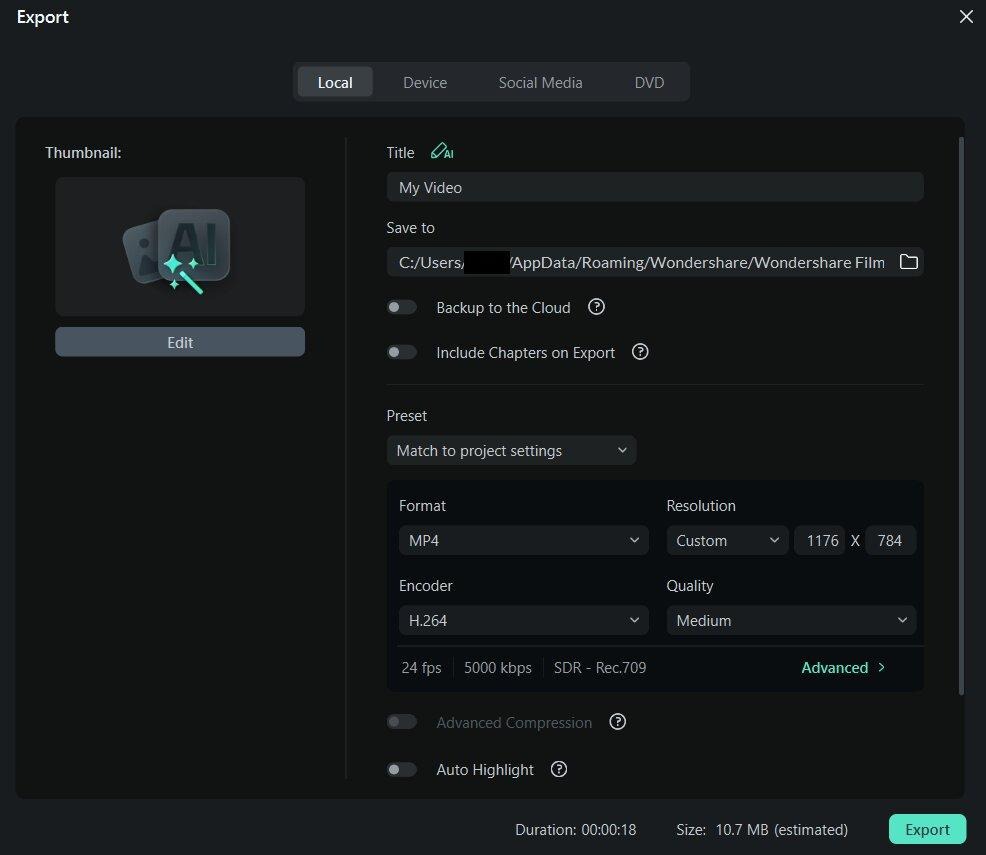
When it plays cleanly, click “Export” and open the “Local” tab. Choose MP4, name the file, and set a folder to save it to. Match the resolution and frame rate to what you recorded, then let the render finish before you upload.
Conclusion
A YouTube edit does not need effects to work. It needs a story the viewer can follow, a pace that keeps moving, and sound that stays clear from beginning to end. Get those 3 right on a basic video editor for PC and the video will hold attention. Add polish afterward, once the foundation is doing its job.