


I want to make sure I get rid of programs completely. This is one of the ways I have found to free up storage space on my computer make it run faster and avoid clutter in the registry. After trying a lot of uninstall tools I found that IObit Uninstaller 15 is one of the best ways to remove software without leaving any traces behind.
The best thing about IObit Uninstaller 15 is the Install Monitor. This feature keeps record of all the changes that happen on my system when I install something. That way, later on, I can uninstall programs without leaving files or data behind. This feature is very useful if you install a lot of apps like I do.
My first impression of IObit Uninstaller 15
Some media said that IObit Uninstaller 15 is a professional tool for uninstalling programs on Windows. It can completely remove software, browser extensions and bundled apps.
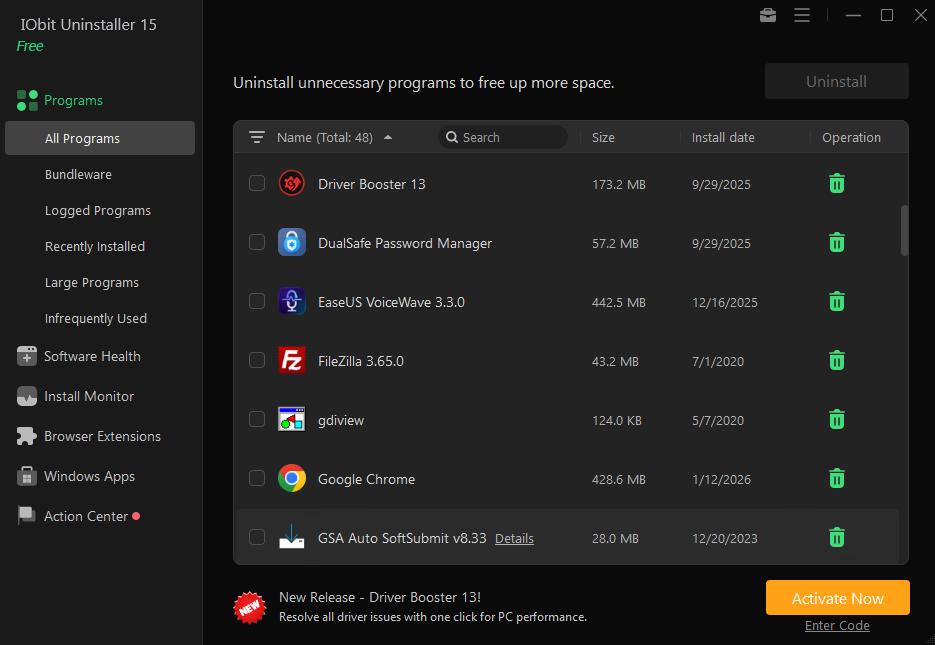
Unlike the uninstaller that comes with Windows IObit Uninstaller 15 keeps track of what happens when I install something. It keeps track of files, folders and changes to the registry. Later when I want to uninstall a program it can automatically remove all the parts. I noticed that I had leftover files and my storage was managed better after I started using it. It also helped me get rid of bundled software that Windows could not fully uninstall.
Features of IObit Uninstaller 15 that I find most useful
After using IObit Uninstaller 15 I found that these three features made a difference for me.
1. Completely removing software. Cleaning up
I was really impressed by how thoroughly IObit Uninstaller 15 removes programs. It not uninstalls the application but it also looks for leftover files, hidden folders and unused parts of the registry that Windows often misses. I was even able to remove programs that normally would not uninstall using the Windows settings. The feature that lets me uninstall programs at once also saved me a lot of time.
2. Monitoring and system optimization
One of my favorite features is Install Monitor which keeps track of all the changes that happen when I install something. That means you can uninstall programs without leaving any junk behind. I found the Software Health feature useful too as it helps me find programs and clear out failed Windows update files that were taking up space on my disk and affecting my computers performance.
3. Protecting my privacy and security
IObit Uninstaller 15 tools help to protect my privacy and security. The Software Permission manager shows me what apps have access to things like startup items and taskbar icons on my computer. This way I can easily switch off any permissions I don’t need. File Shredder is one more tool. It permanently deletes sensitive files so they cannot be recovered.
How I use the Install Monitor feature to uninstall programs
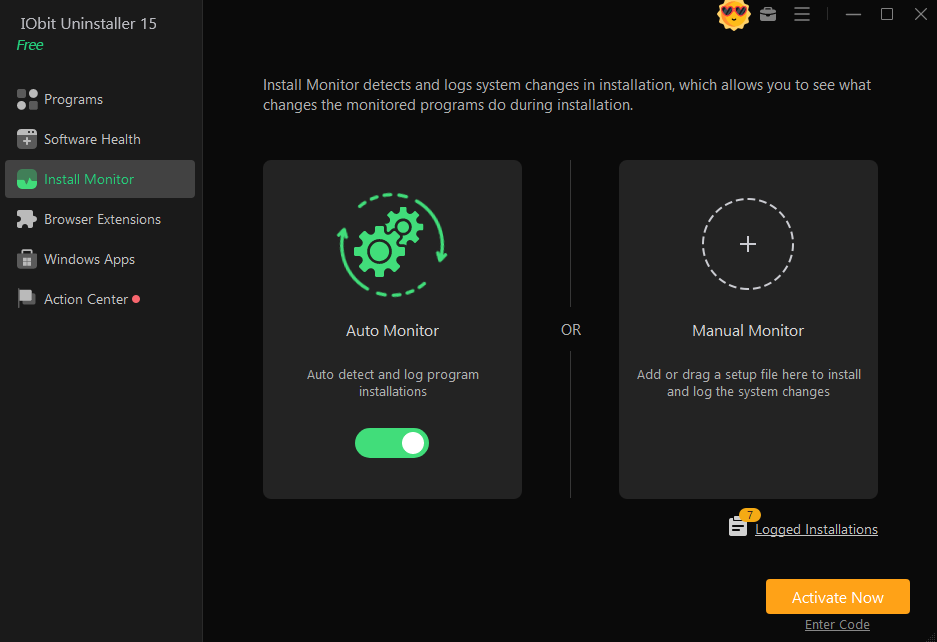
The Install Monitor feature is what sets IObit Uninstaller 15 apart from other uninstallers. It keeps track of all the changes that happen to my system when I install something. Here is how I use it.
Step 1. Enable the monitor
First I make sure that the automatic monitoring is turned on.
– Download and launch this uninstaller for Windows
– Go to the Install Monitor section
– Turn on the “Auto Monitor” feature
– Turn on the installation notifications
Once I have enabled it the software automatically keeps track of the changes that happen when I install something
Step 2. Use monitoring for important installs
For bigger or more complex software I sometimes use the manual monitoring feature.
* I open the Install Monitor tab
* I drag the setup file into the window
* I start the installation through IObit Uninstaller 15
This makes sure that every change is recorded accurately.
Step 3. Completely uninstall the program later
When I want to remove the program the uninstall process is much cleaner.
* I open IObit Uninstaller 15
* I find the program under the logged programs
* I select the program
* I click the uninstall button
The software then uses the installation log to remove all the files, folders and leftover data automatically. In my experience this works better than the standard Windows uninstaller.
Why I prefer an uninstaller
I have been using the Windows uninstaller for a long time and I noticed that it leaves a lot of hidden files, unused registry parts and folders behind. Switching to IObit Uninstaller 15 did make a difference as it does a much more thorough cleaning. The batch uninstall feature saved me a lot of time, I could free up storage space, delete apps that normally would not uninstall, and manage many unwanted programs.
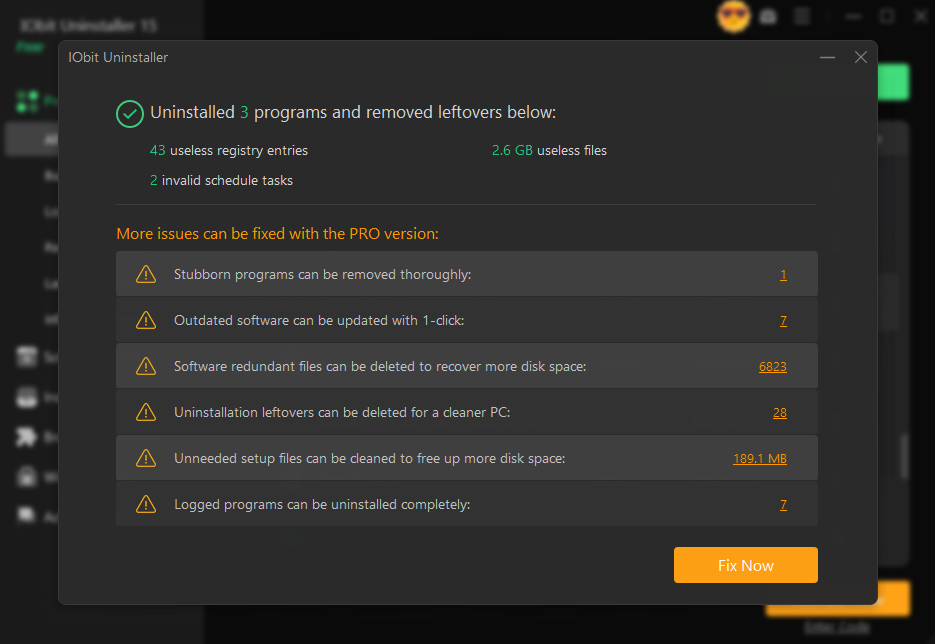
I also prefer using IObit Uninstaller 15 because it has added performance and security benefits. Once I removed software and leftover data completely my computer felt faster and more responsive. It also helped reduce security risks by fully removing outdated or unused applications. I especially like that the software creates points before making major changes, which adds an extra layer of protection and makes the cleanup process feel much safer.
Final thoughts
From my experience keeping my computer clean requires more, than just uninstalling apps through Windows. Leftover files, registry clutter and hidden bundled software can build up over time. Affect my computers performance. Using IObit Uninstaller 15 helped me completely remove software recover storage space and keep my system running smoothly. The Install Monitor feature made a difference because it allowed me to uninstall programs later without leaving any traces behind. If you frequently install and remove software this tool can make maintaining your computer much easier while keeping your system optimized and organized.