

Panic kicks in the moment a drive stops working or something gets deleted accidentally. But not anymore… 90% of data loss incidents can still be reversed if addressed within 48 hours. Every minute matters in data recovery; the longer you keep using the same drive, the greater the chance that new files will overwrite the old ones permanently.
When native options like Recycle Bin or cloud backup fail, a data recovery software comes into play. It uses advanced techniques to perform deep sector-by-sector scans, supports a wide array of file systems (NTFS, FAT32, exFAT, APFS, EXT4), and recovers data from damaged, formatted, or corrupted drives.
However, choosing the best free data recovery software is not just about the amount of data you can recover. Scan depth, file preview, support for different storage devices and file systems, ease of use, and performance in difficult recovery situations all matter. We reviewed some of the leading free data recovery tools available in 2026 and ranked them based on practical recovery features and usability.
Ranking Data Recovery Software Based on Performance
Not every data recovery tool is built for the same user. Each of them has its own specifications and unique selling points. A few focus-driven tools follow a simple “scan and recover” workflow, while others are designed for advanced users who are comfortable with partition repair, hex editors, and command-line tools.
Some powerful tools can detect files hidden within damaged partitions and corrupted sectors, while others struggle to locate even surface level files.
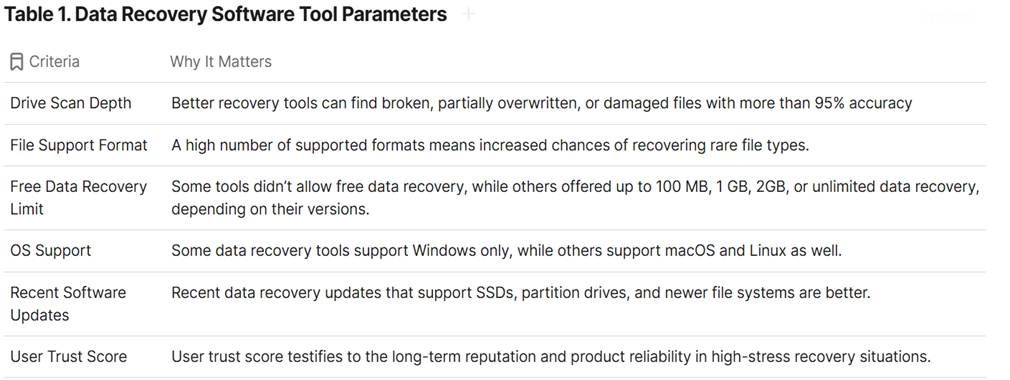
We focused on the features most important to the majority of users to create our rankings. The parameters include file-format support, free recovery limits, scan depth, recent scan engine updates, operating system support, and sourced user reviews from websites like Trust pilot.
Which is the best data recovery software for windows?
1. 1. Stellar Data Recovery Free – Best Overall
Stellar Data Recovery Free is your go-to option because it balances deep scanning, a strong preview feature, ease of use, and a considerably larger free data recovery limit than most data recovery software tools. The free version helps you recover up to 1 GB of data without even paying a penny. The amount of space is usually enough for an individual file, folder, or media.
The software also scans critical sectors for fragmented data pattern, hidden file signatures, and partially damaged files.
Salient Features of Stellar Data Recovery Software
- Recovers lost partitions
- Fetch deleted files from SSDs
- Recover data from corrupted USB drives
- Recover data from damaged SD cards
- NVMe storage devices file support
- Scans partially overwritten files
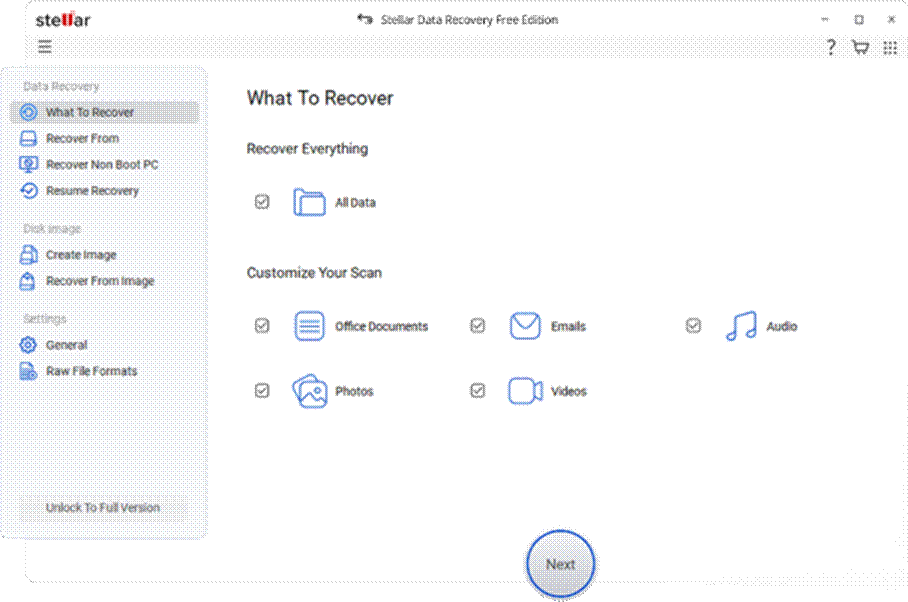
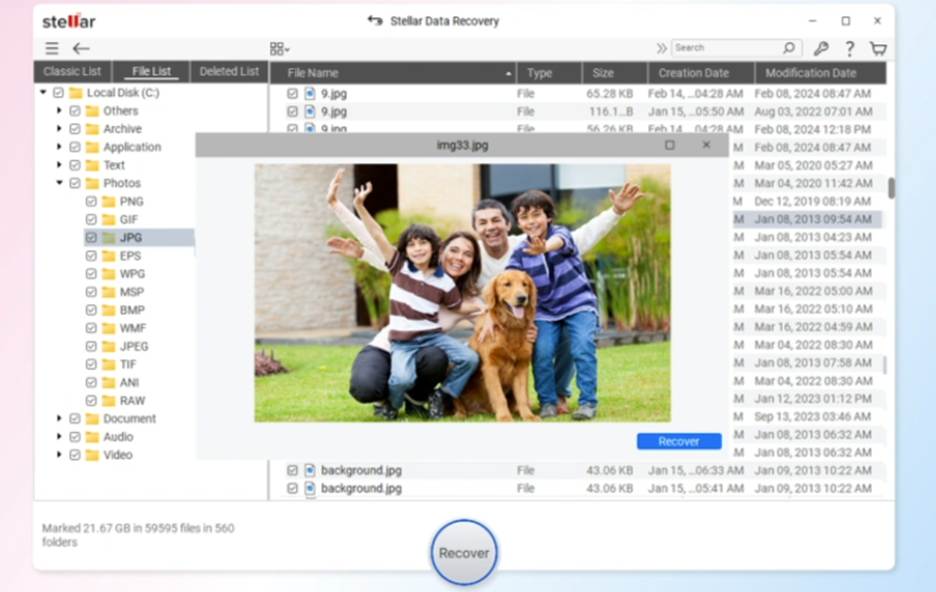
Stellar Data Recovery feels simple, modern, and beginner-friendly thanks to its intuitive interface. Step-by-step you can select what to recover, choose a drive, run the scan, preview the results, and restore the files you need. Here’s what we liked and didn’t like about the free data recovery software.
Pros
- Up to 2 GB free recovery (1 GB + an additional 1 GB after social share)
- Deep scan availability
- Supports more than 1,000+ file types
- File Preview before data recovery
- Modern and user-friendly interface to manage software easily
Cons
- A paid upgrade is required for unlimited recovery
Stellar Data Recovery tool combines ease of use with advanced recovery power for most people.
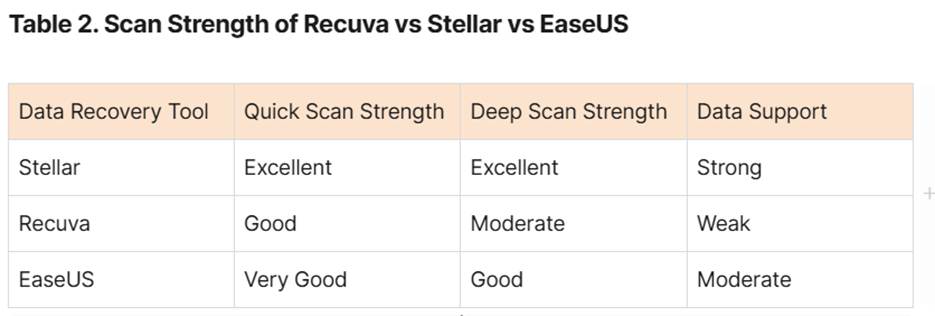
Why it stands out: Stellar combines a simple recovery workflow with Quick Scan and Deep Scan, file preview, support for HDDs, SSDs, USB drives and SD cards, and up to 2 GB of free recovery.
How Stellar Data Recovery Free Software Works?
Stellar Data Recovery free scans all sectors for patterns that resemble damaged, fragmented, or partially overwritten files. It supports almost every file format, which covers many complex data loss cases.
Deleted data files are often distributed across multiple sectors, contain fragmented or broken records, or are partially overwritten. The software attempts to identify these fragments and recover the original file. Quick Scan is faster and suitable for recently deleted files. However, Deep scan looks for the entire drive for lost files due to corruption, formatting, or severe damage.
System Specifications for Stellar Data Recovery Free
Intel-compatible x64 processor; minimum 4 GB RAM (8 GB recommended); around 250 MB Windows 11, 10, 8.1, or 8 (64-bit only), plus Windows Server 2016, 2019, and 2022.
File Systems
FAT32, FAT16, FAT12, NTFS5, NTFS, ReFS, exFAT, EXT4, EXT3, HFS, HFS+.
File Format Support
Documents: XLS, DOC, PDF, PPT, TXT, and more
Photos and images: PNG, JPG, TIFF, RAW, HEIC, and more
Videos: MOV, MP4, MKV, AVI, and more
Audio: WAV, MP3, WMA, and more
Archive files: ZIP and RAR.
Email files: EDB, PST, DBX, OST, and EMLX
Download Stellar Data Recovery Free!
2. Recuva
Recuva is one of the easiest and lightest recovery tools for basic file recovery. It is carefully curated by the developer behind the cleaners to quickly recover accidentally deleted files. Further, the interface is clean and easy to guide users through the recovery process step-by-step.
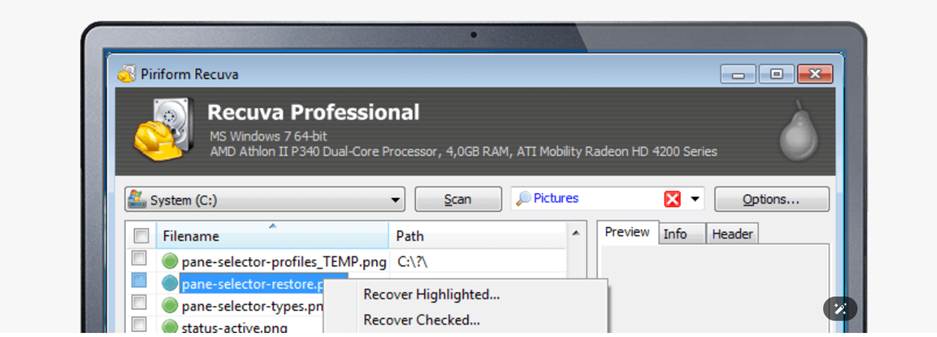
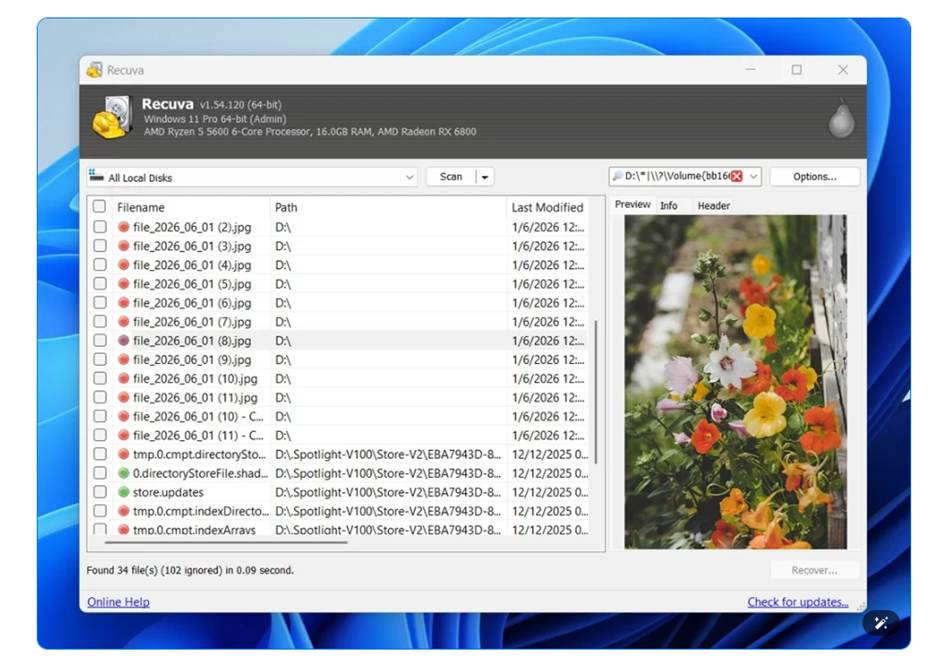
Recuva supports recovery from NTFS, FAT, and exFAT file systems. Even though Recuva has a deep scan feature, it is not as advanced as Stellar, Disk Drill, or EaseUS recovery tool. It struggles with broken files, damaged drives, and formatted partitions. However, it still works effortlessly in simple recovery situations where the file structure is mostly intact.
Pros
- Effortless wizard-driven UI
- Unlimited free data recovery
- Works great in the recently deleted files scenario
- It has a Deep Scan for critical files
Recuva is a sound choice for data deleted by mistake a few minutes ago, thanks to its quick recovery.
The System Specification Requirements to Install Recuva
System requirements: Intel/AMD, 512 MB RAM, 20 MB storage, Windows 11, 10, 8.1, 8, and Admin rights
Supported File System
FAT32, FAT16, FAT12, NTFS, and exFAT file, hard drives, SSDs, memory cards, USB drives,
Supported File System:
- Audio: MP1, MP2, MP3, AIF, OGG, WMA, WAV, AAC, M4A
- Video: MPG, MOV, MP4, AVI, FLV, 3GP, WMV
- Archives: ZIP, RAR, CAB
- Other file types: VXD, PDF, RTF, URL
3. Disk Drill Free – Best UI Preview
A fresh interface sets Disk Drill Free apart from many recovery tools in the market. Some data recovery tools prioritize function over design, yet this one balances both. Visual appeal arrives without sacrificing clarity. Navigation stays smooth even during a deep scan. Most users find their way easily through its modern layout.
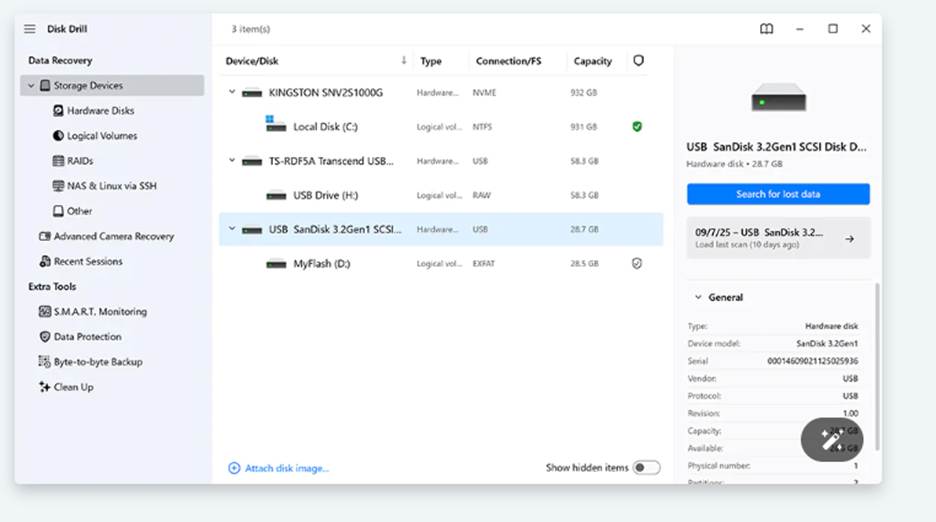
(Disk where Damage File is Present)
Modern design makes it feel simpler compared to other recovery tools. Its layout seems clearer, more approachable at first glance. Up to 500 MB of data can be restored with the basic edition. Lesser recovery limit than Stellar – but Disk Drill makes up ground through smoother navigation and sharper preview features.
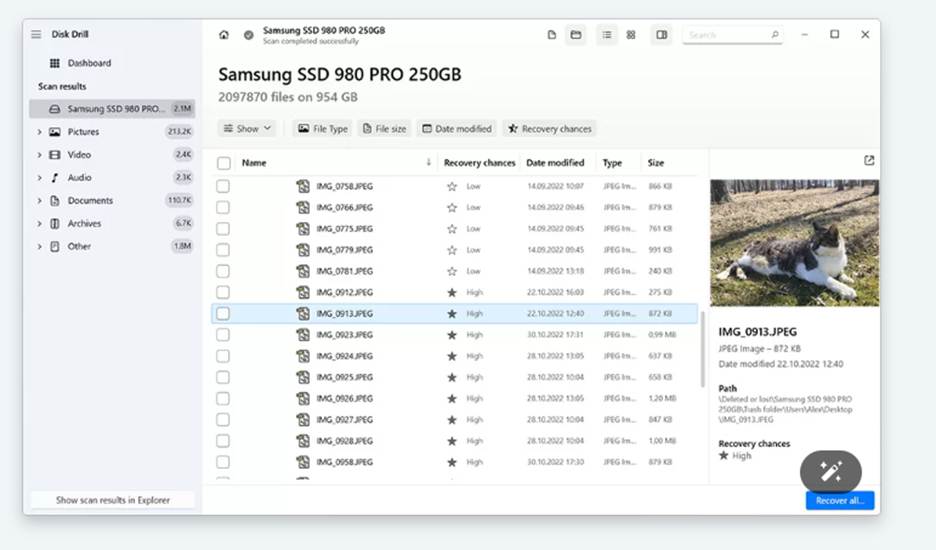
(Preview of files that can be recovered)
Disk Drill reconstructs file headers automatically if fragments exist or damage is partial through a method named “File Carving”. Sometimes, reconstruction happens when broken files remain scattered across storage areas. Disk Drill uses advanced recovery algorithms to recover data from formatted, corrupted, or RAW drives.
This software is particularly useful for:
- Photos
- Videos
- PDFs
- Archives
- Documents
Disk Drill Standout Features
- Recovery Vault protection
- S.M.A.R.T. drive health monitoring
- Pre-recovery preview
- Filtering by file format
- SSD and NVMe drive support
Pros
- Simple design needs little space
- A file is reconstructed with the help of advanced algorithms.
- Wider preview
- Runs on Windows and Mac
Cons
- The tool works better only on newer versions.
- Performance weakens under heavy recoveries
- Only 500 MB free
An interface-driven data recovery tool might lead directly to Disk Drill. For those wanting clarity during recovery, this one ranks near the top contenders.
System Requirements
Intel or AMD Processor, Minimum 1 GB RAM, around 150 MB Free Storage, Windows 11 / 10 / 8.1 / 8, Admin Rights Recommended
Supported File Systems
FAT12, FAT16, FAT32, exFAT, NTFS, EXT2, EXT3, EXT4, HFS, HFS+, ReFS
Supported File Formats
- Documents: DOC, XLS, PPT, PDF, TXT
- Photos: JPG, PNG, RAW, TIFF, HEIC
- Videos: MP4, MOV, AVI, MKV, FLV
- Audio: MP3, WAV, AAC, WMA
- Archives: ZIP, RAR
- Emails: PST, OST
Which Data Recovery Software Works on Open Source?
4. TestDisk & PhotoRec – Top open source choices
Still among the best options around, TestDisk and PhotoRec offer full data retrieval at no cost. Though many tools limit features, these remain unrestricted in what they provide. Their performance matches that of high-end recovery tool despite their command-line interface, making it a better choice for advanced professionals.
Access stays open for everyone without hidden fees or locked functions. PhotoRec is tailored for file recovery. TestDisk recovers and repairs boot repair sectors, partition recovery, and damaged file systems. Unlike many programs, PhotoRec scans for raw sectors without relying on folders or the file system. Therefore, file recovery is still possible even when a drive suffers serious damage.
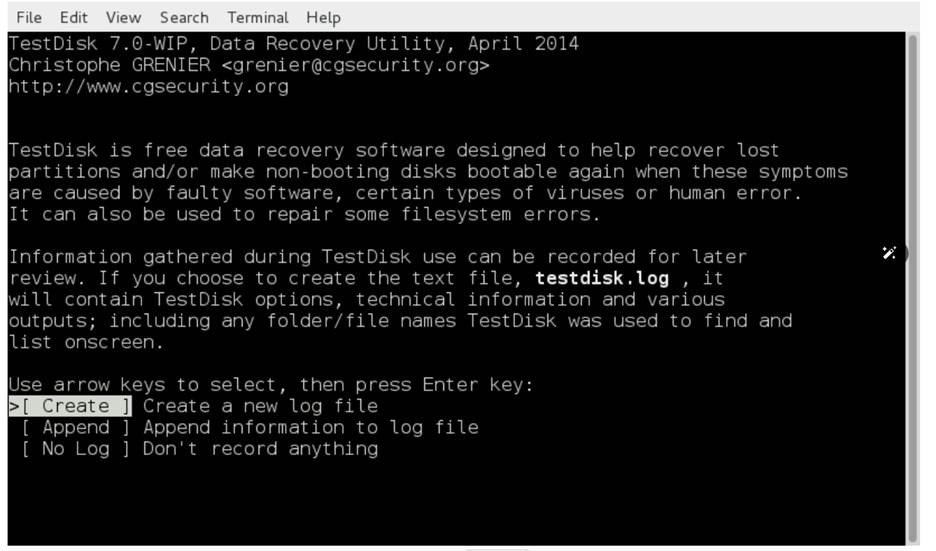
(TestDisk Data Recovery Log File)
PhotoRec
PhotoRec recovers more than 480 file systems. Running without a hitch across Windows, users find it just as solid on Linux. Facing a screen full of text prompts might feel overwhelming at first, especially if you have no prior experience with a command-line interface. PhotoRec scans the storage of the device sector by sector and searches for similar file signatures, rather than depending on the file system. It recovers recognizable files into a separate location, even if the partition is formatted, deleted, or corrupted.
Download TestDisk & Photorec Free!
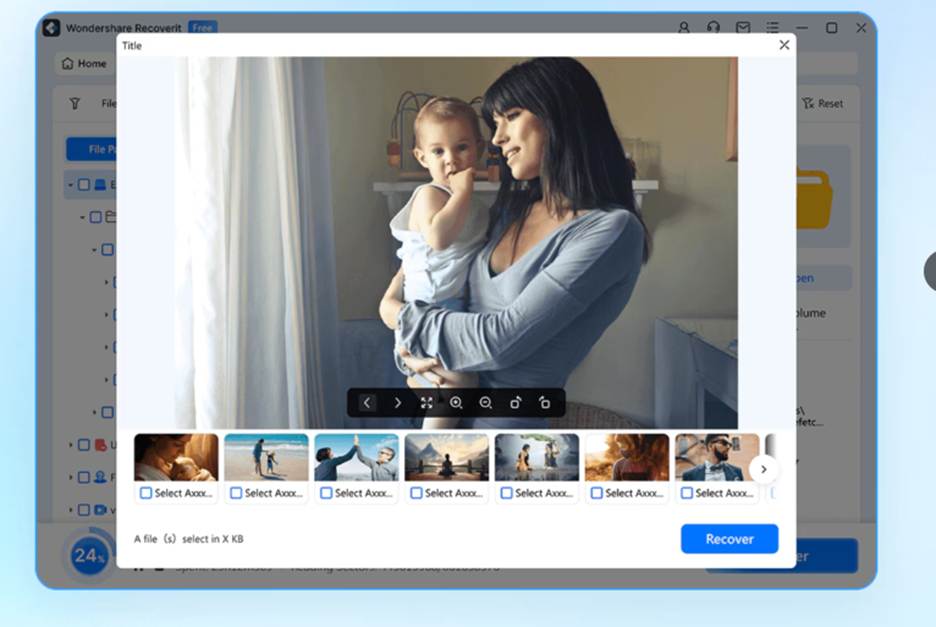
Photorec
These utilities operate entirely through typed commands, which can seem daunting for first-time users. Still, their ability to recover data is remarkable. It helps you detect duplicate files, sort recovered files, and identify a corrupt file system.
Pros
- PhotoRec & TestDisk are fully free due to the Command Line Interface (CLI)
- Both offer unlimited data recovery.
- Both work on Windows and Linux.
- They provide robust raw-sector scanning
Cons
- They do not offer any preview feature.
- TestDisk and PhotoRec are complex for beginners.
- Needs knowledge of the Command Line Interface.
- Original file names might be lost, making file identification hard.
- Complex for new users.
When it comes to experienced users, TestDisk, along with PhotoRec, still stands out as a powerful option for data recovery.
System Requirements
Intel or AMD Processor, Minimum 1 GB RAM, around 150 MB Free Storage, Windows 11 / 10 / 8.1 / 8, Admin Rights Recommended
Supported File Systems
FAT12, FAT16, FAT32, exFAT, NTFS, EXT2, EXT3, EXT4, HFS, HFS+, ReFS
Supported File Formats
- Documents: DOC, XLS, PPT, PDF, TXT
- Photos: JPG, PNG, RAW, TIFF, HEIC
- Videos: MP4, MOV, AVI, MKV, FLV
- Audio: MP3, WAV, AAC, WMA
- Archives: ZIP, RAR
- Emails: PST, OST
5. Wondershare Recoverit Free: Top Choice for Video File Recovery
Finding lost video files often takes longer compared to recovering pictures or documents. Broken files across storage are harder to recover with a standard data recovery tool. It is hard to recover file systems like MP4, MOV, or AVI, even when the software claims to recover broken videos in the same form.
Wondershare Recoverit scans the selected drive to find scattered video fragments and matches them using metadata and file signatures. After that, it merges those fragments into a single video file and may repair playback issues if the recovered video is damaged.
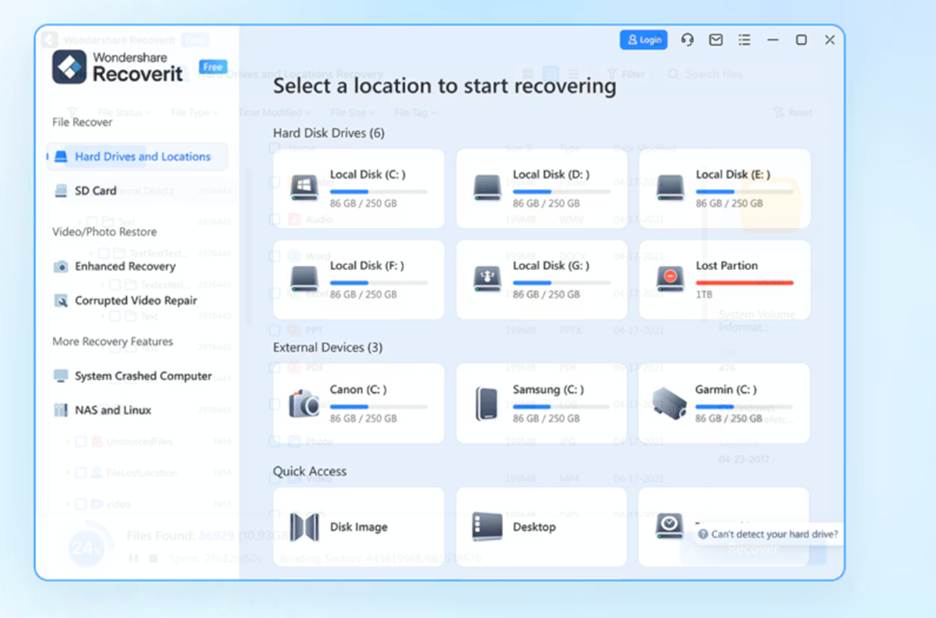
(Wondershare Recoverit scan selection)
With Recoverit from Wondershare, header reconstruction is done automatically without manual steps. Recoverit allows using a sample video to realign audio and video during processing, ensuring high-quality, synchronized output. It uses advanced background Metadata reconstruction to rebuild file structures and recover lost metadata during scanning. It supports over 1000+ file formats without requiring extra software. With so many exclusive features, you might wonder why it ranks fifth. Well, it comes with only a 100 MB limit, which means you can only fix around 2 video files.
(Recoverit preview scan option)
If you want to recover only one video from a data recovery software. Recoverit might be the best bet.
Pros
- Supports multiple video file formats
- Easy interface navigation
- Recoverit works perfectly on Windows
- Repairs damaged MOV and MP4 files
Cons
- Provides only 100 MB of free space
- The premium version is expensive
- Not ideal for large files in the free version
Recoverit stands out when handling corrupted video files is challenging. However, it shines where other tools struggle – i.e., repairing clips that are partially broken or unreadable.
System Requirements
Intel or AMD Processor, Minimum 256 MB RAM, Around 20 MB Free Storage, Windows 11 / 10 / 8.1 / 8 / 7, Bootable Media Recovery
Supported File Systems
FAT12, FAT16, FAT32, exFAT, NTFS, EXT2, EXT3, EXT4, HFS, HFS+, ReFS
Supported File Formats
- Photos: JPG, PNG, GIF, BMP, TIFF, RAW
- Videos: MP4, MOV, AVI, MKV, MPG
- Audio: MP3, WAV, WMA, AAC
- Documents: DOC, XLS, PDF, TXT
- Archives: ZIP, RAR
Install Wondershare Recoverit for Free!
6. Windows File Recovery Tools: Recommended by Microsoft
File recovery on Windows is handled by a built-in Microsoft utility available in both versions 10 and 11. Direct sourcing from Microsoft eliminates exposure to third-party providers.
This benefit matters most when people avoid downloading unfamiliar programs. A drawback is that Windows File Recovery operates through a command-line interface. Operating it can be confusing for beginners.
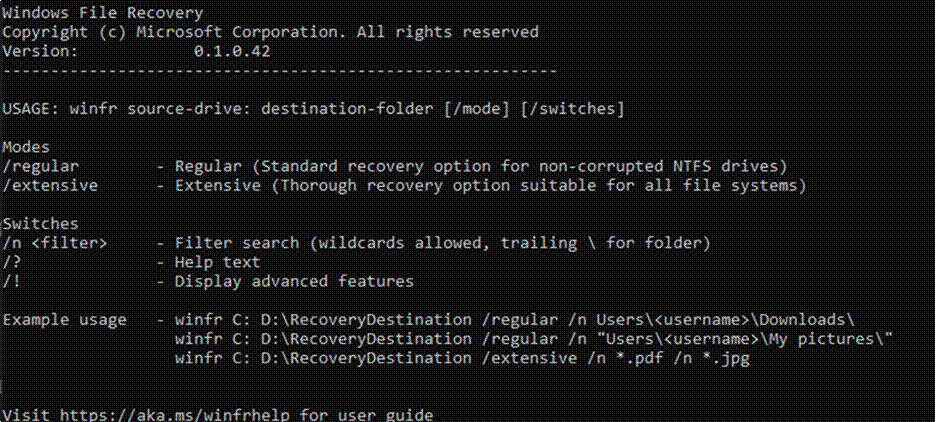
(Main Screen of Windows File Recovery)
It also includes different recovery modes:
- Files removed lately appear here by default
- Segment mode for damaged NTFS drives
- Signature mode for deep recovery
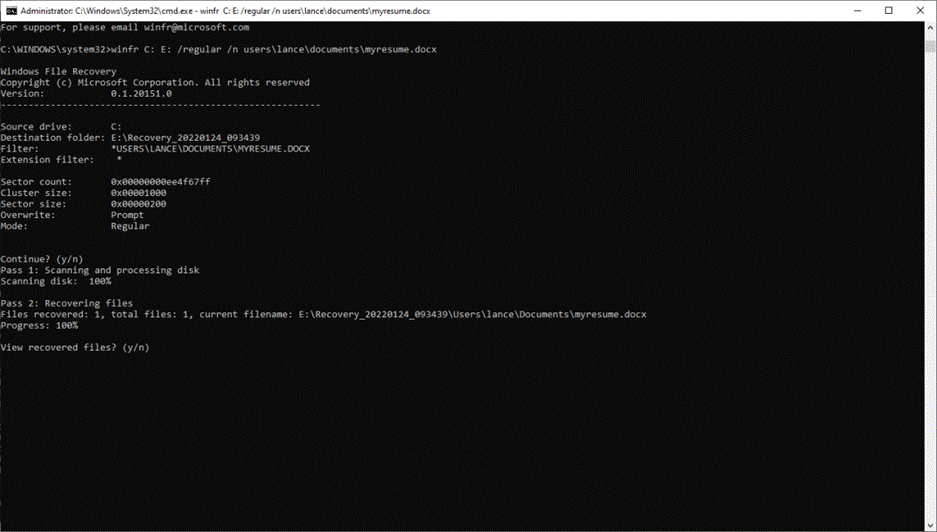
(Command Line Status of a Recovered File)
Example command:
winfr C: D: /regular /n Users\YourName\Documents
Finding files by name on NTFS drives is faster because the program leverages Windows search and indexing. Instead, it relies on existing system features to deliver results more quickly.
Pros
- A built-in data recovery app from Microsoft
- It comes without external dependencies
- Free to use without cost barriers
- Performs reliably on NTFS partitions
- It handles various storage formats effectively
Cons
- Windows File Explorer runs only through the command line
- It gives no preview feature
- Beginners may struggle with its interface
- Limited suitability
Though not flashy, it handles basic data recovery tasks without needing extra downloads. Because it runs directly on the system, some find it reliable for straightforward cases. Even so, success depends heavily on timing and file type. While alternatives exist, this one integrates smoothly if you avoid third-party software.
The System Specification Requirements of Windows File Recovery
System Requirements
Intel or AMD Processor, Minimum 4 GB RAM, Around 100 MB Free Storage, Windows 10 Version 2004 or Later, Windows 11 Supported
Supported File Systems
NTFS, FAT, exFAT, ReFS
Supported File Formats
- Documents: DOC, XLS, PPT, PDF, TXT
- Photos: JPG, PNG, TIFF, RAW
- Videos: MP4, MOV, AVI
- Audio: MP3, WAV, AAC
- Archives: ZIP, RAR
- Supports Multiple File Types
Top 6 Data Recovery Software at a Glance
| Tool | Free Limit | Standout Feature | OS | Best For | Pricing | Rating |
| Stellar | 1 +1 GB | Deep scan with corrupted drive support | Windows | Best overall | Free version available; Standard at $59.99/year; Professional at $79.99/year | 4.8/5 |
| Recuva | Unlimited | Lightweight and fast undelete scans | Windows | Recently deleted files | Free version available; Professional at $24.95/year | 3.3/5 |
| Disk Drill | 500 MB | Clean interface with Recovery Vault protection | Windows | Best interface | Free version available; Standard/Pro at $89 lifetime | 4.5/5 |
| TestDisk / PhotoRec | Unlimited | Open-source partition and raw file recovery | Windows, Linux | Power users | Completely free | 4.4/5 |
| Recoverit | 100 MB | Advanced video repair and fragmented video recovery | Windows | Video recovery | Free version available; Standard at $59.99/year; Premium at $79.99/year | 3.8/5 |
| Windows File Recovery | Unlimited | Official Microsoft command-line recovery tool | Windows | Official Microsoft tool | Completely free | 4.3/5 |