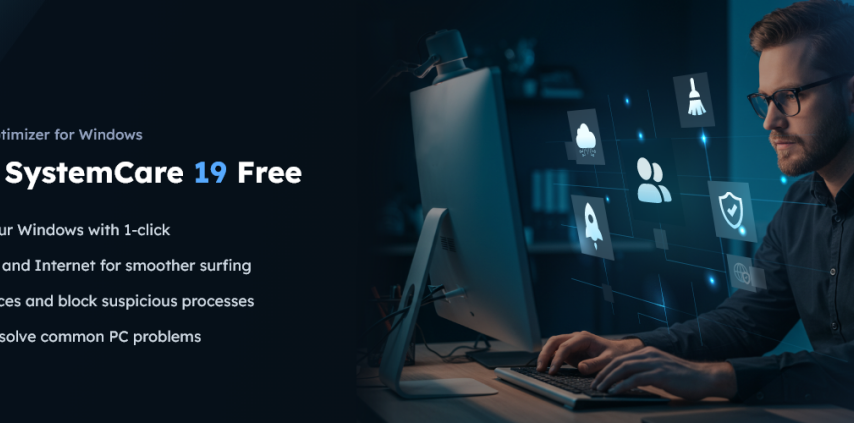

As time has gone on, I have noticed my Windows PC getting slower, more cluttered, and less responsive. Boot times were getting longer. Programs would freeze up once in a while. My storage space kept on disappearing because of junk files and background processes. I tried doing maintenance manually for a bit, but having to clear temp files and check startup programs and privacy settings all the time got annoying.
That’s when I began using Advanced SystemCare 19, an all-in-one Windows optimizer that is designed to automatically clean, optimize, and protect PCs. I used it regularly and found so much more than the basic cleanup tools. It brought together system optimization, deep cleaning, privacy protection, startup management, and real-time performance monitoring into a single easy-to-use platform.
From my experience, it became one of the simplest ways to keep my Windows system running smoothly without needing advanced technical knowledge.
Why PC Optimization Became Important To Me
Before I used a dedicated optimization tool, I didn’t realize how much unnecessary data accumulates over time on a Windows computer. My computer had accumulated: temp files, browser cache, software leftovers, invalid registry entries, unnecessary startup programs and so on.
As this clutter continued to accumulate over time, I increasingly noticed my computer suffering from sluggish boot times, frequent random freezes, persistent lag, and frustrating browser slowdowns, all of which culminated in occasional system crashes and lingering privacy concerns regarding stored browsing traces. I quickly realized that a smaller storage footprint was not enough to save my machine’s health, leading me to adopt a routine of regular optimization.
This shift has been transformative, significantly boosting my system’s stability, responsiveness, and overall performance, ensuring that my PC runs as smoothly as it did when it was brand new.
What I Personally Like About Advanced SystemCare 19
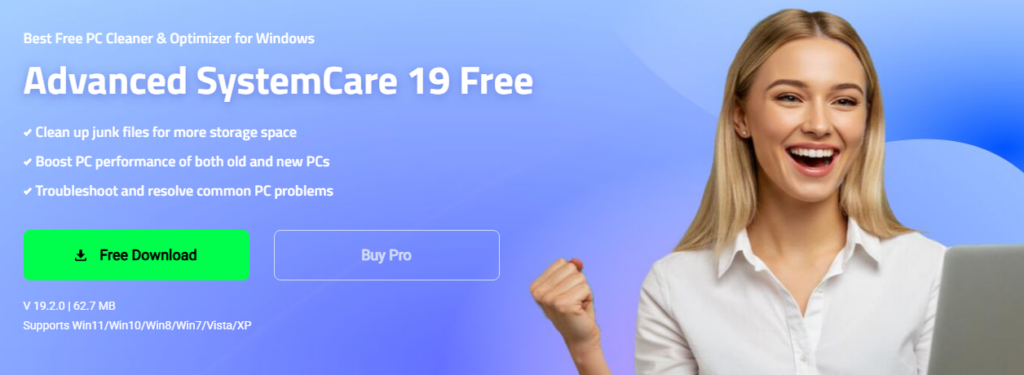
Advanced SystemCare 19 excels by consolidating a comprehensive suite of powerful tools into a single, intuitive dashboard, making it remarkably easy to manage every aspect of my PC’s health. I found the AI-powered optimization and one-click maintenance features particularly effective for streamlining routine tasks, while the deep cleaning tools, startup optimization, and real-time system monitoring worked seamlessly to keep my machine running at peak performance. Beyond its utility, the software provides robust privacy protection and built-in security tools, all housed within a redesigned interface that feels significantly cleaner, more modern, and easier to navigate than the clunky, outdated optimization software I have used in the past.
My Experience Using AI-Powered Optimization
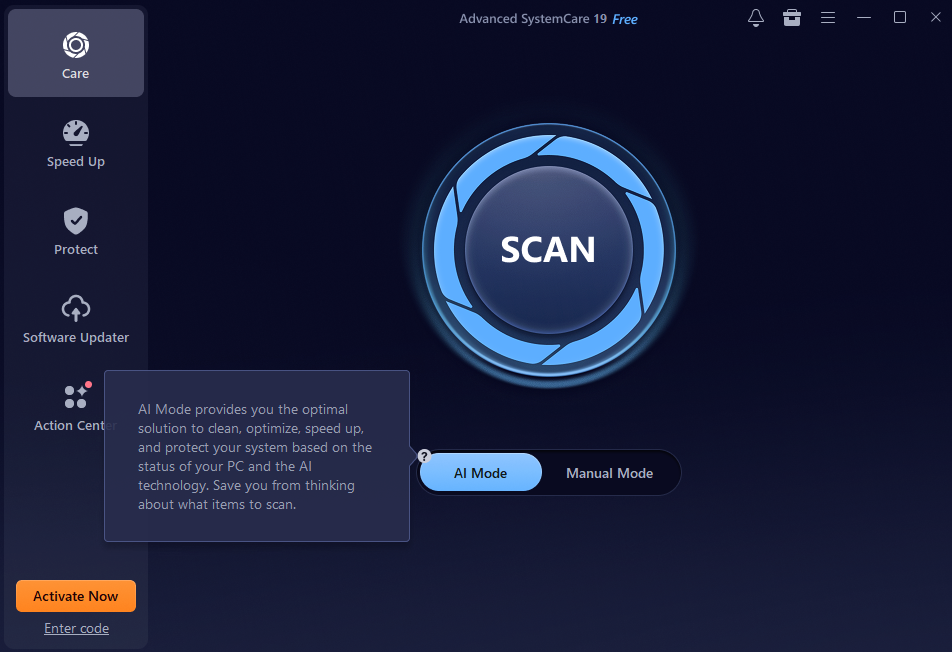
AI Mode quickly became one of my favorite features. Rather than changing a lot of complex Windows settings myself, I just scanned automatically and allowed the software to analyze my system condition and usage habit.
This PC cleaner automatically detected junk files, registry problems, privacy traces, startup problems, security vulnerabilities and system slowdown. I’m a simple maintenance guy so I liked that the software intelligently handled optimization without requiring any advanced knowledge.
How Deep Cleaning Helped My PC Perform Better
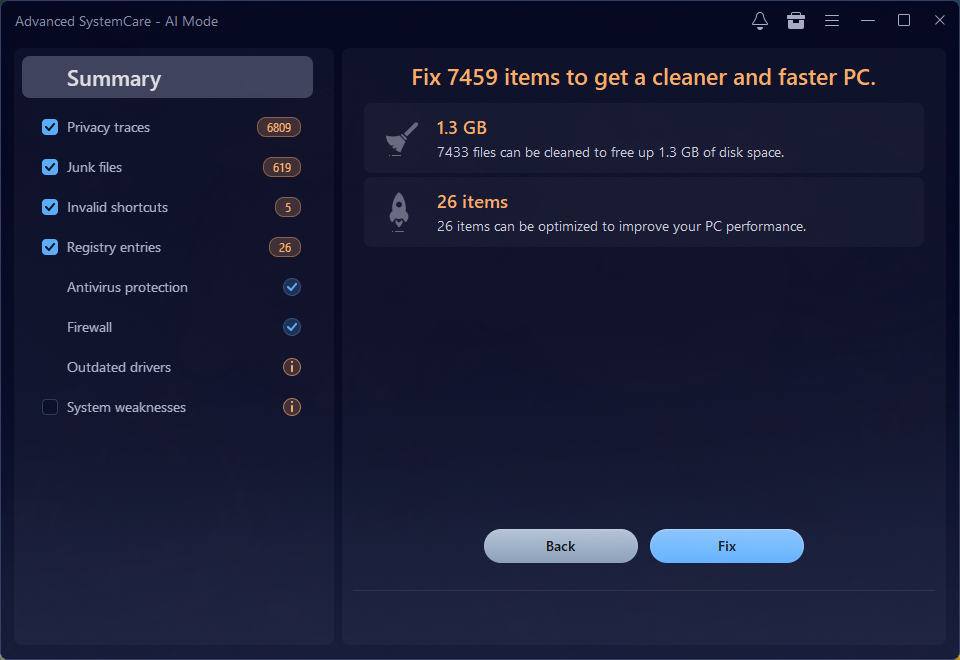
Storage clutter turned out to be one of the biggest reasons my PC felt slow. I utilized the enhanced Junk File Clean feature to eliminate at least 1GB of junk files, for example, temporary files, cache files, broken shortcuts, unused logs, software leftovers and Recycle Bin clutter.
I also found the software to be better at cleaning up junk created by Microsoft Store apps than Windows’ own cleanup tools. And then after normal cleaning sessions I was able to reclaim a fair amount of disk space and my PC was much more responsive in general. This was very helpful because my SSD had limited free space.
Faster Startup and Smoother Performance
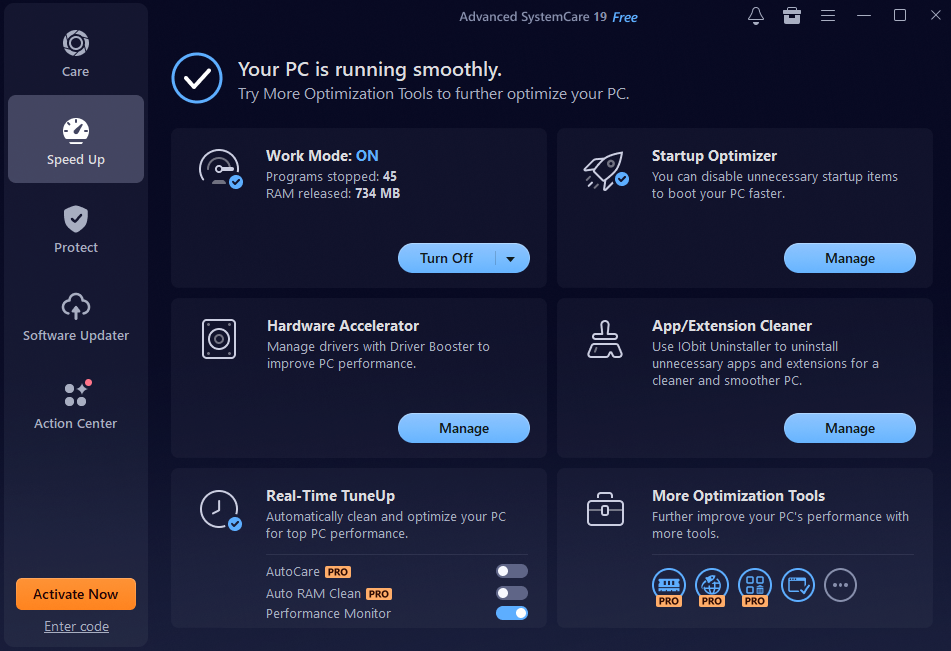
Another feature that really made a difference for me was Startup Optimization. I found a lot of programs that started with Windows automatically and used memory in the background. Not just a Windows cleaner, with the help of Advanced SystemCare 19, I could do more than just PC cleaning:
– Turning off unnecessary startup programs
– Shorten boot time
– Lower background resource consumption
-Speed up application start-up
The built-in Performance Monitor also surprisingly proved to be quite useful as it provided real time CPU, RAM and disk usage. If my system began to slow down due to multitasking or gaming, I could clear memory with a single click.
Privacy and Security Features I Found Useful
I initially turned to Advanced SystemCare mainly for its performance optimization capabilities. But it quickly became clear that its privacy and security tools were just as important. One feature I particularly valued was Safe Folder. It provided a solid way to protect sensitive files from unauthorized access and ransomware threats, which I found invaluable for my personal documents and other private data. And on the security front, the regularly updated anti-spyware database was crucial. It consistently helped detect and remove those hidden threats that could compromise my browsing activity or personal information.
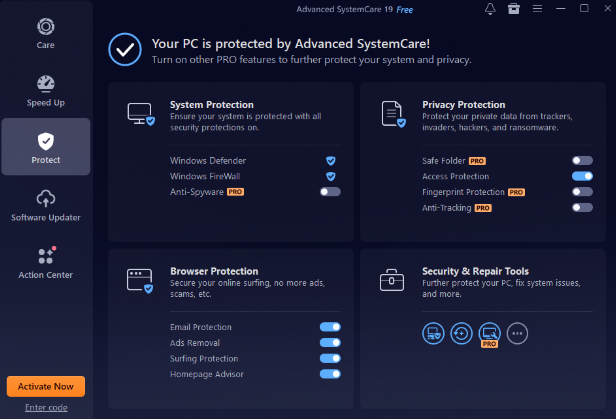
I also consistently relied on Privacy Sweep. It’s a tool I used regularly to clear out browsing history, cached website data, temporary internet files, and those other lingering privacy traces. This really helped in minimizing tracking risks and generally keeping my online activity much cleaner. Beyond that, the integrated browsing protection features were a big plus for my overall online safety. They actively blocked malicious websites, detected phishing attempts, prevented harmful redirects, and filtered out intrusive ads. Given how much I depend on the internet for both shopping and work, having these safeguards in place gave me a significant sense of peace of mind.
Automatic Maintenance Saved Me Time
It’s easy to let regular PC maintenance slip your mind. Luckily, the AutoCare feature helps me a lot. It just runs all those essential maintenance tasks automatically in the background. We’re talking about things like getting rid of old junk files, clearing out privacy traces, fine-tuning for better performance, and even keeping an eye on the system’s health. Honestly, having that automation take care of everything has made keeping my PC in good working order so much simpler over time.
My Thoughts on the Free vs. Pro Version
When I first started using the software, I stuck with the free version. It was pretty solid, offering good cleaning and optimization features that worked well for my daily maintenance needs. But as I started using the software more often, I realized the Pro version offered a lot more. It unlocked things like really deep registry cleaning, advanced protection for browsing, and even priority technical support. If you’re thinking about long-term maintenance and automating tasks, I personally believe the Pro version is definitely worth looking into.
Final Thoughts
If you’ve found your PC slowing down over time, constantly running low on storage, or just cluttered with too many unnecessary background processes, then a bit of regular optimization can seriously make a noticeable difference. From my own time using it, Advanced SystemCare 19 helped keep my Windows system feeling cleaner, faster, and more secure, without me having to wrestle with complicated maintenance routines.